
May 18, 2026
How to Bulk Edit Shopify Products and Variants Safely
A practical Shopify workflow for updating products and variants in bulk without breaking pricing, SEO fields, or variant data.
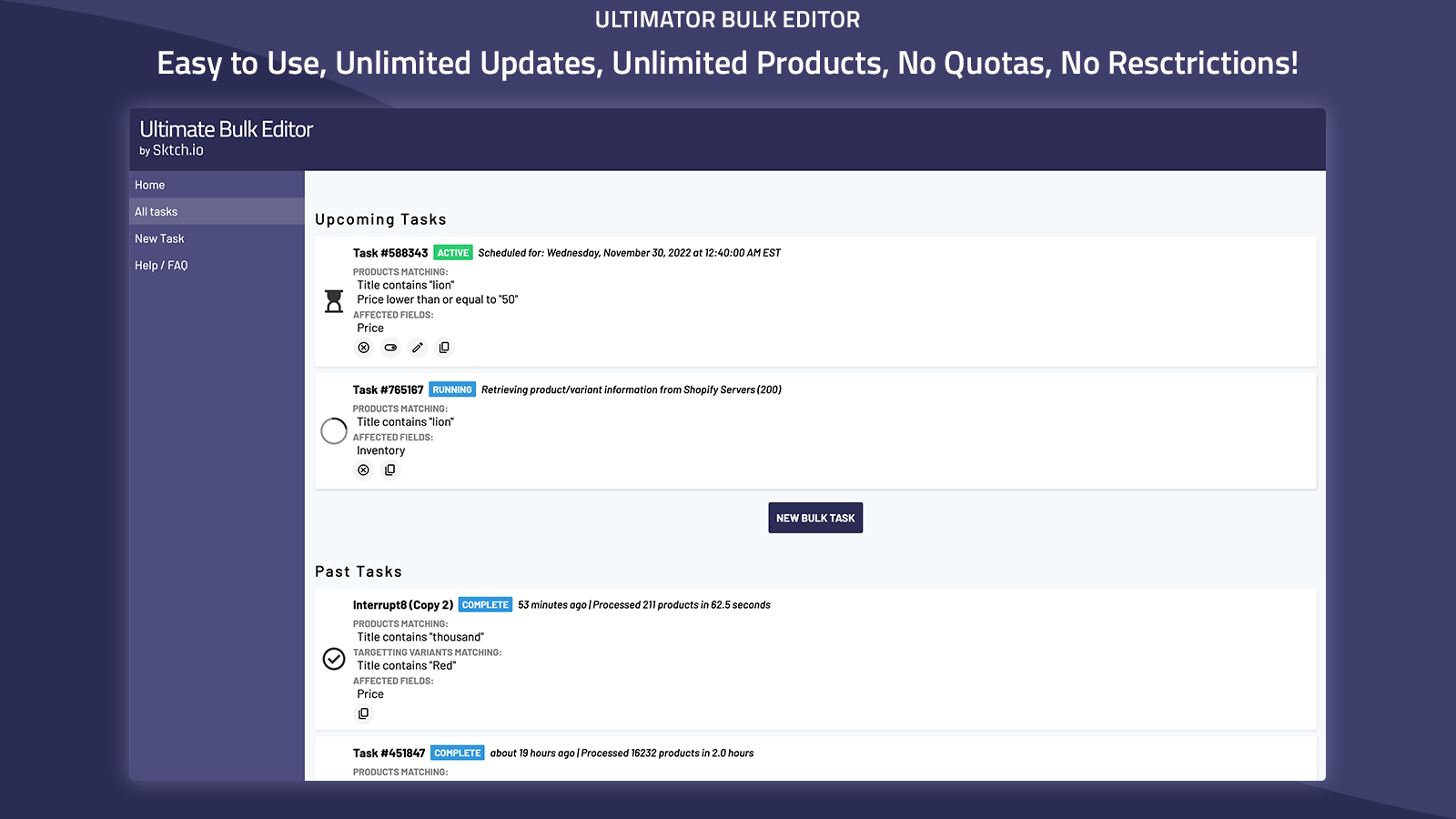
I reach for Ultimator Bulk Editor when a Shopify catalog starts getting too large to change by hand. It is the kind of app you want when the job is repetitive but still risky: price updates, inventory cleanup, SEO field tweaks, vendor renames, or a variant correction that would take forever one product at a time. The Shopify App Store listing and the product site both make the same point: you can bulk edit products and variants, then run the task instantly or schedule it for later.
That matters because bulk editing is not just about speed. It is about controlling scope. The safest workflow is to decide exactly which products you want to touch, choose the smallest possible update, and verify the result before you let a larger batch run. That is the pattern I would use even if the catalog had unlimited products and no quota pressure.
1. Start With A Narrow Filter
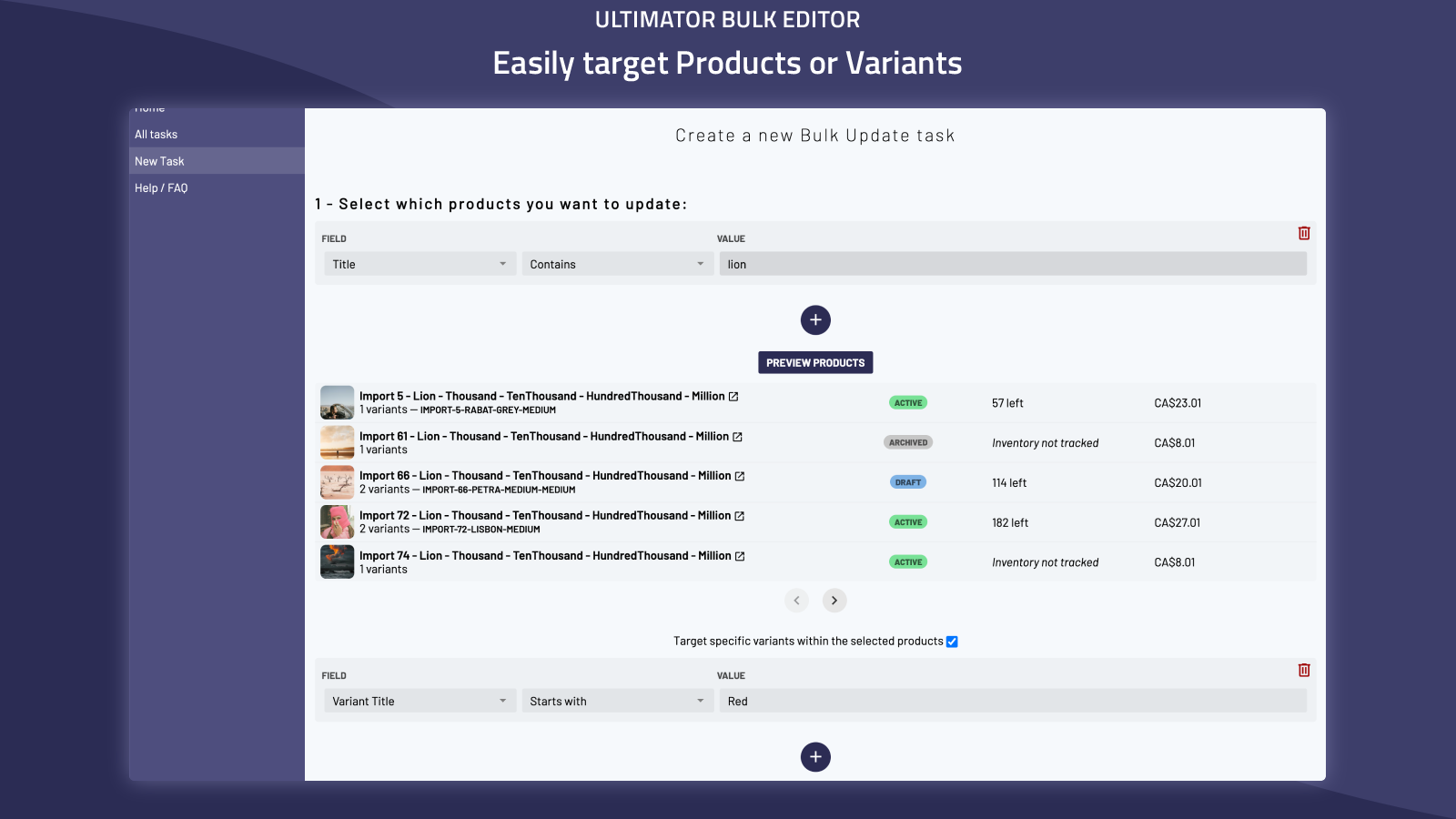
Do not begin with the whole catalog. Start with one clean slice: a vendor, a collection, a product type, a tag, or a sale collection that already has a business reason behind it. If you are cleaning up a launch collection, for example, keep the scope limited to that campaign instead of every active product.
The expected result here is simple: you know which rows are in the batch before you change anything. That keeps a bad search from turning into a bad edit.
A good filter usually answers three questions:
- Which products or variants should change?
- What is the business reason for the change?
- What would be expensive to undo if I missed something?
If you cannot answer those cleanly, the batch is too broad.
2. Separate Product-Level Changes From Variant-Level Changes
Ultimator Bulk Editor can touch a lot of Shopify fields, but not every change belongs at the same level. Product edits and variant edits solve different problems, so I treat them separately.
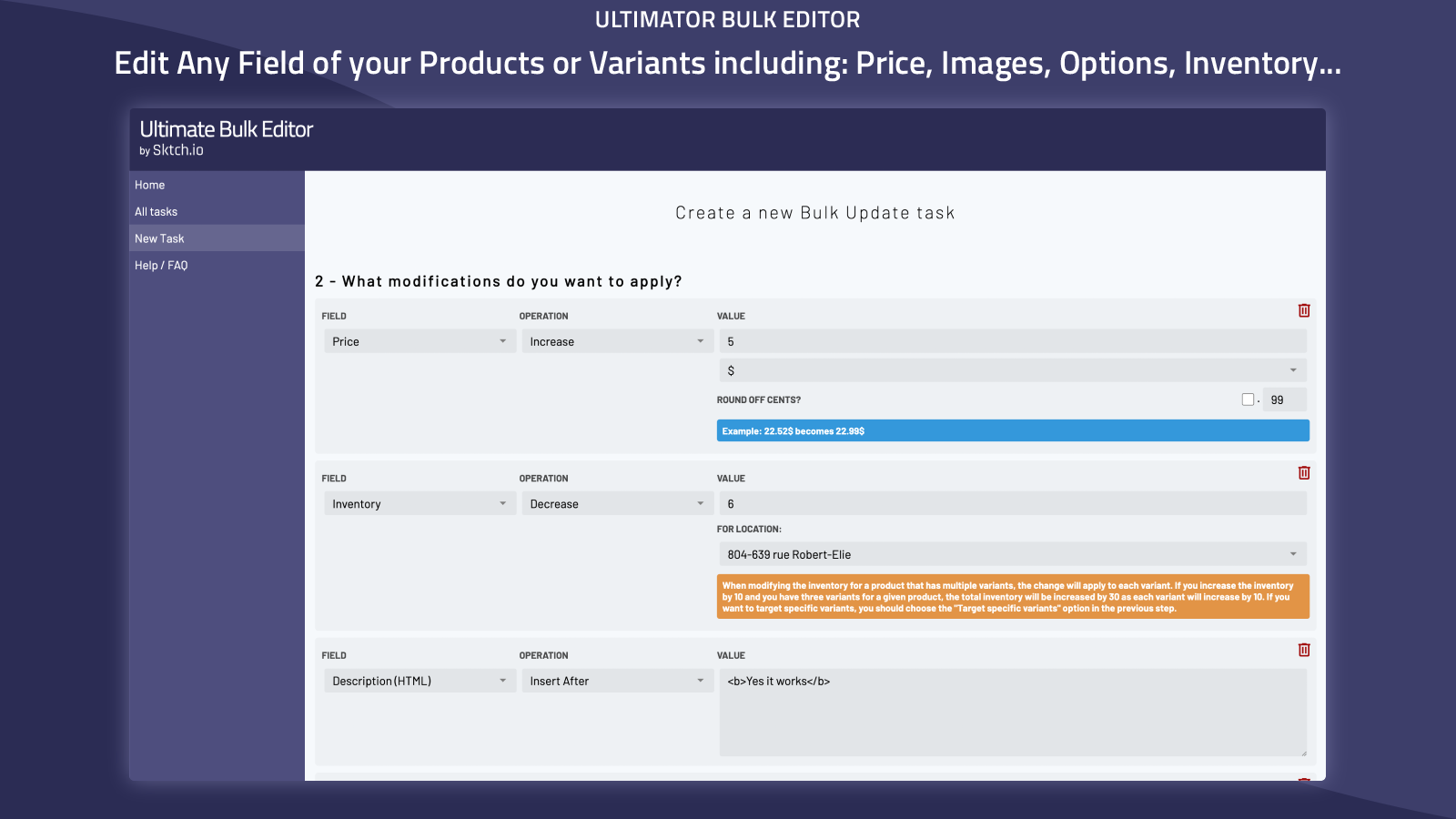
For products, the app can update title, handle, description, tags, price, compare at price, inventory, product type, SKU, vendor, status, theme template, collections, images, options, metafields, SEO title, and SEO description. For variants, it can update price, compare at price, inventory, track inventory, SKU, weight, barcode, tax code, taxable, requires shipping, option 1, option 2, option 3, metafields, and even delete a variant.
That split matters because a product title change affects how the item appears everywhere, while a variant price change may only touch one color or size. The expected result after this step is that you know whether the job belongs to the whole product row or just the variant rows.
I also like that the title fields support search and replace, prepend, and append operations, while price changes can be set directly or adjusted by amount or percentage. That makes the app useful for both cleanup and promotional changes.
3. Choose The Least Destructive Edit First
If the change can be expressed as an append, prepend, or search and replace, start there instead of rewriting the whole value. If you are changing prices, use the smallest safe percentage or amount before you scale the batch. If you are touching SEO fields, check the output in one product first so you do not accidentally turn clean metadata into nonsense.
This is where bulk editing becomes an operational habit instead of a panic button. The app can do a lot, but the best workflow is still conservative by default.
For example, if you are marking down a seasonal collection, you can change the compare at price and then lower the price in one pass. If you are cleaning vendor names, search and replace is usually safer than hand-editing titles across the board.
The expected result is a batch that changes only the intended field and leaves the rest of the catalog untouched.
4. Run One Small Batch Before You Scale Up
I would never use the first run as the final run. Test on a tiny slice first, then inspect the results in Shopify Admin. Check the visible fields, the variant data, and anything downstream that depends on the edit, like filters, collections, or search results.
That test batch should be small enough that you can verify it by eye in a minute or two. If it looks right, expand the scope. If it does not, fix the mapping before the larger batch runs.
This is especially important when you are changing handles, collections, images, options, or deleting variants. Those edits can ripple into navigation, links, and storefront behavior faster than a simple price update.
5. Schedule The Change When Timing Matters
One of the best parts of Ultimator Bulk Editor is that you can run a task instantly or schedule it for later. I would use scheduling any time the change has a launch window, a sale start time, or a catalog sync deadline.
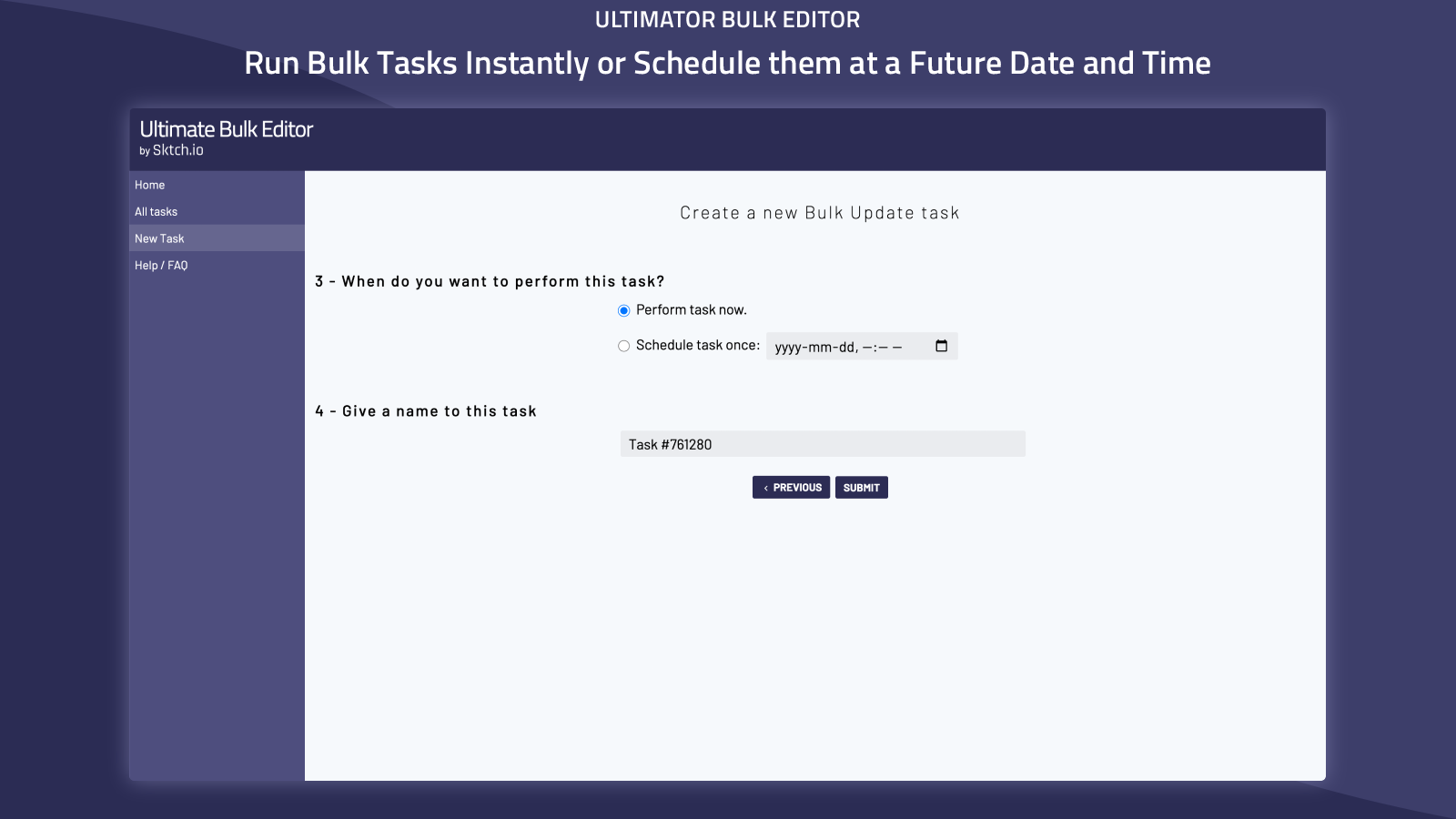
That is the clean way to handle time-sensitive work:
- Schedule the price change before the promotion starts.
- Schedule inventory cleanup after a vendor feed lands.
- Schedule metadata updates when you are not actively merchandising the same collection.
The expected result is that the edit happens at the right moment without you babysitting the store.
6. Review The Storefront, Not Just The Task Output
A successful bulk task is not finished just because the app says it ran. I still check the storefront and the admin after the batch finishes. Look at the product page, the collection page, and any filters or sort orders that depend on the updated fields.
If you changed SEO title or SEO description, confirm the metadata reads naturally. If you changed product type or vendor, make sure the filter logic still makes sense. If you touched variants, confirm the options still line up with what the customer sees.
That review pass is where you catch the annoying edge cases: a renamed option that no longer matches a theme selector, a price edit that rounded in an unexpected way, or a variant delete that broke a merchandising rule.
7. Keep A Repeatable Maintenance Loop
The real payoff comes when bulk editing becomes part of your store maintenance rhythm. A weekly cleanup pass, a monthly vendor pass, or a seasonal pricing sweep is a much better use of the app than waiting until the catalog is a mess.
If you run the same kind of task often, document the filter you used, the fields you touched, and the expected result. That makes the next run faster and safer.
Related guides if you are working through the same Shopify maintenance loop:
- How to Add Color Swatches to Shopify Collection Pages Without Code
- How to Turn Shopify Variants Into Brand-Matched Swatches
- How to Build a Product-Aware Shopify Blog Workflow That Publishes on Schedule
- How to Create UGC-Style Shopify Product Videos Without a Shoot
Conclusion
If you need to edit Shopify products and variants in bulk, the safest path is to narrow the filter, separate product-level changes from variant-level changes, test a small batch, and only then scale up. Ultimator Bulk Editor is built for that kind of work, especially when the catalog is large and the task has to be fast, repeatable, and accurate.
If you want to try it, start with the Ultimator Bulk Editor site or jump straight to the Shopify App Store listing and run one small maintenance task this week.