
May 19, 2026
How to Export a Squarespace Site to HTML and Host It Yourself
Export a Squarespace site to static HTML with ExFlow, then choose a simple hosting path that fits your workflow.

Squarespace is a good way to launch a polished site quickly, but it is not always the best end state if you want a local copy, more control over hosting, or a simpler path to long-term ownership. If you want to move a Squarespace site into static files, ExFlow gives you a direct route: paste the site URL, choose what to export, and download a bundle of HTML, CSS, JavaScript, images, and pages.
In practice, that means you can keep the design you already built, host it somewhere cheaper or more flexible, and still preserve the structure of the site. If the goal is to export a Squarespace site and host it yourself, this is the workflow I would follow.

What you will do in this guide: connect ExFlow to a Squarespace URL, choose a complete export scope, verify the downloaded files, and pick a hosting target that matches the way you work.
- Enter the Squarespace site URL in ExFlow.
- Choose the export settings you actually need.
- Download the generated static files and inspect the bundle.
- Host the export on ExFlow, S3, Git, or FTP.
- Check links, media, and custom code before you switch traffic.
1. Start with the Squarespace site URL
Open ExFlow.site and enter the Squarespace domain you want to export. If the site is password protected, make sure you have the password ready and only work with a site you control.
Expected result: ExFlow recognizes the site and prepares an export job instead of stopping at the first page fetch.
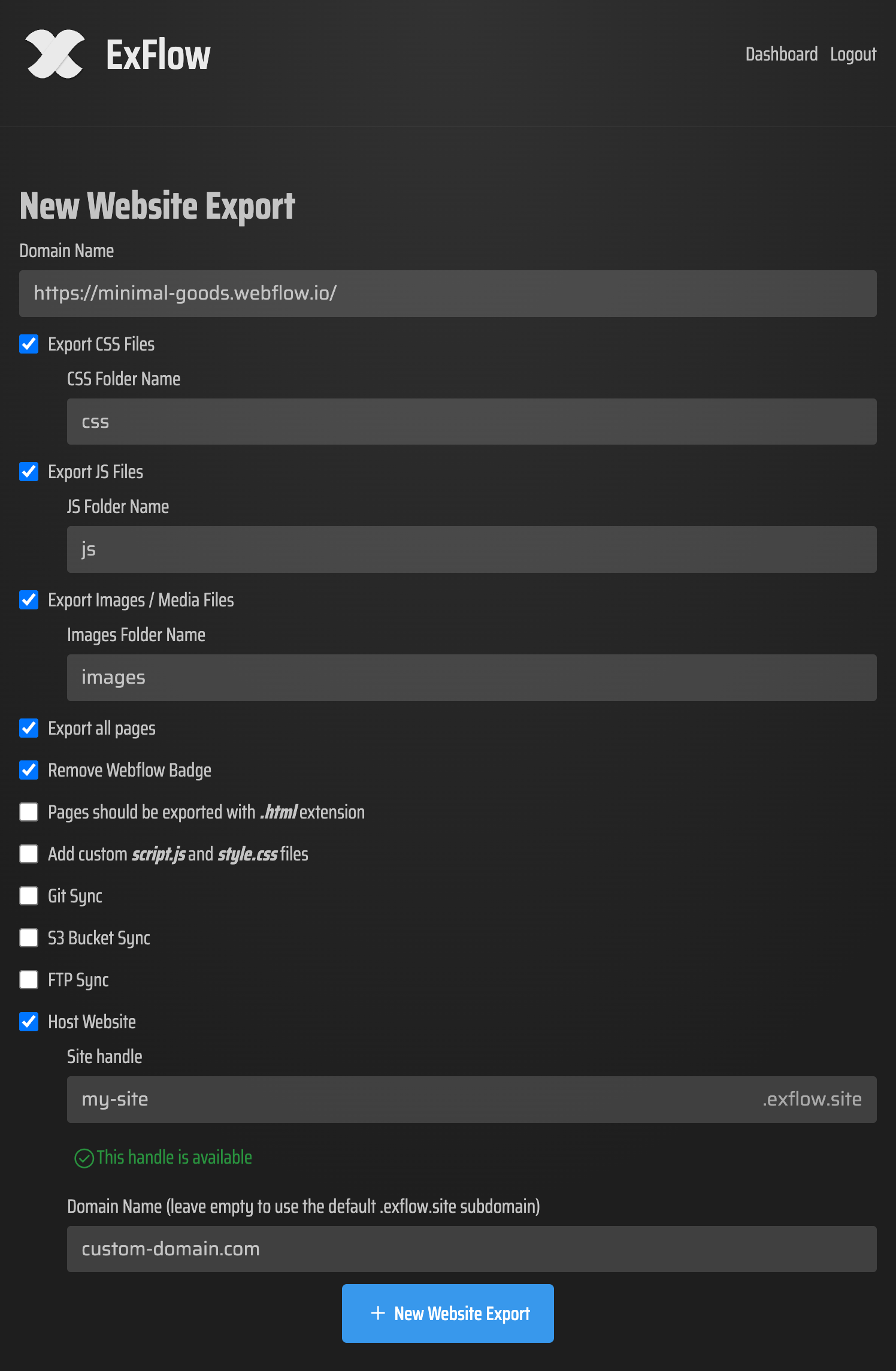
2. Choose the export scope carefully
This is the step that usually decides whether a static export feels complete or broken. For most Squarespace sites, I would enable CSS files, JavaScript files, images and media files, and export all pages. If the site needs additional custom code, add your own style.css and script.js as part of the workflow.

Expected result: the exported bundle includes the assets your pages need, not just the page HTML.
3. Export and inspect the files
When the export finishes, check that the pages are saved with the .html extension and that the asset folders contain the CSS, JavaScript, images, and media files you expected. I usually spot-check the homepage, one content page, and any page with embedded media or custom interactions.
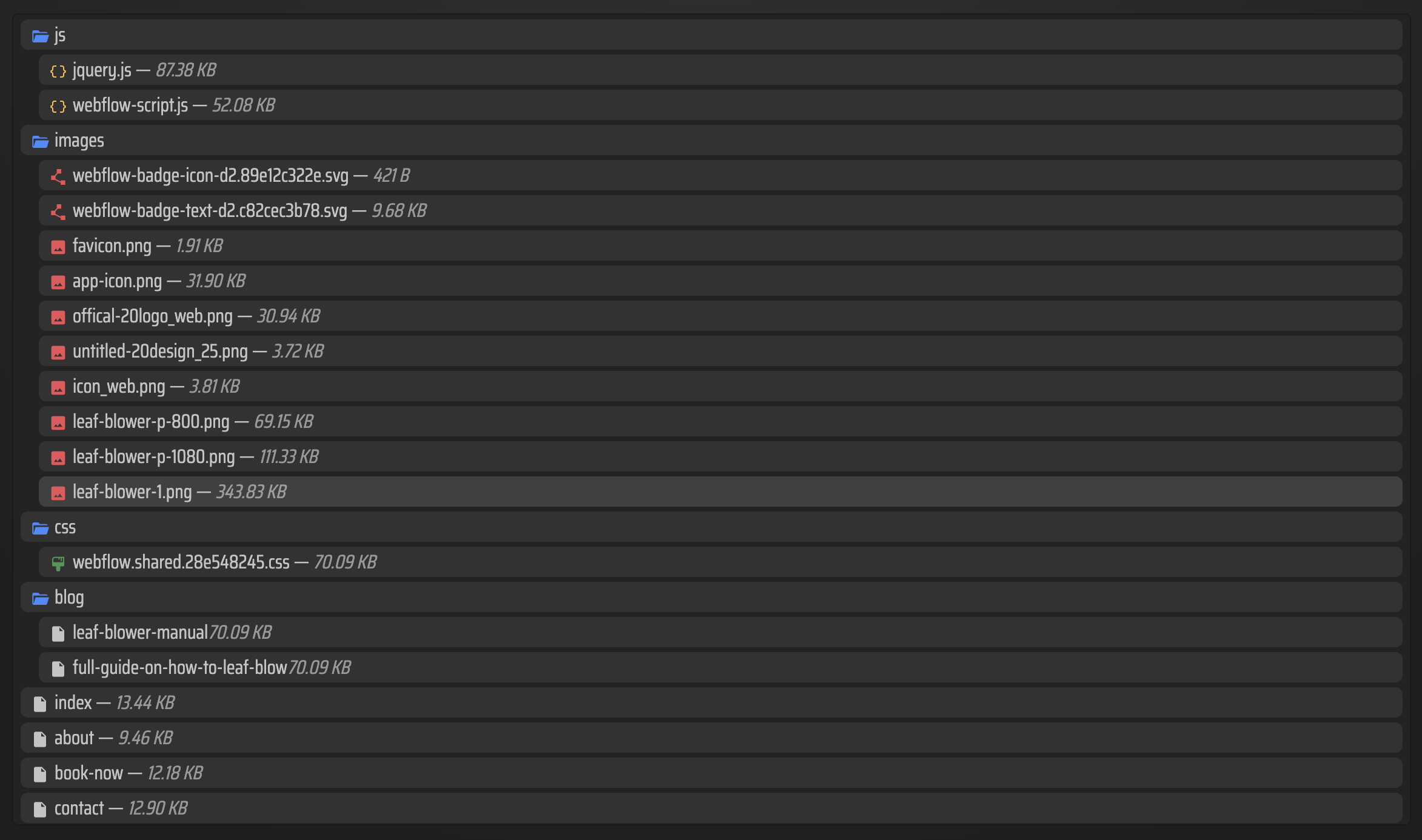
- Open a few pages locally and confirm the layout still renders.
- Check that images load from the exported asset path.
- Make sure internal links point to the exported pages, not the original Squarespace URLs.
- Verify that any custom code still behaves after export.
Expected result: you can open the downloaded site locally without obvious missing asset warnings.
4. Pick a hosting path
Once the export is clean, decide where the static files should live. ExFlow can host the site for you, or you can sync the export to S3, Git, or FTP if you already have infrastructure in place.

- ExFlow hosting: the fastest option when you want the exported site online quickly.
- Amazon S3: a good fit when you want simple object storage for a static site.
- Git sync: useful if you want version control and a deployment pipeline.
- FTP sync: practical when you already manage a traditional web server.
Expected result: your static files are available from a public URL that serves the exported root correctly.
5. Do a final link and asset check
Before you point real traffic at the exported site, click through the main pages, inspect the image paths, and confirm that any custom stylesheet or script still behaves as expected. The last 10 percent is where broken relative paths or missing media usually show up.
If you are comparing export workflows, these related guides are useful: How to Export a Webflow Site to Static HTML with ExFlow, How to Download a Webflow Site and Host It Yourself with ExFlow, Webflow CMS to HTML: A Practical Export and Self-Hosting Checklist, and How to Export a Framer Site and Host It Yourself with ExFlow.
Common pitfalls
- Missing media: enable image and media export, then run the export again.
- Broken internal links: export all pages, not just the homepage.
- Missing styles or scripts: include CSS, JS, and custom files if the site depends on them.
- Password-protected pages failing: confirm the site credentials and access rights before you export.
Bottom line
If you want more control over a Squarespace site without rebuilding it from scratch, exporting to static HTML is the cleanest first move. ExFlow keeps the process simple: paste the URL, choose the files you want, export, and host the result wherever it fits your workflow.
Try one export on a smaller Squarespace site first, then decide whether ExFlow hosting, S3, Git, or FTP is the best long-term setup.