
June 7, 2026
How to Bulk Edit Shopify Products Safely With Search, Scheduling, and Field-Level Changes
A step-by-step way to update Shopify products and variants in bulk without losing control of scope, fields, or timing.

If you need to update titles, prices, tags, inventory, metafields, or variant fields across a Shopify catalog, the safest approach is to narrow the target set first, define one clear operation per field, and then run or schedule the change in Ultimator Bulk Editor.
That is the workflow I would use if I had to protect a live store and still move quickly. It is also a better fit than one-off spreadsheet edits when you expect to repeat the same kind of catalog change later.
If you want the companion version of this workflow, How I Bulk Edit Shopify Products Without Breaking Variants is the closest adjacent read.
What You Will Do
- Set search criteria so only the right products or variants are affected.
- Define the exact update for each field type.
- Choose whether to run the task immediately or schedule it for later.
- Verify the result and keep the next batch smaller if anything looks off.

1. Set The Search Criteria First
The first job is not editing. It is selecting the right rows.
In Ultimator Bulk Editor, create a new bulk update task and use the search criteria to decide which products or variants should be included. Keep the first batch narrow. I usually start with one of these filters:
- A product tag that clearly identifies the catalog segment.
- A vendor or product type that groups similar items.
- A collection that already matches the change I want to make.
- A status or inventory slice when the change is operational rather than cosmetic.
The expected result is simple: the task should only include the items you intended, with no accidental spillover into unrelated products.
If you want a more filter-focused walkthrough, How to Bulk Edit Shopify Products and Variants With Filters, Preview, and Scheduling stays close to the same problem, just with a different angle.
2. Pick One Field Family At A Time
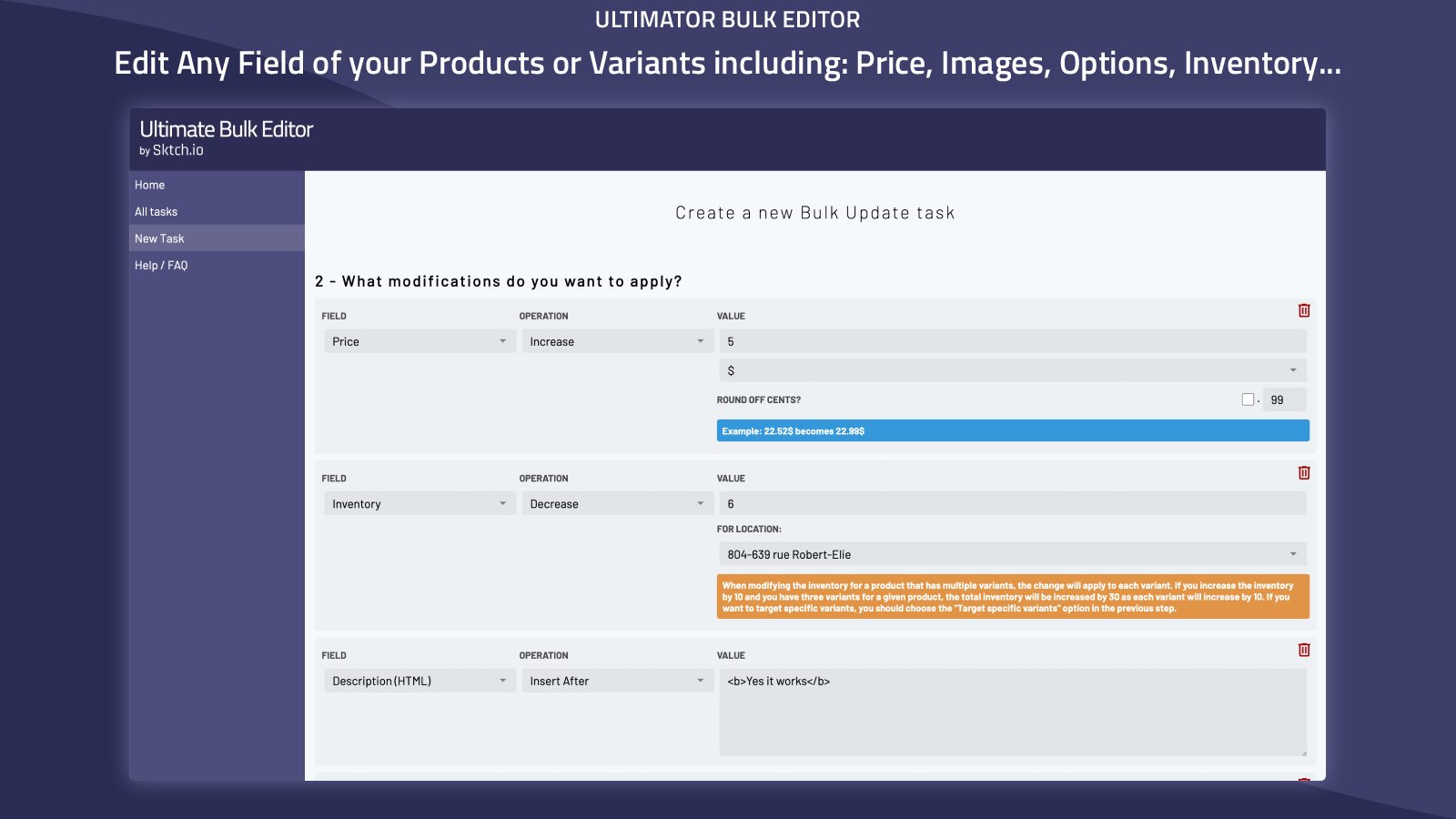
Once the target set is correct, define the update. The product file says Ultimator Bulk Editor can edit a large range of product and variant fields, including:
- Product title, handle, description HTML, tags, price, compare at price, inventory, product type, SKU, vendor, status, theme template, collections, images, options, metafields, SEO title, and SEO description.
- Variant price, compare at price, inventory, track inventory, SKU, weight, barcode, tax code, taxable, requires shipping, option values, metafields, and even variant deletion.
The expected result here is a task that does one thing well instead of mixing unrelated changes into a single run.
For title changes, the app supports setting a new value, appending text, prepending text, and search/replace. For price changes, it supports setting a value, increasing or decreasing by amount or percentage, and rounding cents. Those field-specific operations matter because they let you apply the right kind of change without rebuilding the whole catalog by hand.
3. Keep The First Run Small
The safest way to use a bulk editor is to treat the first run like a test batch.
Start with a small set of products or a single catalog segment. Make the change, then check the storefront and admin record after the task finishes. If the task is about pricing, confirm the exact prices. If it is about inventory, check the affected variants. If it is about SEO fields or descriptions, make sure the content renders the way you expect.
That is the point where many stores save time: they do not need to re-edit the same rows over and over. They just need a reliable way to apply a controlled change to a controlled set of items.
If your catalog cleanup includes imagery too, How I Keep Shopify Product Photos Consistent Across Your Catalog is a useful side read because image changes deserve the same level of scoping.
4. Decide Whether To Run Now Or Schedule It
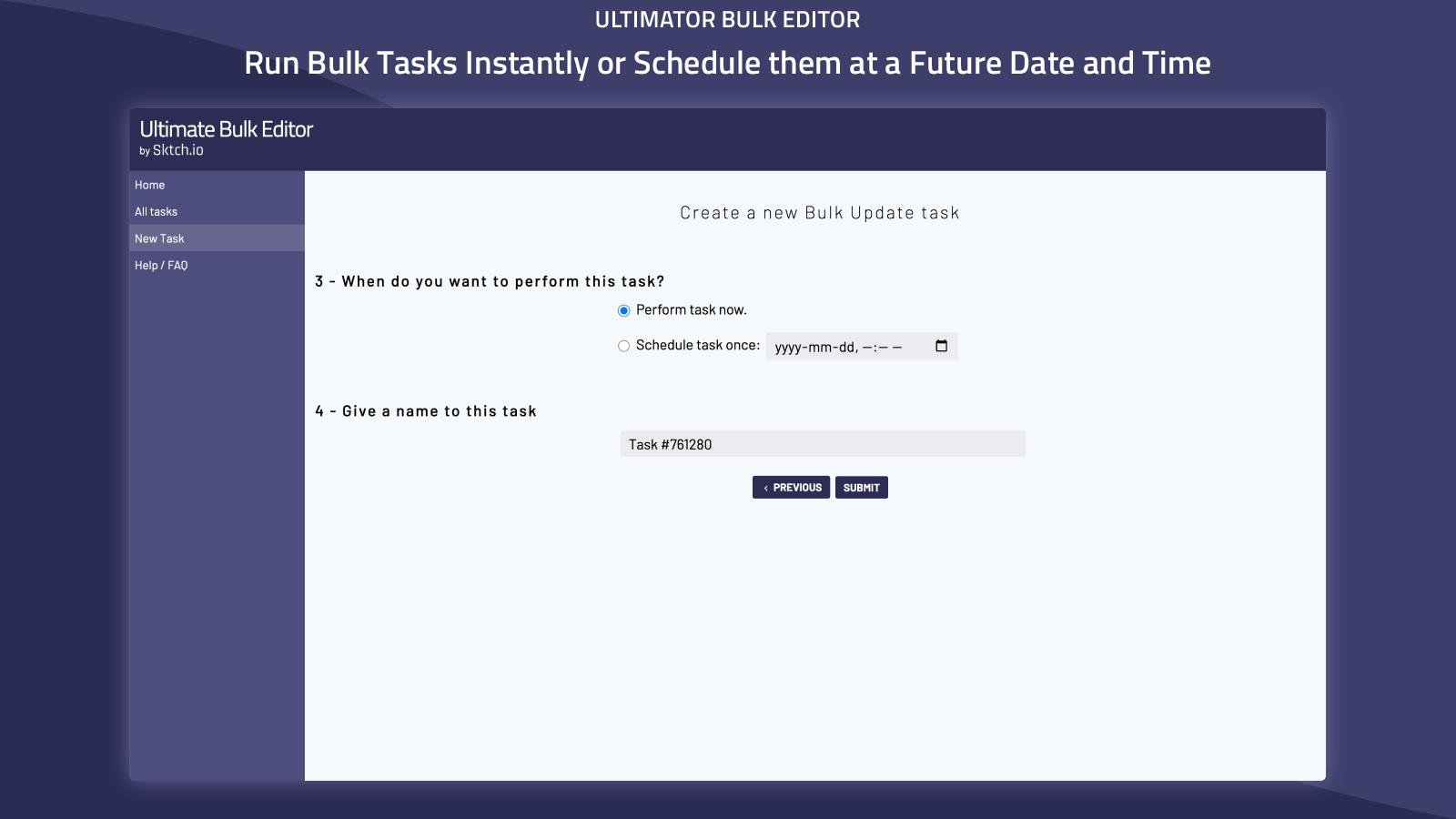
Ultimator Bulk Editor lets you run the bulk update instantly or schedule it for a future time.
That choice is more important than it sounds:
- Run instantly when the change is urgent and the catalog window is quiet.
- Schedule it when you want the edit to land during a low-traffic period, a sale window, or a planned launch.
The expected result is that you control the timing instead of letting the change happen in the middle of a busy sales day.
If timing matters, How to Schedule Bulk Shopify Catalog Changes Without Breaking Variants is the most direct follow-up.

5. Watch For The Usual Mistakes
Most bulk-edit problems are not technical. They are scoping mistakes.
The common ones are:
- Targeting too many products because the search criteria were too broad.
- Mixing product and variant changes in the same task when the outcome needs to be separate.
- Changing pricing logic without checking how the rounding should behave.
- Updating images or descriptions in the same pass as inventory changes, which makes troubleshooting harder.
If you keep the task narrow, each run is easier to reason about and easier to undo mentally if you need to correct the next batch.
6. Use The No-Quota Angle To Your Advantage
One of the strongest practical advantages in the product notes is that Ultimator Bulk Editor supports unlimited products with no quotas or restrictions.
That means you can build a repeatable operating pattern:
- Create a task template for a common change type.
- Reuse the same search logic for the next batch.
- Apply the same field-level operation again when the catalog needs a similar update.
The expected result is less manual work over time, not just a one-time cleanup.
The Short Version
If you want to bulk edit Shopify products safely, do not start with the edit. Start with the scope, then choose a single field family, then decide whether the task should run now or later. That sequence keeps catalog changes predictable and much easier to verify.
If you want to try the workflow yourself, start with the Ultimator Bulk Editor Shopify App Store listing or the app site. The free trial or first small batch is enough to prove whether the task setup matches your store before you scale it up.