
June 20, 2026
How to Download a Squarespace Site and Move It to GitHub Pages
Export Squarespace to static HTML with ExFlow, keep assets intact, and publish the result on GitHub Pages.

If your Squarespace site is already working, the hard part is usually not design. It is ownership. At some point you may want the files in Git, a static host you control, or a deployment path that does not depend on the editor forever.
ExFlow is built for that migration path. It exports Squarespace sites into static HTML, CSS, JavaScript, images, and media, and it can also sync the result to Git, S3, or FTP, or host the site itself. This guide shows the GitHub Pages version of that workflow.
1. Start With The Right Export Scope
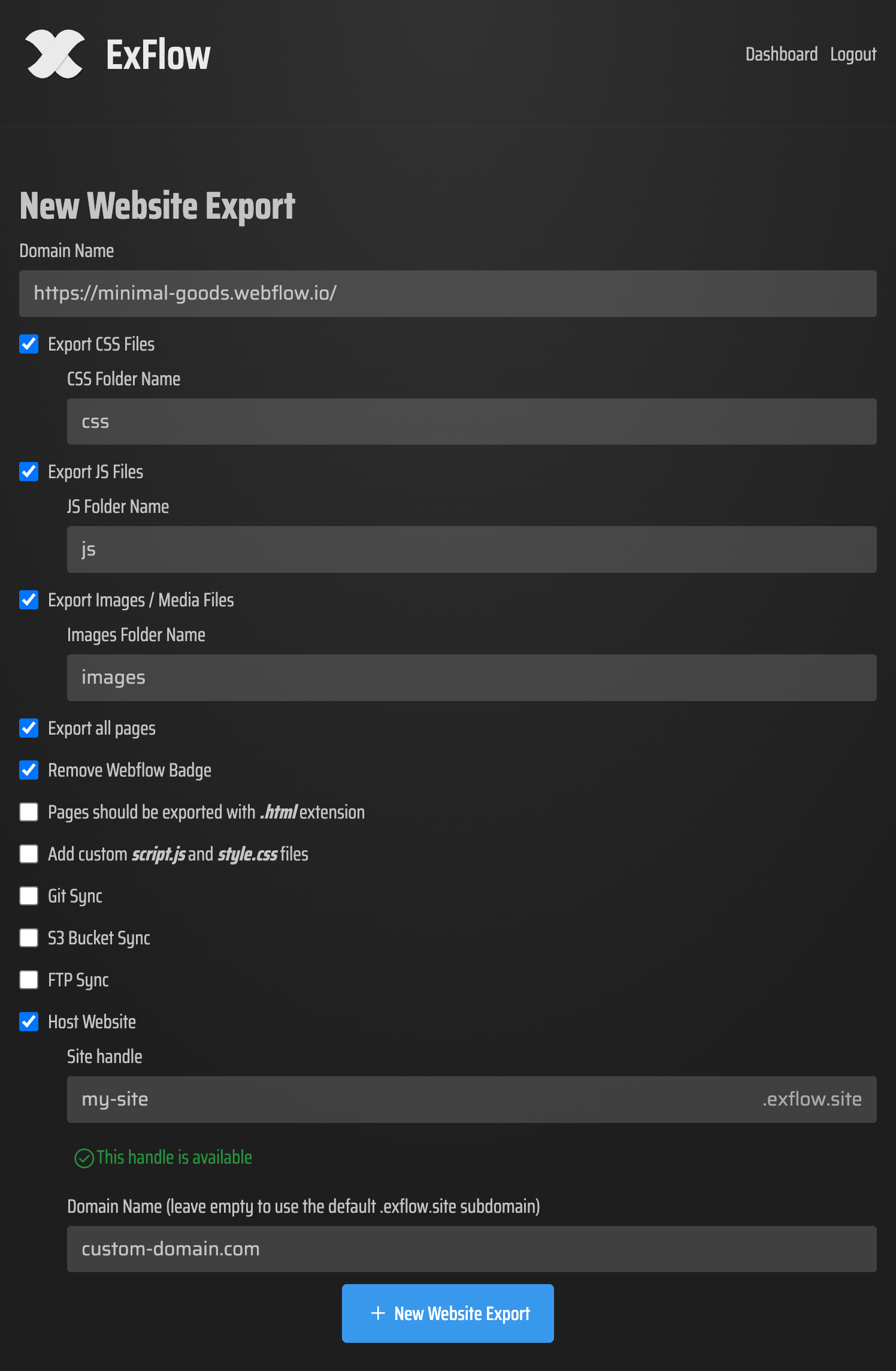
Open ExFlow.site and paste the Squarespace URL you want to export. Then choose the settings that match a real static site:
- URL
- Export CSS Files
- Export JS Files
- Export Images / Media Files
- Export All Pages
If you need site-specific front-end behavior, add custom script.js and style.css files too. ExFlow also supports Sync Git, Sync S3, Sync FTP, Hosting Status, and unlimited bandwidth on the hosting side, so you can decide whether this export is only a download or also a deployment workflow. Expected result: you know exactly what will be preserved before the export starts.

2. Make Sure The Export Is Complete
A Squarespace export is only useful if it behaves like a site after you download it. If you leave out CSS, JS, or media, the pages may still open but they will not match what visitors saw in the browser. ExFlow’s Export All Pages option matters because it keeps the static structure intact across the whole site, not just the homepage.
If the source site is password-protected, ExFlow can still access it when the owner provides the password. That is useful during migration, but you should still verify the exported pages after the first run.
Expected result: the export includes the pages and assets you actually need, not only the visible shell.
3. Inspect The Files Before You Publish
After the export completes, check the bundle before you push it anywhere. You should see .html pages plus separate CSS, JS, image, and media files. That layout is what makes the site portable. If you are planning to host from GitHub Pages, this is the point where you confirm that internal links resolve to local paths instead of a Squarespace-only URL.

Expected result: a static directory tree you can commit to a repo without manual reconstruction.
4. Connect The Export To GitHub Pages
For GitHub Pages, the cleanest path is to use ExFlow’s Git sync. Once the export is in a repository, GitHub Pages can publish that repository as a static site. If your workflow is better suited to another host, ExFlow also supports S3 and FTP sync, and it can host the site directly on its own servers.
Some ExFlow capabilities depend on the plan you choose, so pick one that matches the number of sites, exports, pages per export, export size, and deployment features you actually need. The useful question is not whether the export can run once, but whether you can redeploy the same file set later without rebuilding it. Git sync is what makes that possible.

Expected result: your exported site is now a versioned static site, not a one-off zip file.
5. Keep Custom Code Small And Deliberate
If the site depends on custom behavior, keep the additions limited to script.js and style.css so the export stays maintainable. That is the main advantage of exporting Squarespace instead of recreating the site by hand: you keep the original structure, but you still get files you can version, review, and move.
If you want adjacent migration patterns, these posts are worth comparing with this one: How to Self-Host a Squarespace Site on GitHub Pages Without Rebuilding It, How to Export a Framer Site to GitHub Pages Without Rebuilding It, How I Turn a Squarespace Site Into HTML Without Rebuilding It, and How I Export Webflow Sites to Static Hosting, Git, or FTP. The common thread is the same: export once, keep the site portable.
Expected result: you only keep the custom code you can justify.
6. Publish, Then Verify The Pages And Asset Paths
Before you treat the migration as done, open a few key pages and check:
- The homepage loads with the right styles
- Internal links resolve to
.htmlpages - Images load from the exported asset paths
- Any custom script still behaves the same way
If something breaks, fix it in the export settings before you touch the live site again. That is usually faster than patching a broken migration after the fact.
If you want the shortest path, start with one page export, confirm the file structure, and only then move the rest of the site. That gives you a safe checkpoint before you commit to the full cutover. ExFlow is the part that makes that checkpoint practical.
If your goal is to move off Squarespace, start at ExFlow.site, export one page, and verify the output before you flip the whole site. That is the smallest safe step, and it tells you quickly whether the migration path is viable.