
June 24, 2026
How to Prepare Etsy Listings Before a Bulk Edit
A practical workflow for scoping, selecting, and checking Etsy listings before you run a bulk edit.

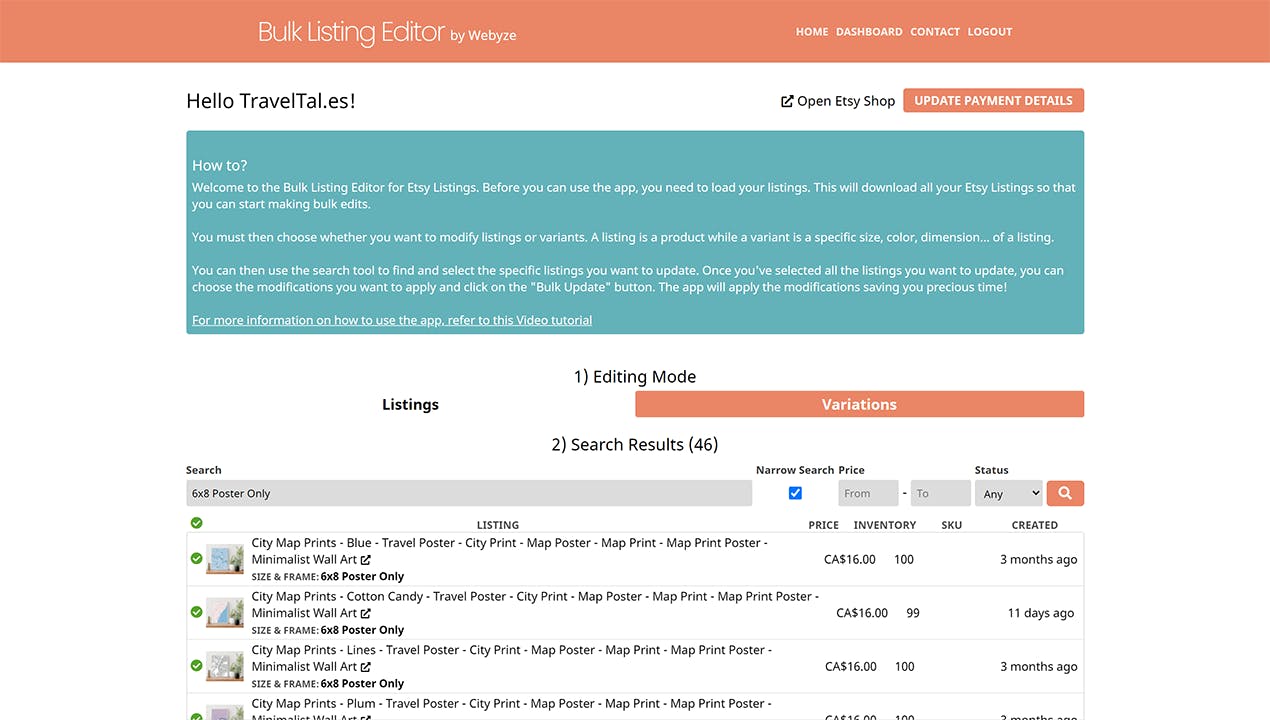
If you want to clean up Etsy listings in bulk, the safest workflow is to separate listing-level changes from variation-level changes, narrow the target set, and then apply one clear edit at a time in Bulk Listing Editor. The app is built for that kind of work: search for the listings or variations you want, select the exact rows, specify the modification, and run the bulk edit.
I use this approach when a catalog has drifted enough that manual edits would be slower and easier to mess up. Bulk editing helps most when the change is repetitive and the scope is clear. It helps least when one listing needs a one-off rewrite.
What You’ll Do
- Decide whether the change belongs at the listing level or the variation level.
- Narrow the batch so only the right listings are included.
- Apply one field family at a time instead of stacking unrelated edits.
- Verify the result in Etsy before repeating the same change on the next batch.
1. Separate Listings From Variations First
Bulk Listing Editor has two modes for a reason. Listings are your Etsy products. Variations are the options inside those products, such as colors, sizes, and other variant choices.
Use Listings mode when you need to change product-level fields like titles, descriptions, tags, materials, personalization settings, images, inventory, or SKUs. Use Variations mode when the change belongs inside the option set, such as variation names, variation options, or variant-specific prices and inventory.
The expected result is simple: you know which layer you are editing before you touch anything.

If you are still deciding whether a change should be bulked or edited manually, When to Bulk Edit Etsy Listings and When to Edit Manually is the right companion read.
2. Narrow The Batch Before You Change Any Values
The safest bulk edit starts with a very small search. Use the app’s search step to isolate the listings or variations you actually want to touch. Keep the first batch tight enough that you could verify it by hand if you had to.
That usually means filtering by a product line, a listing group, or another catalog segment that already makes sense to you. The point is not to process the whole shop at once. The point is to make sure the edit only reaches the items you intended.
Expected result: the selection list shows only the listings or variations that belong in this run.

The dashboard view is a good reminder of how the workflow is supposed to feel: search first, then select, then apply one change.
3. Specify One Change Family At A Time
Once the scope is right, choose the actual change. The product notes say the app can handle a long list of edits, including:
- Adding, renaming, or removing variations
- Adjusting prices
- Adding or removing tags or materials
- Changing titles and descriptions, including search and replace
- Adjusting personalization settings
- Uploading, reordering, or removing images
- Adjusting inventory
- Changing SKUs
That is a lot of power, which is exactly why the safest way to use it is to keep each run narrow. Do titles in one pass. Do price changes in another. Do image cleanup separately from inventory work.
Expected result: one run produces one predictable kind of change.
If your cleanup is mostly about titles, tags, or option values, How to Bulk Edit Etsy Titles, Tags, and Variations Safely goes deeper on that exact slice.
4. Start With The Smallest Useful Batch
The first real run should feel boring. Pick a small set of listings, apply the edit, and check the result in Etsy before you move on.
I would verify three things after the run:
- The right listings were touched.
- The field changed the way you expected.
- No unrelated listing or variation changed along with it.
That quick check matters more than it sounds like it should. A bulk editor saves time only if the workflow stays trustworthy enough to repeat.

If your batch includes image cleanup or a broader catalog pass, How to Bulk Edit Etsy Listings, Variations, and Images Safely is a useful follow-up.
5. Repeat The Pattern Only After The First Batch Looks Right
Once the first batch is clean, repeat the same pattern on the next group of similar listings. Do not make the second run more ambitious just because the first one went well.
That is the part that keeps a bulk workflow stable over time. A repeatable pattern is better than a heroic cleanup pass. In practice, that means keeping the same search logic, the same field family, and the same verification habit every time.
If you are comparing this workflow with a more manual pass, How to Bulk Edit Etsy Listings Without Spreadsheet Chaos is the closest contrast piece.
6. Use Bulk Editing For Repetition, Not Exceptions
Bulk Listing Editor is a good fit when you are repeating the same kind of change across multiple listings or variants. It is not the best tool for a single unusual listing that needs a custom rewrite or a special case that does not match the rest of the catalog.
That is the decision I would use:
- Use bulk editing when the change is repetitive, scoped, and easy to verify.
- Use manual editing when the listing is an exception.
That also keeps you from forcing a messy catalog into a batch workflow it does not deserve. If the decision is still fuzzy, When to Bulk Edit Etsy Listings and When to Edit Manually gives you a cleaner rule of thumb.
The Practical Default
If I were starting from scratch, I would use this order:
- Decide whether the work belongs to Listings mode or Variations mode.
- Search for a very narrow batch.
- Apply one field family at a time.
- Verify the first run before doing the next batch.
- Keep manual edits for exceptions.
That is enough to make a bulk edit workflow feel controlled instead of risky.
If you want to try that workflow on a real catalog, start with Bulk Listing Editor. The app is $8/month and includes a 7-day free trial, so you can test one real cleanup pass before you decide whether it belongs in your regular Etsy routine.