
June 27, 2026
How to Bulk Edit Etsy Listings Before a Sale or Seasonal Refresh
A practical walkthrough for batch editing Etsy listings, variations, prices, tags, and images without repeating the same work listing by listing.

A common Etsy problem is not writing the edit. It is repeating the same edit across every listing. If you are preparing a sale, cleaning up stale tags, changing variations, or reordering images across a cluster of products, Bulk Listing Editor for Etsy gives you a tighter path: search for the items, select the exact rows, and batch the change.
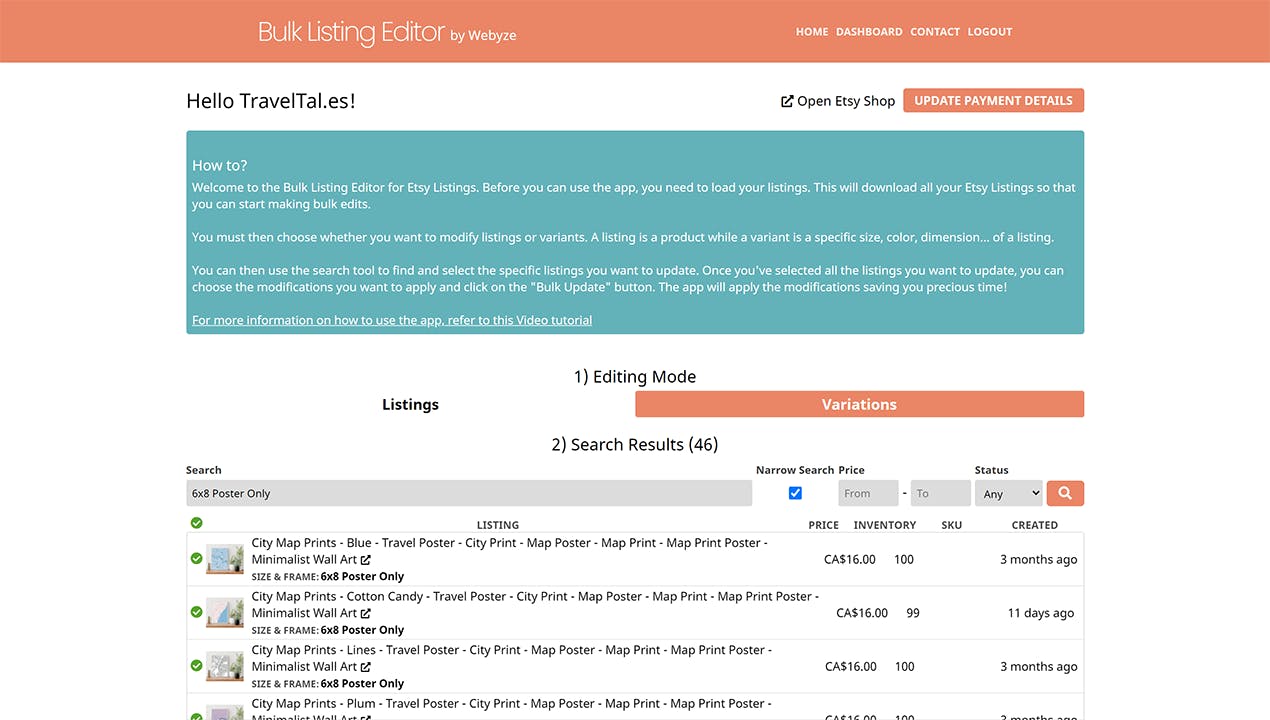
The dashboard keeps the three-step flow visible, which matters when you are moving from search to selection to the actual bulk edit.
1. Decide whether the change belongs in Listings or Variations mode
Start by matching the edit to the right level. Use Listings mode when you want to touch product-level fields such as titles, descriptions, tags, materials, personalization, images, inventory, or SKUs. Use Variations mode when the change belongs to a specific option structure such as size, color, or another listing-level choice.
That split matters because it keeps you from forcing one edit model onto a different problem. If the same price change applies to every version of a product, Listings mode is usually enough. If only a specific size or color needs a different value, Variations mode is the safer place to work.
Expected result: you know whether you are editing the listing as a whole or the options inside it.

The first illustration shows the intended rhythm: search, select, then apply the change. If you keep that order, the app stays predictable.
2. Search for the smallest batch that shares the same change
The fastest batch edit is the one that starts with a narrow search. Look for listings that already belong together: the same collection, the same seasonal drop, the same material family, or the same template. If you are preparing a sale, split the batch by discount logic instead of trying to treat the entire catalog as one group.
A smaller batch is not a compromise. It is how you avoid accidental overlap. If half the catalog needs a price adjustment and the other half needs a tag cleanup, do those as separate passes.
Expected result: the list on screen contains only the items that genuinely share the same edit.
3. Select only the rows that should receive the same change
Once the search is narrow, use the selection checkboxes to isolate the exact listings or variations you want. This is the point where bulk editing either stays efficient or turns into cleanup work later. If the selected set is mixed, split it before you edit.
The safest habit is to ask one question before you continue: would I want every selected row to receive the same final state? If the answer is no, the batch is too broad.

This selection view is the most useful part of the app for keeping scope under control. You can see the selected rows, the list structure, and the edit controls in one place.
Expected result: each selected item shares the same intent, so the bulk edit stays coherent.
4. Specify the modification once and keep the change set simple
Now define the edit one time instead of repeating it listing by listing. The app supports the kinds of changes that usually eat the most time: adding, renaming, or removing variations, adjusting prices, adding or removing tags or materials, changing titles and descriptions with search and replace, adjusting personalization, uploading, reordering, or removing images, updating inventory, and changing SKUs.
For a sale prep workflow, keep the first pass narrow: update the discount-related fields first, then move on to images or copy if those need a separate pass. For a seasonal refresh, it is often cleaner to batch the tags and images separately so you can verify each change set on its own.
Expected result: you have one clear change definition instead of a pile of one-off edits.
5. Use Variations mode when the option structure is the real problem
Variations are where bulk editing becomes either very useful or very risky. If you are adding or removing variation options, changing a size matrix, or adjusting prices for a color-specific option, Variations mode is the right tool. If the listings do not all share the same structure, separate them first.
That is the main rule: do not force mismatched variation trees into one batch. When the option structure is different, the batch is not actually one batch. It is two or three different edits wearing the same label.

This variations view shows why the mode matters: the edit is anchored to options, swatches, prices, and image ordering rather than to the listing as a whole.
Expected result: option-level changes happen cleanly without collateral edits to unrelated listings.
6. Finish with a quick verification pass before you widen the batch
Open one representative listing and confirm that the result matches the intended change. If the first item looks right, check one more item from the same batch. Only then should you widen the scope or move to the next group.
This is the part that saves you from rework. Bulk editing is not only about moving fast. It is about making one correct change and then repeating that correctness across the right items.
Expected result: you know the batch worked before you repeat it on the rest of the catalog.
When to stop batching and edit manually
Bulk editing is best when the same change applies to a coherent group. If you only need to touch one or two listings, manual editing may be faster. If the batch contains different structures, different pricing logic, or different image sequences, split it into smaller passes.
That same decision rule shows up in When to Bulk Edit Etsy Listings and When to Edit Manually, and it is why How to Bulk Edit Etsy Titles, Tags, and Variations Safely works well as a narrower follow-up when your scope is mostly field cleanup.
For a broader catalog-maintenance view, How I Replaced Manual Etsy Uploads With a Live Catalog Feed shows the same logic in a different workflow, and How I Bulk Edit Shopify Products Without Breaking Variants covers the same batching mindset on a different platform.
If you want a screen-by-screen look at the app, the product demo Bulk Listing Editor for Etsy - by Webyze - Quickly edit your etsy listings and variations in bulk matches the same three-step flow.
The practical takeaway is simple: search narrowly, select only the rows that share the same edit, and make the change once. If you want to try that on your own catalog, start with the Bulk Listing Editor for Etsy free trial and run one small batch first. Once the first batch checks out, the rest becomes a repeat of the same process instead of a day of manual clicks.