
July 23, 2026
How to Export a Squarespace Site to Git, S3, or FTP Without Rebuilding It
A practical Squarespace export workflow with ExFlow: choose settings, review files, and sync the static site to Git, S3, or FTP.

If you need to keep the Squarespace design but own the files, ExFlow gives you a direct path out. You enter the site URL, export the pages and assets as static files, and then sync that export to Git, S3, or FTP. That keeps the site portable without forcing a redesign first.
ExFlow is built for Squarespace exports, so the workflow stays focused on the parts that matter: the site URL, the page files, the assets, and the destination you want to host on.
1. Decide What The Export Needs To Include
Start by deciding whether you want a partial export or a full copy. For most migrations and self-hosting projects, you want the complete bundle:
- URL for the Squarespace site you are exporting.
- Export CSS Files so the styling comes across with the pages.
- Export JS Files if the site depends on JavaScript behavior.
- Export Images / Media Files so the visual assets stay intact.
- Export All Pages if you do not want to lose hidden or nested pages.
- script.js and style.css only when you need extra custom code after the export.

The expected result here is simple: you know exactly what ExFlow should pull down before you start syncing anything.
2. Run The Export In ExFlow
Open ExFlow.site, paste in the Squarespace URL, and start the export. ExFlow downloads the site into portable static content instead of leaving it trapped inside the builder.
If the Squarespace site is password-protected, make sure the owner provides the password during the export. That way ExFlow can still fetch the pages it needs.
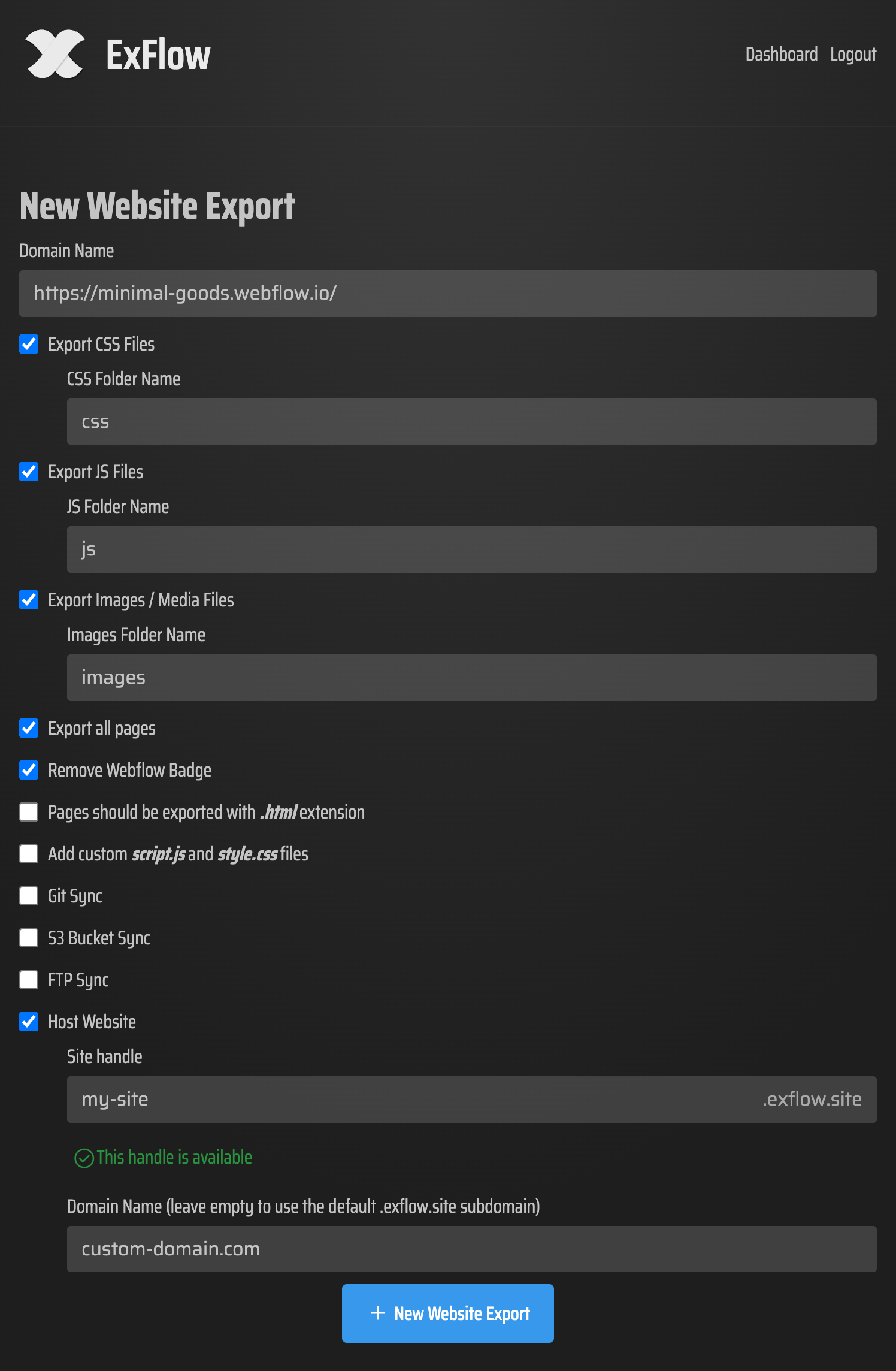
When this step is done, you should have a downloadable site bundle that contains the exported pages and supporting files.
3. Review The Bundle Before You Sync
Do not point the export at a host until you inspect the files first. Open the exported file list and confirm a few basics:
- Each page should be exported with a .html extension.
- CSS, JS, and media files should all be present if you enabled them.
- Internal links should still point to the exported pages.
- Media-heavy pages should still render without missing images.
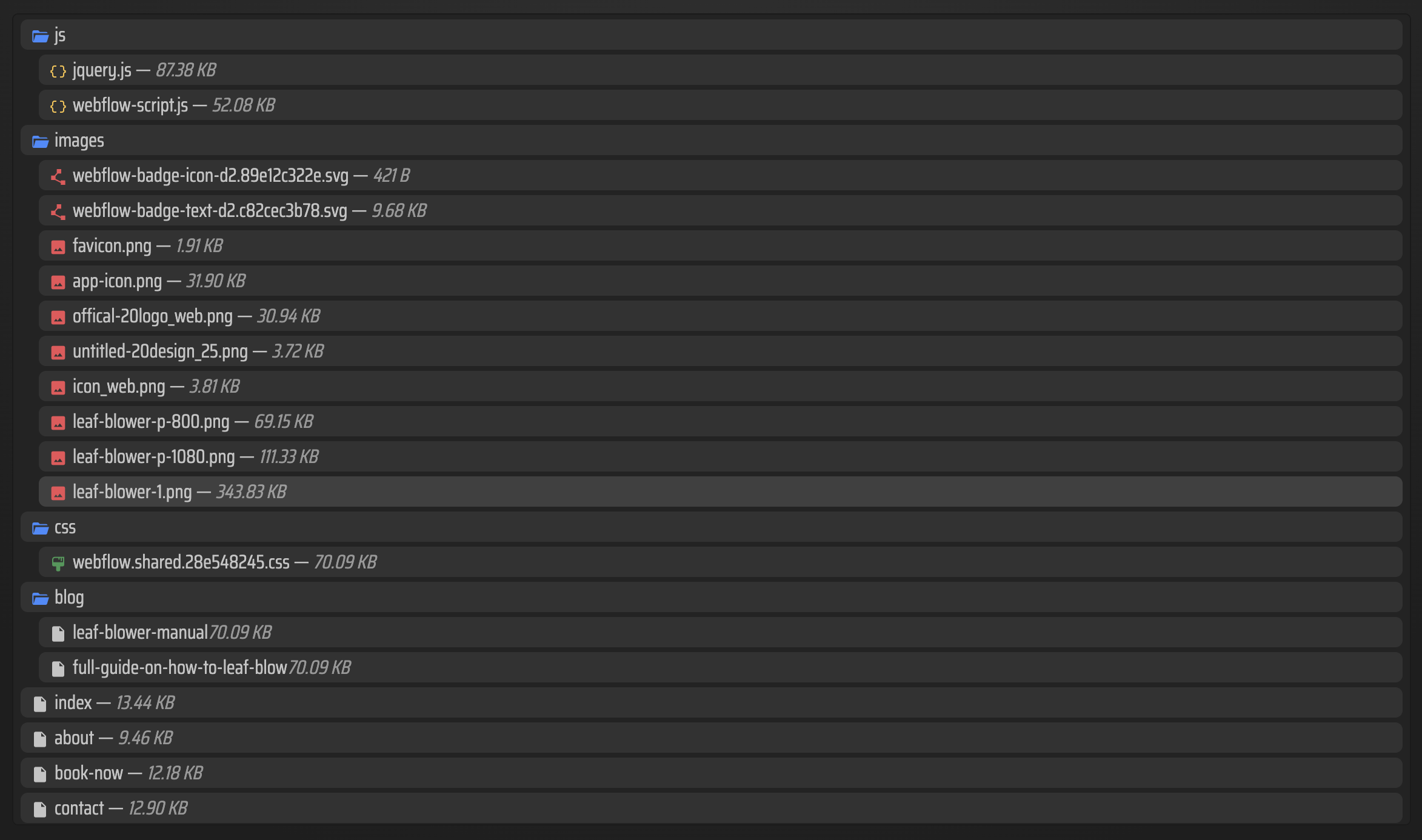
This is the step that catches the annoying problems early. If something is missing now, it is much easier to fix before a sync pushes the same problem to your live host.
4. Pick The Hosting Target That Matches Your Workflow
ExFlow supports a few different destinations, and the right one depends on how you already maintain sites:
- Git Sync works well if you want version control around the exported files.
- S3 Sync fits static hosting and object storage workflows.
- FTP Sync is the shortest path if you already publish to a traditional server.
- ExFlow hosting is the simplest option if you want the export handled on the provider side and do not want to wire up another deployment target right away.

The expected result is a live site that matches the exported bundle instead of a half-moved project with files in three places.
5. Keep Credentials Out Of The Wrong Places
Git, S3, and FTP syncing all require credentials, so treat that step like any other sensitive deployment action.
- Enter credentials only when you are ready to sync.
- Do not paste them into tickets, docs, or screenshots.
- Reuse the same destination only after you have confirmed the export is clean.
That keeps the process repeatable without creating avoidable security risk.
How This Fits The Broader ExFlow Workflow
If you are comparing Squarespace export options against other site builders, the same decision pattern shows up in How to Export a Webflow Site to Static HTML with ExFlow, How to Download a Webflow Site and Host It Yourself with ExFlow, How to Export a Framer Site to Static HTML and Self-Host It, and How to Self-Host a Webflow Site With Git, S3, or FTP.
The product changes, but the workflow stays the same: export the site cleanly, verify the static bundle, then choose the host that fits your maintenance style.
Common Problems To Check First
- Missing pages usually means Export All Pages was off.
- Missing styling usually means CSS export was skipped.
- Missing images or icons usually means media export was skipped.
- Broken protected pages usually mean the owner did not provide access during export.
- A messy sync usually means the bundle was not reviewed before pushing it live.
Conclusion
If you want to move away from Squarespace hosting costs or just keep a portable copy of your site, ExFlow is the cleanest way to get there. Export the site, verify the bundle, and sync it to the destination you already know how to maintain.
Start with one Squarespace URL, run a full export, and confirm the bundle before you switch the live host.