
July 29, 2026
How to Sync Notion Blog Posts to Webflow CMS Without Reformatting
A step-by-step guide to connecting Notion and Webflow, mapping fields, and syncing posts without manual rebuilds.
If you write in Notion and publish in Webflow, the hard part is rarely the draft. The hard part is moving the content into the right CMS fields without flattening formatting or hand-fixing every page afterward. SyncFlow is built for that gap: connect a Notion database to a Webflow CMS collection, map the fields, and sync the content instead of copy-pasting it. If you want the workflow first, the full tutorial video shows the setup end to end, and the trailer video gives you a fast preview.
1. Start With One Database And One Collection
Begin with one Webflow CMS collection and one Notion database. Do not try to migrate a whole editorial system on the first pass. Connect the accounts, open SyncFlow inside Webflow, and make sure the app can see the specific site and database you want to use.
Expected result: you have one known source in Notion and one known destination in Webflow, with no ambiguity about which content is syncing.
2. Map The Fields Before You Sync Anything
This is the step that decides whether the setup feels clean or brittle. Map the Webflow collection fields to the matching Notion properties before you push any real posts.
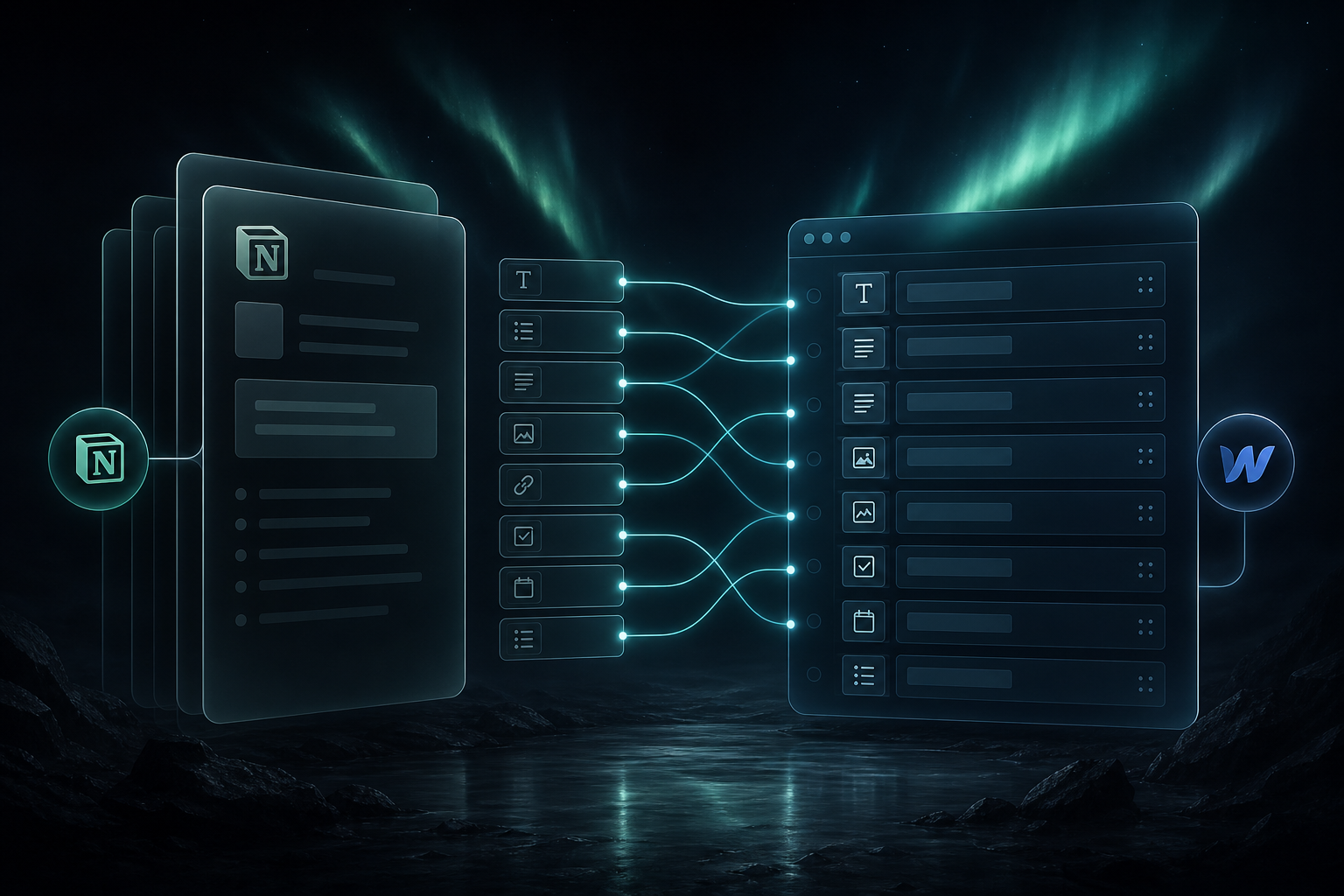
The product supports text, images, checkboxes, dates, URLs, page linking, code highlighting, and TeX support, so use the property types that match the content you actually want to publish. If a field is stored as the wrong type, it is better to fix the source schema now than to debug broken output later.
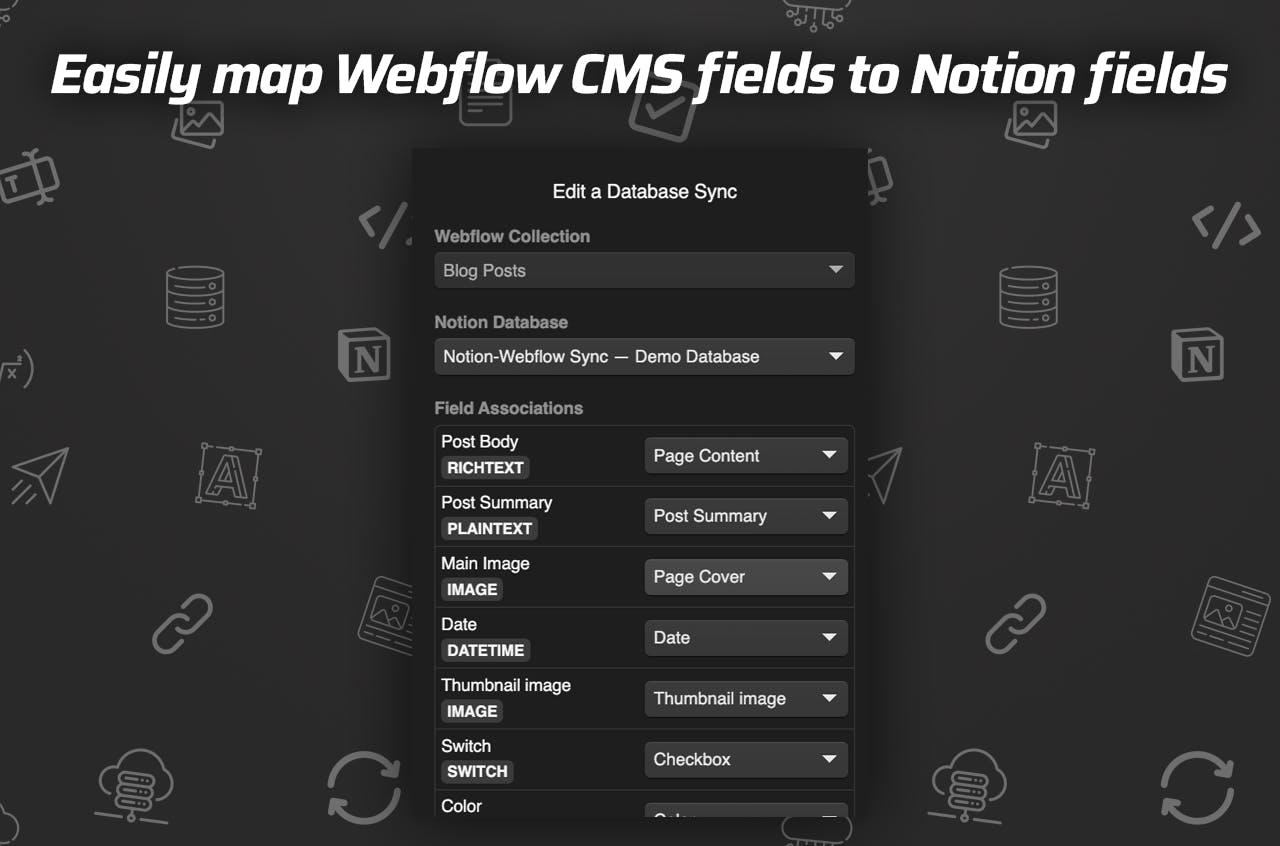
Expected result: every important field has an obvious home, and the CMS output matches the Notion schema instead of guessing at it.
For the broader setup context, these earlier posts are the most useful companions: How to Sync Notion Pages to Webflow CMS Step by Step, How to Sync Notion Articles to Webflow CMS Automatically, How I Keep Notion and Webflow in Sync Without Copy-Pasting, and How I Build a Reviewable Notion-to-Webflow Publishing Pipeline. They cover the same workflow from setup, automation, and review angles.
3. Choose How Much Automation You Actually Want
SyncFlow lets you auto-sync when a Notion page changes, or you can keep the sync more manual if the post is still in progress. That choice matters. Auto-sync is useful for stable content libraries, but draft-heavy posts are usually safer when you review them before they go live.
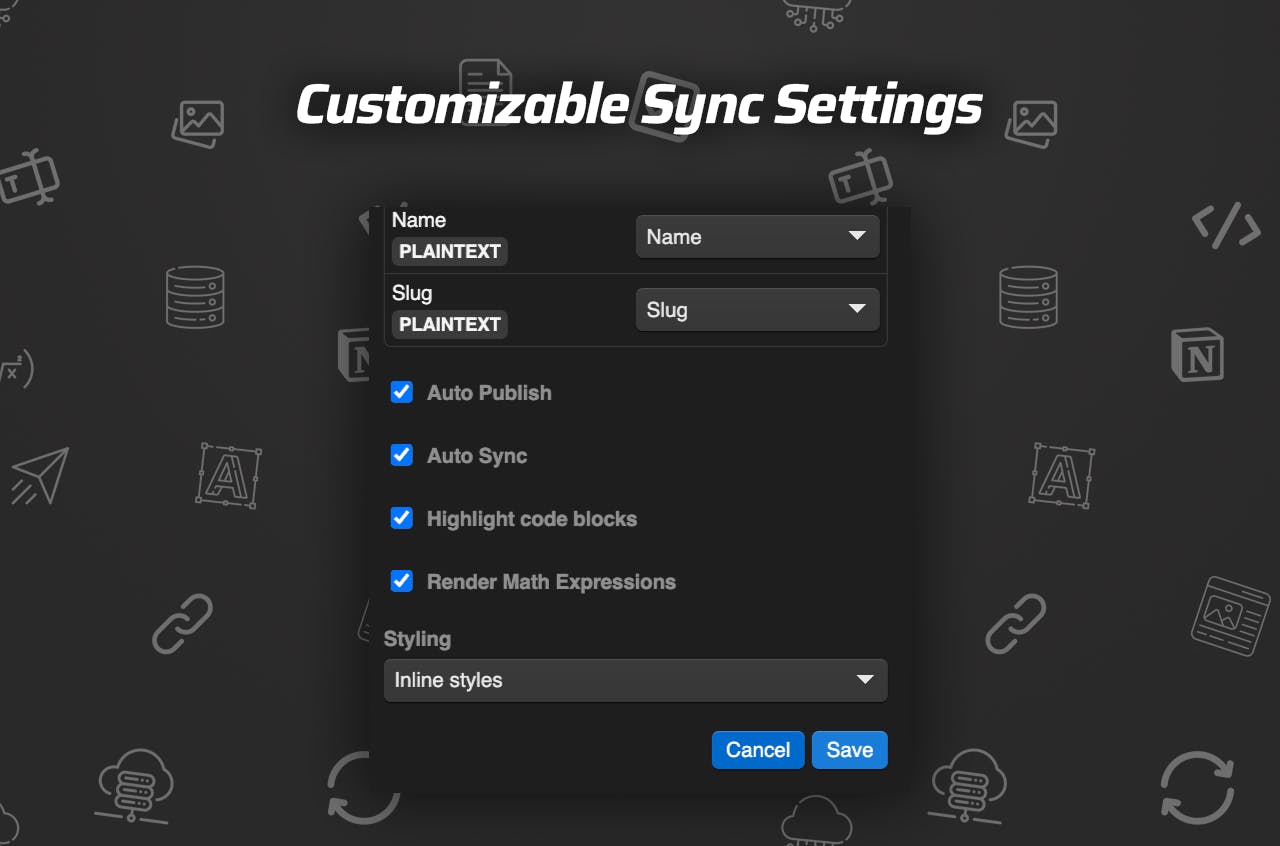
Expected result: you know whether SyncFlow is updating instantly, waiting for a manual action, or leaving the final publish decision to you.
4. Test One Post Before You Move The Whole Backlog
Take one finished Notion article and sync it end to end. Check headings, images, page links, code blocks, and any TeX content if you use it. If the page depends on inline styling or custom classes, make that decision up front so the Webflow template receives content the way it expects it.
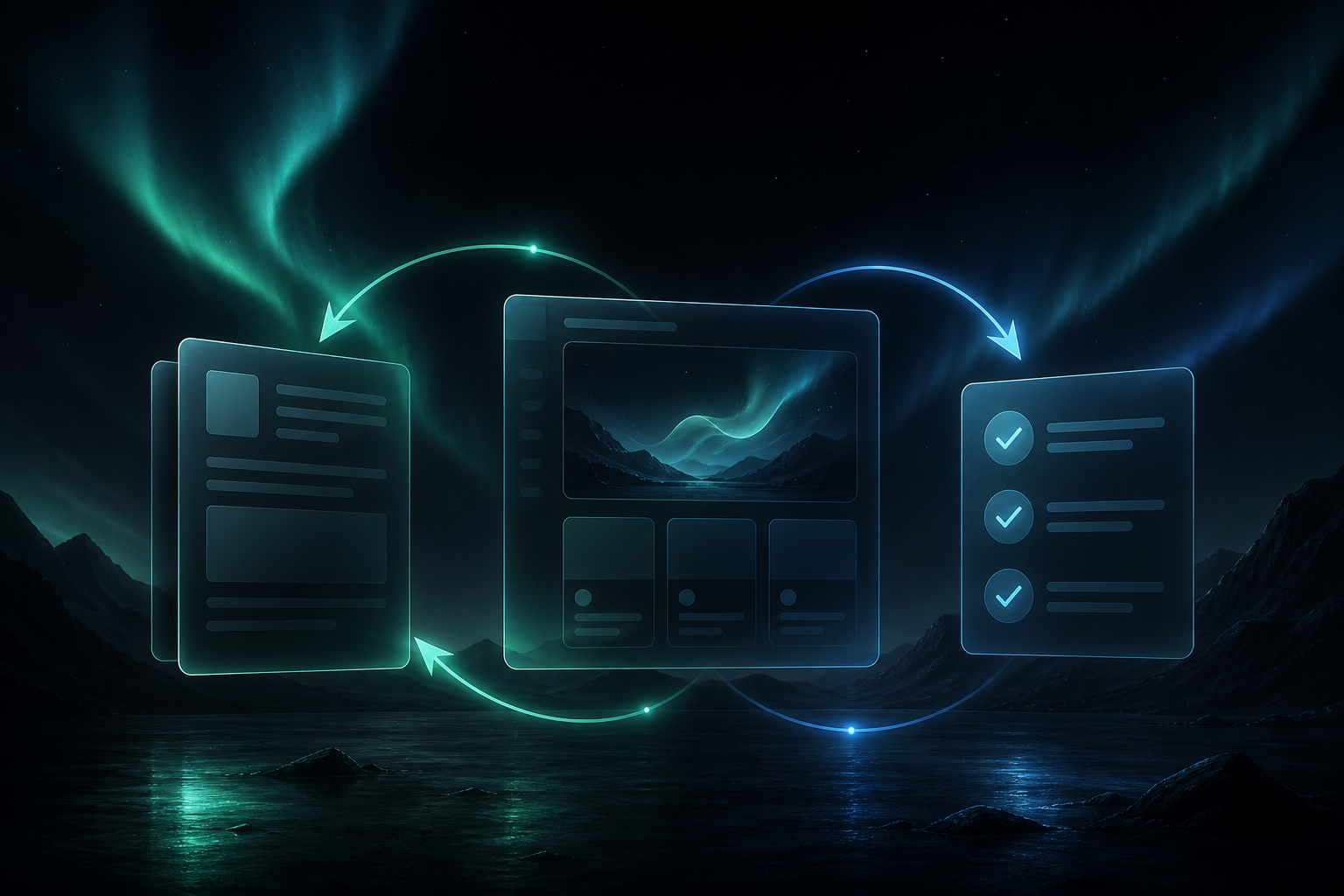
That review loop is the part I would not skip. A clean sync is useful only if the first published page still looks like the one you meant to ship.
Expected result: the first synced page looks close enough to publish without hand rebuilding the structure.
5. Use Full Resync For Existing Content
If you already have a backlog in Notion, use the full resync path after the mapping is stable. That is the cleanest way to bring an existing database into Webflow without manually touching each article. Once the initial import looks right, future changes can stay incremental.
Expected result: the collection catches up to the source database, and new content keeps moving without manual copy-paste.
Troubleshooting If Something Looks Off
- Blank text usually means the Notion property type does not match the Webflow field type.
- Missing images usually mean the source is stored as plain text instead of a real image property.
- Broken links usually mean the URL field was not mapped to a Webflow URL field.
- Messy formatting usually means you should revisit whether inline styles or classes fit the template better.
- If you want to see the setup from the official walkthrough, go back to the full tutorial video after your first test sync.
Conclusion
If you keep the scope tight, SyncFlow does the part most teams hate: translating content between Notion and Webflow without turning publishing into manual rework. Start with one collection, map the fields carefully, test one article, and only then move the backlog.
If you want to try it yourself, start at SyncFlow and run one post through the three-step flow. Once that works, the rest of the setup is mostly repetition.