
October 24, 2026
How to Organize Shopify Product Details With Reusable Tabs
Build a reusable Shopify product-information system with tabs on desktop, accordions on mobile, and dynamic content sources.

If a shopper has to hunt through one long Shopify product description for materials, fit, care, compatibility, and shipping details, the page is asking them to do information architecture work. You can make the same underlying content easier to scan by separating it into reusable sections: tabs where the product column is wide, and accordions where it is narrow.
This guide shows how to set up that system with Supra Tabs & Accordions, a free Shopify app with no trial, tiers, or card requirement. Before starting, list the details your customers repeatedly need and make sure you can edit your product template. The goal is not to hide product information; it is to give every kind of information a predictable home.

1. Sort Details by Their Source Before You Name Any Tabs
Start with content, not presentation. Make a quick inventory of what belongs to one product and what should stay consistent across a whole catalog. Product-specific details often include a measurement table, ingredients, technical compatibility, or a downloadable manual. Reusable details often include care guidance, delivery expectations, warranty terms, and a store-wide sizing explainer.
In Supra Tabs & Accordions, a section can use the product description, a per-product metafield, a store page, a metaobject field, an image or downloadable file, or content written in the app. That mix is useful because it lets one tab set include both a shared policy and a product-specific specification without copying either into every description.
Expected result: each detail has a source you can point to, rather than a place you plan to paste it. If you use size information, compare this inventory with the workflow in How to Split Shopify Size Charts by Fit Family so different fit systems do not get forced into one generic table.
2. Choose Labels That Match a Shopper Question
Name sections after the decision a shopper is trying to make. Good labels are short and concrete: “Size & fit,” “Materials,” “Care,” “Compatibility,” “Shipping,” or “Downloads.” Avoid labels such as “More info” or “Details,” because they make visitors open a section before they know whether it helps.
Keep the first few labels focused on buying confidence. A customer comparing colors, for example, may need product photos and variation context before they need warranty language. The product-page planning principles in How to Plan Shopify Product Tabs Around Shopper Decisions are a useful check: one section should answer one recognizable question.
Expected result: someone who has not worked on the catalog can read your labels and predict what each section contains.
3. Build One Tab Set Around a Repeating Product Pattern
Create a new tab set in the app and add the sources from step 1. A practical apparel pattern might use: product description for the overview, a metafield for “Size & fit,” a store page for “Care,” and a store page or written content for “Shipping.” A technical-goods pattern might replace “Care” with “Compatibility” and attach a downloadable setup guide.
Do not force a tab to appear when its source is empty. Supra Tabs & Accordions automatically hides empty tabs for products without matching content, which means a collection can share a structure without showing blank sections. This is particularly helpful when only some products need a file or a detailed specification table.
Expected result: your preview has the same information rhythm across products, while each product only exposes the sections it can support.
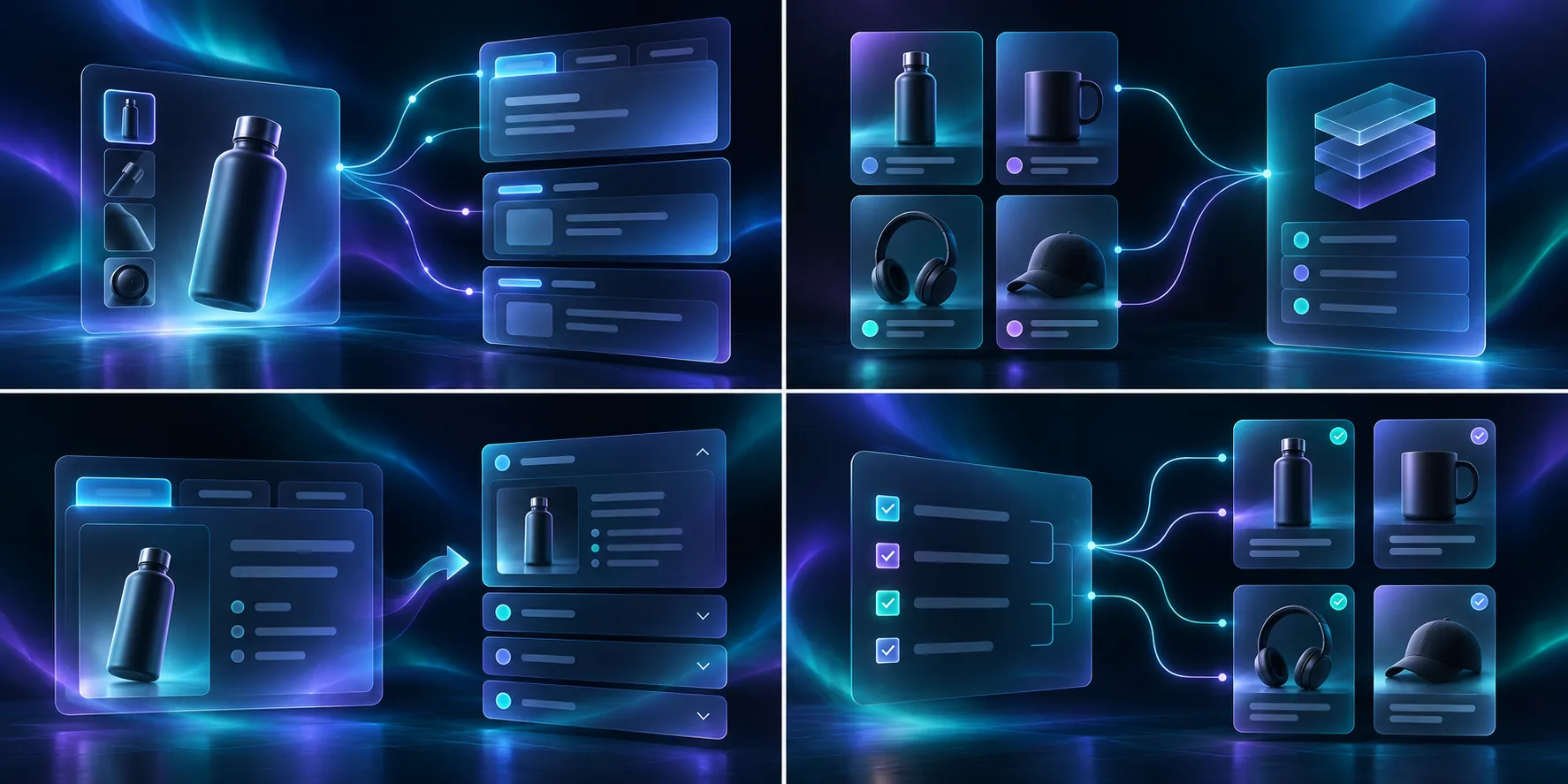
4. Target the Tab Set With a Rule That Will Keep Working
Apply the set to the smallest stable group that represents the pattern: a collection, tag, vendor, product type, or selected products. Prefer a collection, tag, vendor, or product type when future matching products should inherit the same structure. Use selected products when the exception is truly small.
Review the live preview, match count, and any overlap warnings before you publish. If more than one tab set can match a product, decide which rule should win before a new launch creates an accidental layout. This protects the same kind of catalog consistency you need when maintaining Shopify swatch rules for multi-color products.
Expected result: you can add a qualifying product to the catalog and know which information structure it will receive without revisiting the app.
5. Add the App Block Once and Check Both Layouts
In Shopify, open Online Store → Themes → Customize, navigate to a product template, and add the Supra Tabs & Accordions app block. The app responds to the actual width of the product-page column, so it can present tabs in a wide layout and accordions in a narrow one.
Check a desktop product page and a phone-sized preview. For a row of tabs that gets crowded, choose the overflow behavior that fits your theme: horizontal scrolling, a More control, wrapping rows, or stacked sections. Then use the keyboard to reach and open each section, and enable reduced-motion testing if your theme supports it. The app includes keyboard support, appropriate roles, comfortable tap targets, and reduced motion.
Expected result: sections remain usable when the product column narrows instead of becoming a tiny, overflowing tab strip.
6. Run a Four-Product Content Check
Before rolling the structure across a collection, inspect four deliberately different products: one with every field filled, one missing a product-specific field, one with a download, and one that matches an overlapping rule. Confirm that empty sections disappear, shared content is correct, and the right tab set wins.
This pilot is faster than fixing repeated manual description edits later. It also complements a regular catalog coverage check like How to Audit Shopify Size Chart Coverage Before Your Next Collection Drop: the question is not simply whether content exists, but whether the right product gets the right version.

Common Pitfalls
- Putting every detail in the description: this makes the data harder to reuse and harder to audit. Move repeatable details to a store page, metafield, or metaobject field when appropriate.
- Duplicating policy copy by hand: a later update can leave dozens of product pages out of sync. Use one shared source instead.
- Using vague labels: shoppers should not have to open a section to discover whether it covers fit or shipping.
- Skipping overlap checks: a new collection rule can change which set appears on an existing product.
- Testing only desktop: narrow product columns are exactly where accordion behavior matters.
Make Product Details Easier to Maintain
A reusable product-information system does two jobs: it gives shoppers a clearer path through the page, and it gives your team fewer places to update. Start with one collection that has repeated information, map each detail to its best source, and test the four-product set before expanding.
Install Supra Tabs & Accordions from the Shopify App Store, build one tab set, and add the app block to your product template. You will keep the content you already have while giving it a structure customers can actually scan.