
October 29, 2026
How to Clean Up Ecommerce Product Photos in Your Browser
Clean up ecommerce product photos in a browser with selections, masks, non-destructive adjustments, and a final export check.

If a product photo is almost ready, a small, careful edit is often more useful than a new shoot or a one-click AI remake. This guide shows how to prepare a truthful marketplace or storefront image in a browser: isolate the product, repair a distraction, make restrained lighting adjustments, and run a final accuracy check. You need one source image, a clear idea of the listing background or crop, and a browser-based editor such as ImageFlow.
ImageFlow is useful here because it keeps the work editable: use layers, masks, adjustment layers, smart objects, and exports instead of committing to a flattened result too early. Its ordinary editing workflow and listed on-device AI selection and background-removal tools run locally in the browser, but that does not replace your own company privacy requirements.

1. Start With the Original and Define One Honest Outcome
Open the source file and duplicate the working layer before making a change. Decide what the image must communicate: a clean product cutout, a distraction-free hero image, or a brighter but still accurate listing photo. Keep the actual colour, dimensions, material, included accessories, and condition intact.
A useful rule is to make the smallest edit that solves the listing problem. If the product needs a plain background, remove only the background. If a stray cable or speck pulls attention away, remove that object rather than rebuilding the entire scene. For a deeper look at the first pass, see how to refine product photo masks in your browser.
Expected result: you have an editable document with a preserved original and a specific, defensible edit goal.
2. Select the Product, Then Refine the Mask at Full Size
Use object or subject selection to make the initial selection. In ImageFlow, you can turn it into a mask rather than deleting pixels. A mask lets you correct an edge later if the automated starting point misses a handle, transparent edge, reflection, or a small label detail.
Zoom in and inspect the whole outline, especially these areas:
- Corners, handles, and thin pieces.
- Labels, logos, and printed product information.
- Translucent materials, shadows, and reflections.
- Any edge that will sit against the final background.
Use a soft, controlled brush on the mask to restore real product detail or hide a leftover background fringe. Do not judge the selection only at a small zoom level; the image can look clean in a thumbnail while an edge is visibly rough on a product page.
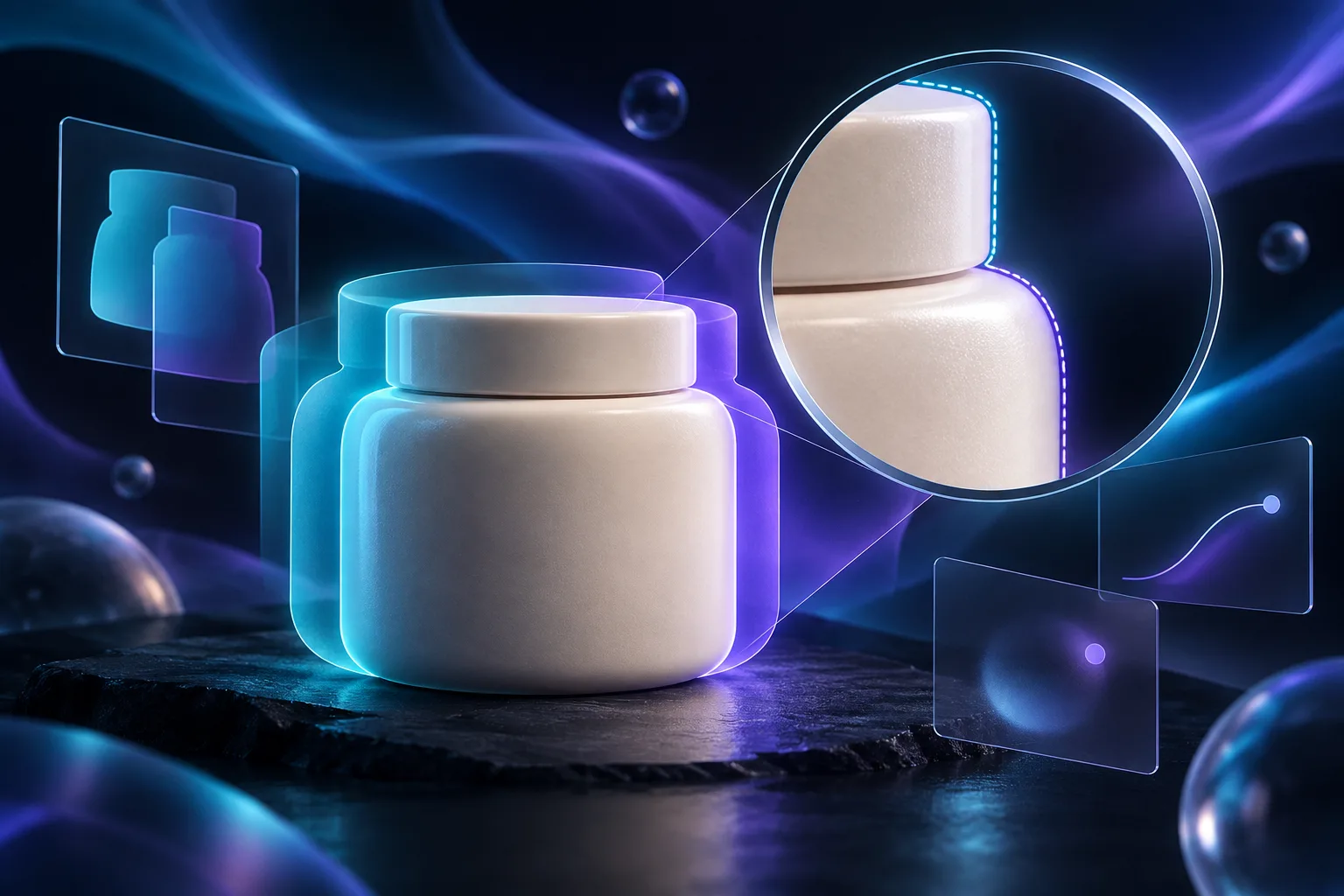
Expected result: the product is isolated cleanly without changing its shape or erasing meaningful detail.
3. Build the New Background on a Separate Layer
Add the intended background beneath the masked product. For a catalogue listing, that may be a neutral solid colour. For a collection banner, it may be a restrained scene or gradient that still leaves the item easy to evaluate. Keep the product layer and background layer separate.
Before moving on, toggle the background off and on. This exposes halos, cut-off shadows, and semitransparent areas that blend into the new backdrop. If you need a more systematic review before using generated lifestyle scenes, the Shopify product-photo QA workflow is a useful companion.
Expected result: the background supports the listing without hiding boundary errors or making an ordinary item look like a different product.
4. Remove Distractions Carefully With Content-Aware Fill
For a small unwanted object, make a tight selection around it, then use content-aware fill. Work one distraction at a time and review the surrounding texture at 100% zoom. A believable repair repeats the nearby surface, not a vague blur.
If the result affects the product itself, undo it and tighten the selection. Content-aware fill is appropriate for a loose thread, dust mark, or background object; it is not a reason to remove a feature that a buyer should know about. Keep the clean-up layer separate when possible so the decision remains reversible.
Expected result: the viewer’s attention returns to the product, while the product remains truthful.
5. Use Adjustment Layers for Modest Relighting
When the source is a little flat, add an adjustment layer rather than baking changes directly into the photo. Make modest changes to brightness, contrast, or colour balance, then toggle the adjustment off and on. The product should still have the same material, finish, and recognizable colour.
ImageFlow also presents relighting controls for changing the apparent lighting of a selected subject or scene. Treat those controls as an editing aid, not a guarantee that every difficult photo can be fixed. Compare the result against the original and stop when the edit looks intentional rather than dramatic.

Expected result: the product reads more clearly, without a misleading colour shift or impossible shadow.
6. Keep a PSD Handoff Editable When Collaboration Requires It
If a teammate supplied a PSD, make the smallest requested change in the browser and preserve the layer structure where practical. ImageFlow lists PSD and PSB import/export along with layers, masks, smart objects, smart filters, and adjustment layers. Complex production files deserve a test round trip before you rely on them for a deadline.
For the handoff check itself, use this guide on checking a PSD handoff before exporting ecommerce assets. It helps separate a quick copy or mask update from a file that needs deeper desktop-app validation.
Expected result: you know which source file, editable version, and export belong to the final listing.
7. Run a Four-Point Check Before Exporting
Before exporting, inspect the image at the intended crop and at full size. Check four things:
- Edge: no halo, missing piece, or accidental background fragment.
- Label: words, logos, and required markings remain accurate and readable.
- Colour: the edit did not change the product’s real finish or variant colour.
- Shadow: the product still feels grounded in the new scene.
Then export a listing-ready version and keep the editable source separately. If the source began as a camera RAW file, validate the browser workflow before promising it to a team; this browser RAW upload guide covers the kind of checks worth making early.

Expected result: your export is clean at storefront scale and withstands close inspection.
Clean One Real Image First
The reliable path is not a dramatic remake. It is an editable document, one clear correction, and a deliberate final review. Open ImageFlow with one real product photo, create a mask instead of deleting pixels, and make the smallest useful improvement. That gives you a repeatable browser workflow for cleaner ecommerce assets without losing control of what the buyer sees.