
May 19, 2026
How to Create Studio-Quality Shopify Product Photos From Plain Shots
Use Supra AI Photo Studio to clean product shots, stage lifestyle scenes, create try-on visuals, and generate short ad videos inside Shopify.
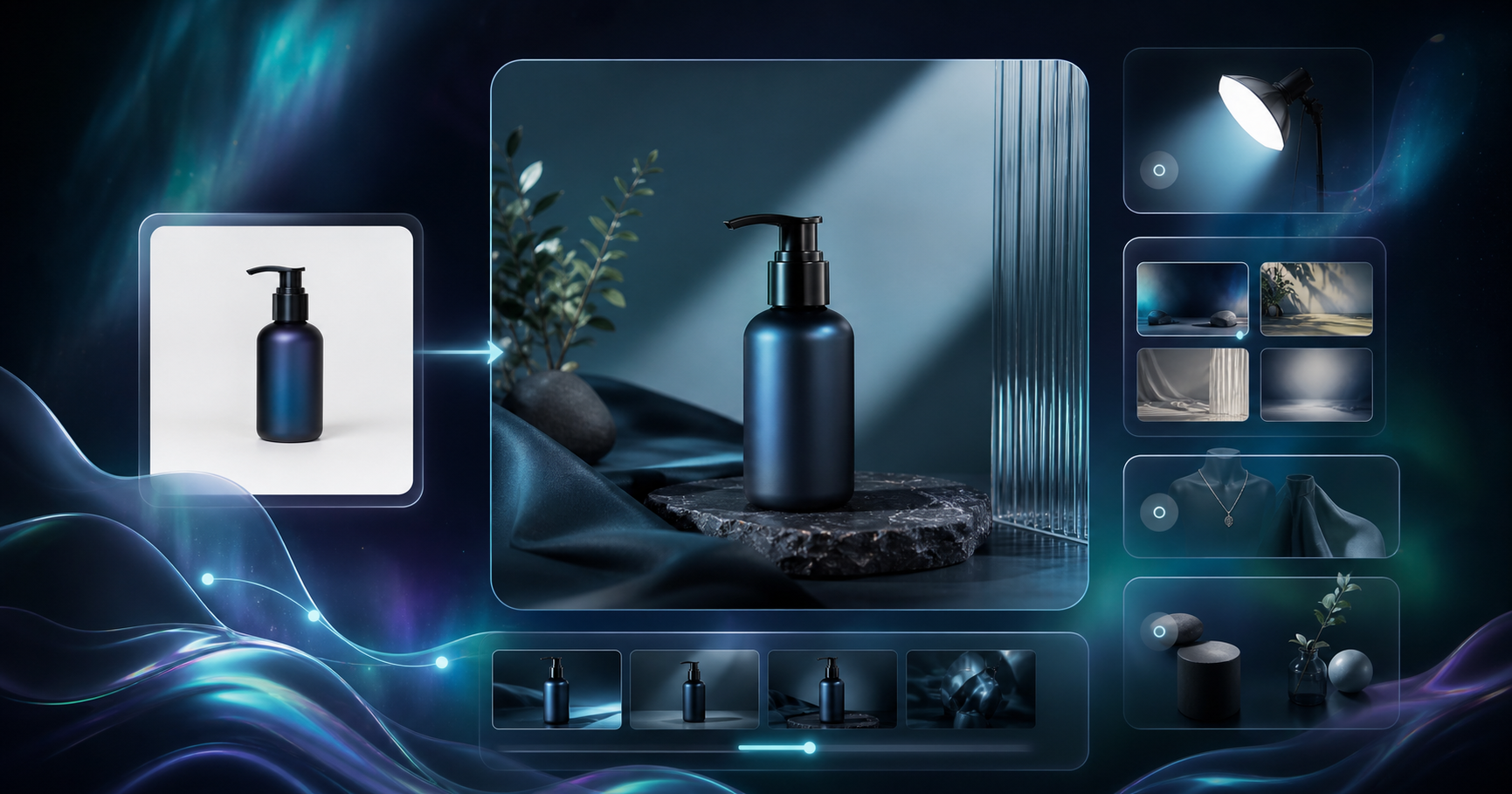
How to Create Studio-Quality Shopify Product Photos From Plain Shots
Plain product photos usually fail in the same places: flat light, weak context, and no clear reason for the customer to care. Supra AI Photo Studio gives you a faster path inside Shopify: clean the source image, stage it in a better scene, turn it into a try-on or lifestyle shot, and then reuse the same asset for short video content.
If you want the product pages and ads to look like they belong together, start with one image and keep the workflow simple. The app listing is here: Supra AI Photo Studio on Shopify. The landing page is here: Supra AI Photo Studio.
1. Open the app and load one product image
Install the app in Shopify, then pick a product directly or upload an image into the editor. The layout is straightforward: Top Bar for undo, redo, download, and publish; Tools on the left for the AI actions; Canvas on the right for the working image; and Image Gallery at the bottom for the variations.
Expected result: your source photo is visible in the Canvas and you can start editing without exporting anything first.
2. Clean the image before you get creative
Start with background removal, then use upscaling and auto enhance on any image that is soft, noisy, or badly lit. For most products, isolate the product first and only then move into scene generation.
Expected result: a sharper cutout, cleaner edges, and more accurate color and lighting.
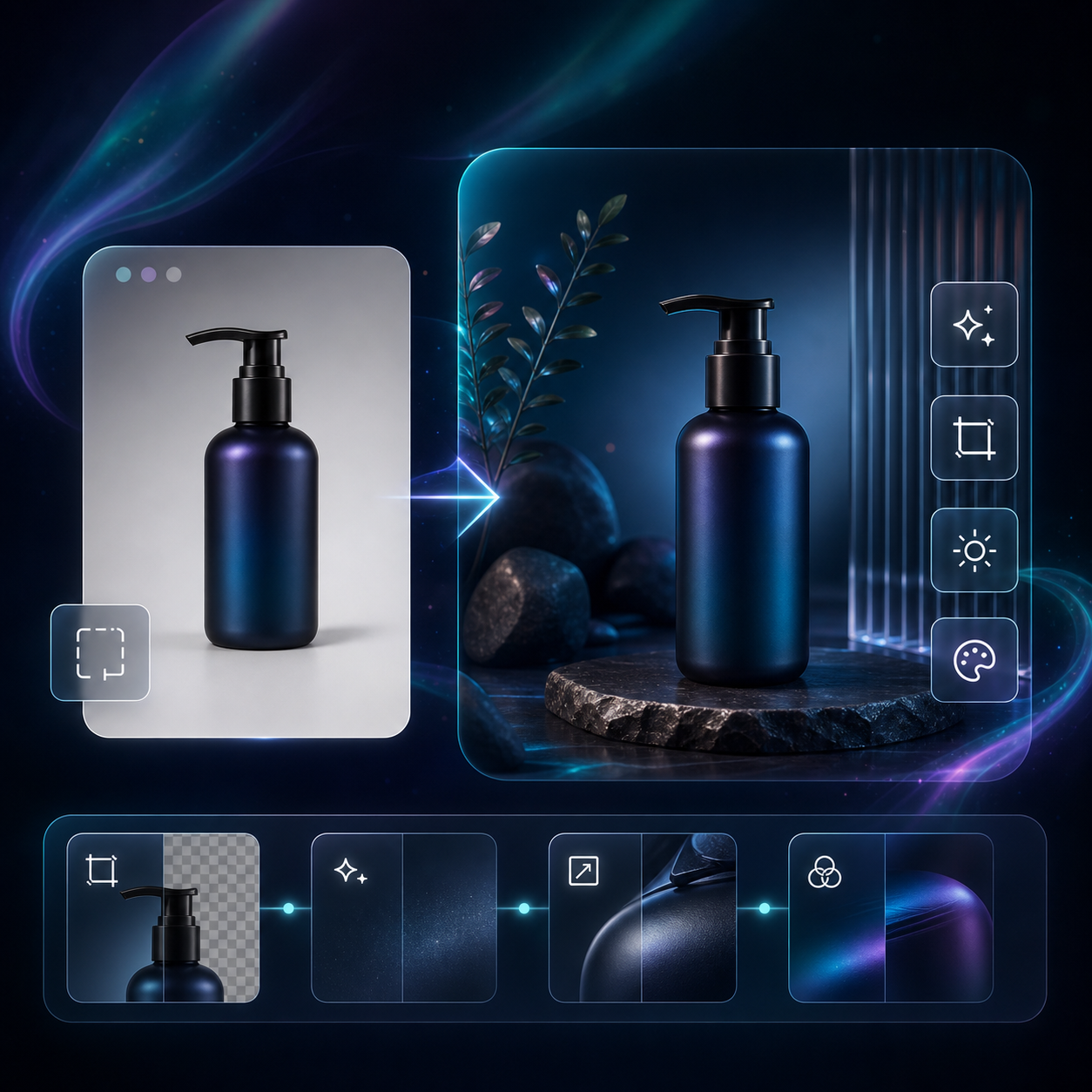
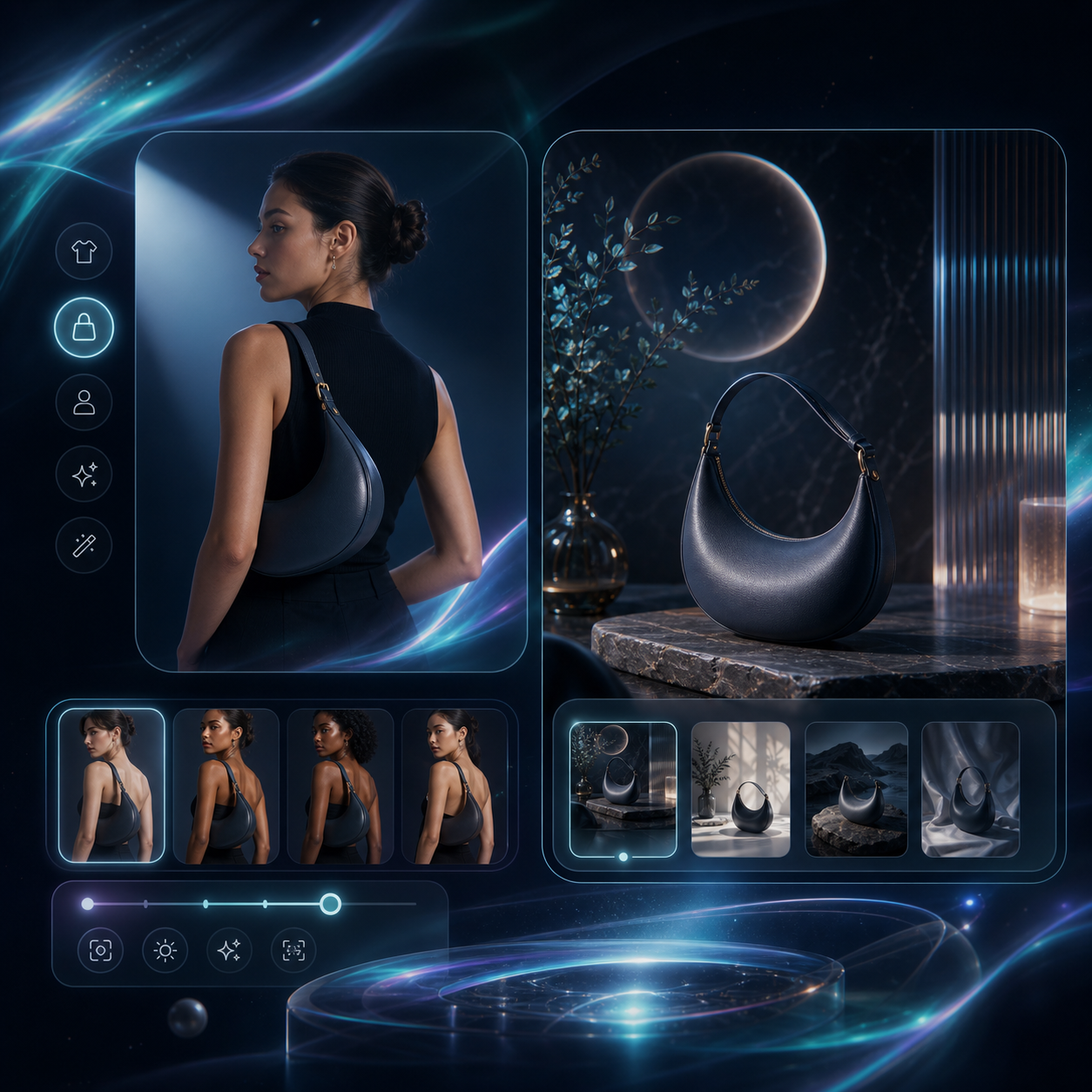
3. Place the product in a scene that matches the catalog
Use Object placement for hard goods and lifestyle products such as skincare, accessories, or home items. If the product is wearable, switch to Try-On and create a realistic model shot instead of a flat packshot. Keep the light direction and crop consistent with the rest of the catalog.
Expected result: the same product now looks native to a scene you would actually want on a product page or ad.
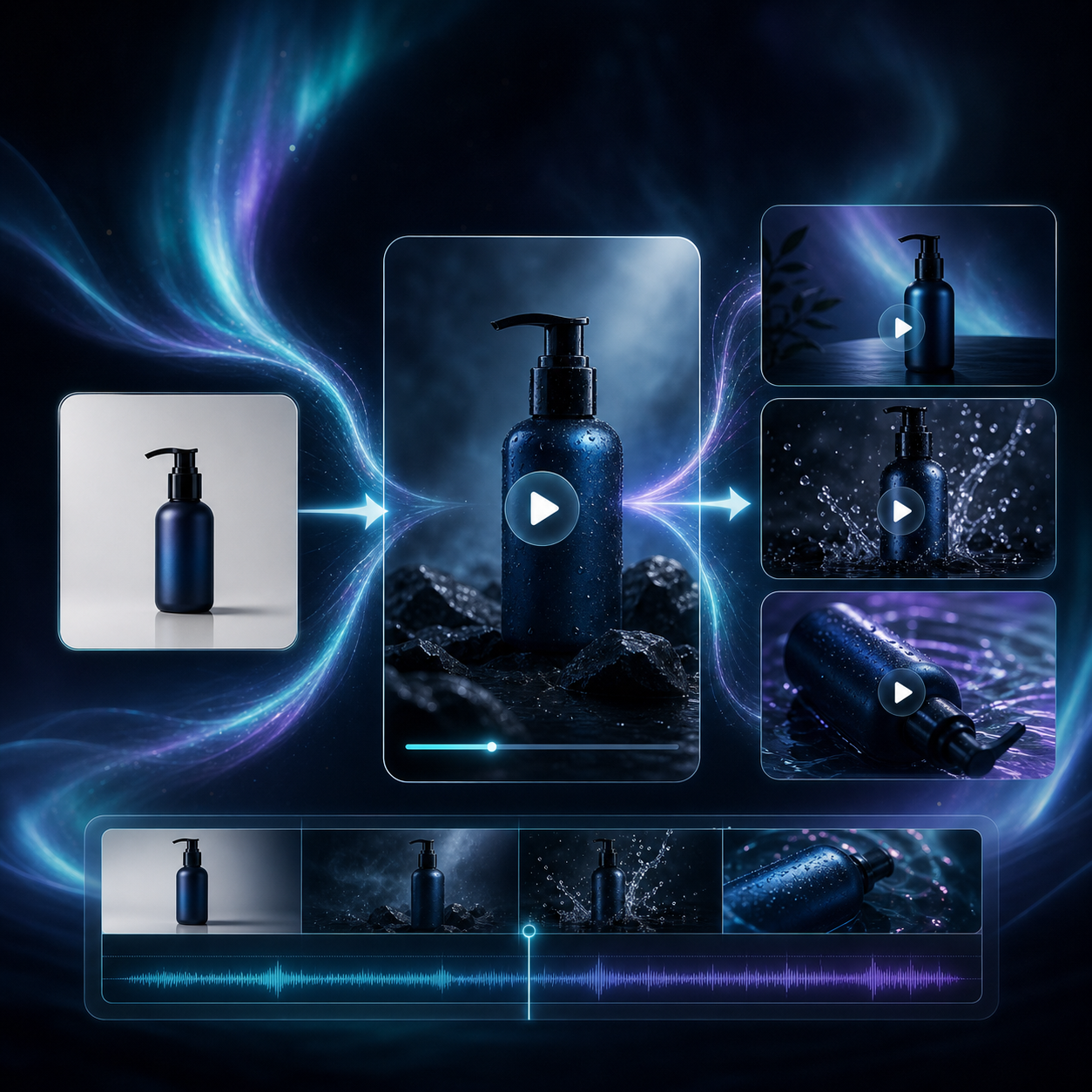
4. Turn one image into a video asset
Once the still image works, generate UGC Videos or B-roll Videos from the same source image. UGC is the better choice when you want a social-style ad. B-roll is the better choice when you want cinematic cutaways or detail shots. If video is the main bottleneck, these related walkthroughs are useful next reads: How to Create UGC-Style Shopify Product Videos Without a Shoot and How to Turn One Shopify Product Into Five UGC Video Ads.
Expected result: short clips you can use in ads, product pages, social posts, or launch emails.
5. Keep one visual system across the catalog
The fastest way to make the output feel premium is to repeat the same choices across SKUs: similar background treatment, similar lighting, similar crop, and similar level of polish. The editor structure helps with that. Top Bar handles undo and publish. Tools handles the AI actions. Canvas is your working area. Image Gallery is where you keep the variants together.
If you want the broader rendering side, How to Turn Product Data Into MP4 Videos with VideoFlow and How to Build a Portable JSON-to-Video Workflow with VideoFlow show how the same mindset applies outside the app.
Expected result: the product grid and ad library feel like one brand, not a pile of unrelated AI outputs.
6. Test one product before you roll it out
Supra AI Photo Studio has a free plan, so you can test the workflow on one SKU before spending more. The free tier includes 4 AI image generations and 4 AI video generations per month. That is enough to compare a plain shot, an enhanced shot, and a lifestyle version side by side.
Expected result: a quick proof of whether the new visual direction is worth using across more products.
Conclusion
If your current product photos are technically fine but not selling the story, start with one source image and run it through cleanup, scene placement, and video generation. That is the shortest path from catalog photo to usable marketing asset. Install Supra AI Photo Studio and test one product first.