
June 23, 2026
How to Add Color and Image Swatches to Shopify Product and Collection Pages
A step-by-step guide to replacing Shopify dropdown variants with swatches on product pages and collection pages.

You can replace Shopify variant dropdowns with color and image swatches, then extend the same setup to collection pages so shoppers can compare options before they click through. Supra Swatch Colors is the app I would start with because it covers product-page swatches, linked products, collection pages, and style controls in one place.
If you want the shortest path from theme defaults to a cleaner shopping experience, this guide walks through the setup in order. You only need Shopify admin access, a few product variants or related products, and some color or image assets.
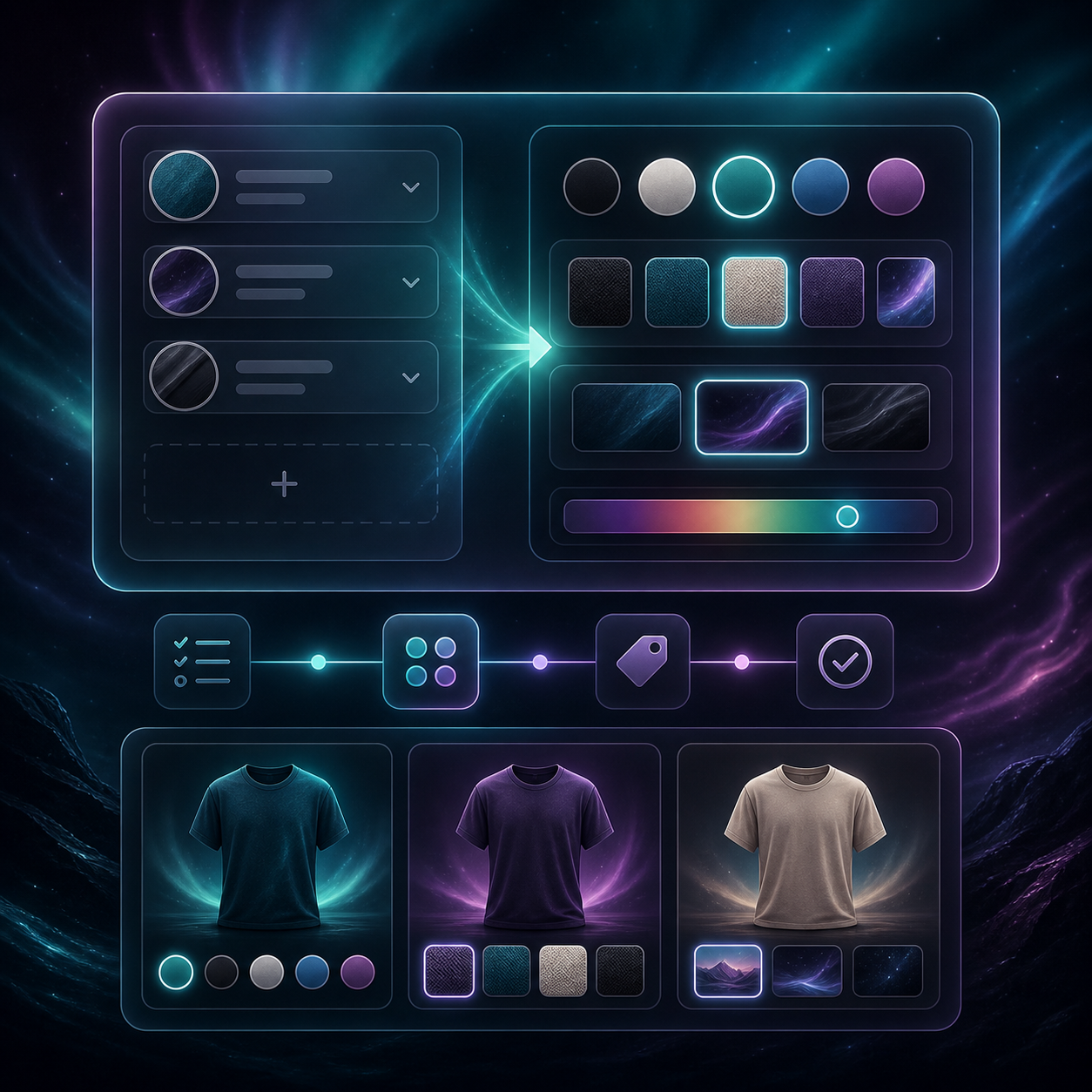
1. Decide Which Swatch Model You Need
Before you install anything, decide how the catalog should behave.
- Use variant swatches when one product page already covers the choice, like size, color, or finish.
- Use image swatches when the options are textures, patterns, or visual materials that are easier to recognize than a plain color chip.
- Use linked-product swatches when each color or style lives on its own product page and should still feel like one family.
Expected result: you know whether you are mapping one product record, a set of variants, or multiple products that should behave like a single browsing experience.
2. Install the App and Open the First Product
Install Supra Swatch Colors from the Shopify App Store, then open the product or collection you want to improve.
If you want a walkthrough while you work, start with the Getting Started tutorial and keep the linked-products tutorial handy for later.
Expected result: you can see where the app lets you attach swatches to products, collections, and variant groups without editing theme code.
3. Build the Swatches With the Right Source Asset
Once the product is open, build the swatch set from the best available source.
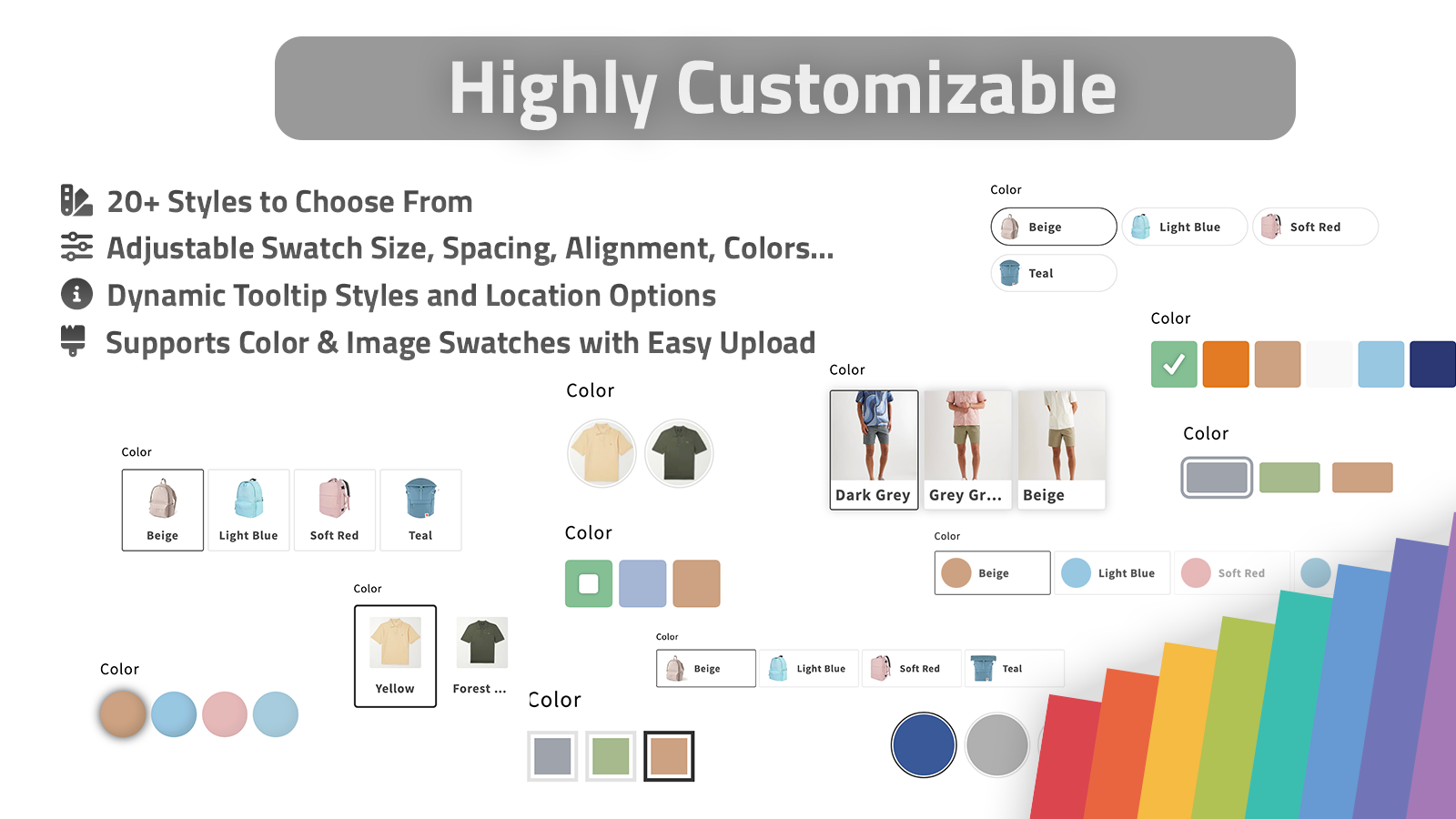
- Auto-detect store colors if your catalog already uses consistent names and clear variant data.
- Use product images when the option is really a texture, pattern, or visual finish.
- Keep labels and tooltips short so the swatches stay readable.
- Match the size and shape to the way shoppers scan your theme.
- Use one of the app’s 20-plus styles to keep the result aligned with the rest of the store.
Expected result: the swatches are recognizable at a glance, consistent across the catalog, and easy to scan on mobile.
If your image assets are messy before you start, clean that up first. These guides help when the swatch set depends on better source photography:
- How to Turn One Product Photo Into a Full Shopify Image Set
- How to Build a Premium Shopify Image Workflow Without a Designer
- How to Choose the Right AI Edit for Each Shopify Product Photo
- How I Prioritize Shopify Product Photos for AI Editing
4. Turn On Collection-Page Swatches Where Comparison Matters
Collection pages are where swatches pay off fastest. Shoppers can compare colors or styles before they commit to a product page, which makes the catalog feel faster and more intentional.
Use collection-page swatches on categories where choice matters more than a single hero image. Keep the rows compact so product cards still scan cleanly on desktop and mobile.
Expected result: the collection grid becomes a comparison surface instead of a dead-end list of cards.
Watch the collection-pages tutorial if you want the setup in motion.

5. Use Linked-Product Swatches When Each Option Is Its Own Page
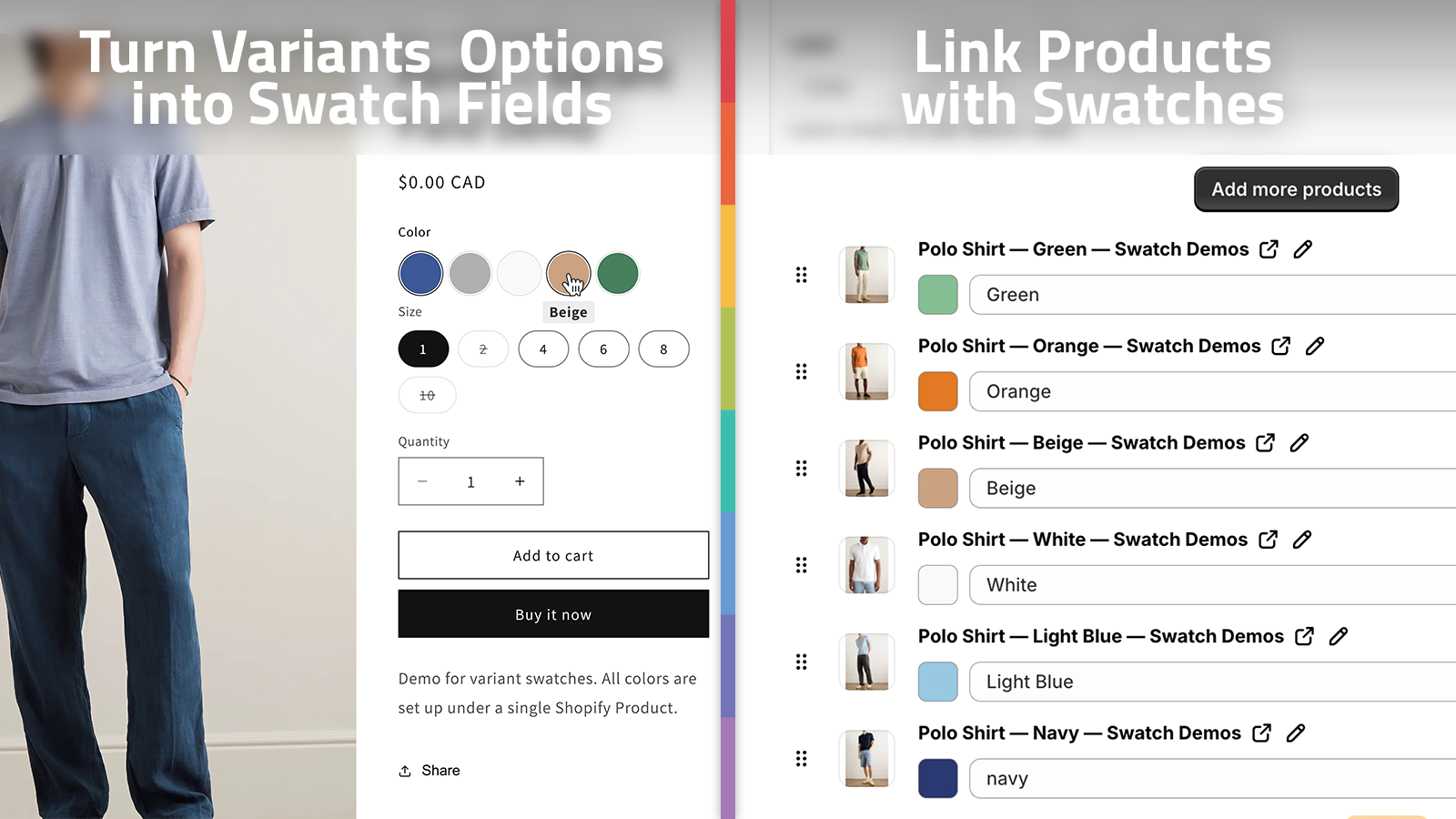
This is the part that saves a lot of manual work. If your colors or styles are separate Shopify products, linked-product swatches let shoppers move between them as if they were variants.
Use linked-product swatches when:
- each color has its own product page
- each style has its own product page
- you want the catalog to feel unified without merging listings
Use standard variant swatches when one product record already contains the choice.
Expected result: swatches lead shoppers to the correct product page instead of forcing you to rebuild the catalog structure around theme code.
6. Test the Theme, Language, and Mobile Layout
Before you roll the swatches out across the store, test the full path.
- Open the product page on desktop and on mobile.
- Open the collection page and click through a swatch.
- Check the tooltip, label, and spacing.
- Confirm multilingual shops still show the right copy.
- Make sure the theme still feels clean when the swatches are visible.
Expected result: the swatches look native to the theme, load quickly, and behave the same way across the pages where shoppers actually browse.
Common Problems
If the swatches do not show up where you expect, check the product assignment first. Most issues come from applying the swatches to the wrong product group or forgetting to enable the right page location.
If the color is wrong, switch to an image swatch or correct the source asset before you keep tuning the style.
If the collection page feels crowded, reduce swatch size or show swatches only on categories where comparison really helps the buyer.
If you need a wider visual refresh after the swatches are in place, pair this setup with a cleaner product-image system first. The guides above are the fastest way to get there without a redesign project.
The Practical Default
If you are not sure where to start, use this order:
- Add swatches to the products that already have the clearest variant structure.
- Turn on collection-page swatches only for categories with obvious comparison behavior.
- Use linked-product swatches when separate pages should still feel connected.
- Keep the styling simple until you see how shoppers use it.
That keeps the rollout small enough to manage and useful enough to matter.
Supra Swatch Colors is the sort of app that earns its keep by removing one boring piece of catalog maintenance at a time. If you want to try it, install it from the Shopify App Store, then work through the setup tutorials and build your first swatch set on one high-traffic collection.