
June 28, 2026
How to Turn Notion Drafts Into Webflow CMS Posts With SyncFlow
Map Notion fields, choose sync behavior, and publish Webflow CMS posts without rebuilding pages by hand.
If you already write in Notion and publish in Webflow, the problem is not writing. The problem is keeping the article structured as it moves from a Notion draft into a Webflow CMS item. SyncFlow handles that handoff. This guide shows the practical workflow: connect both apps, map the fields once, choose how sync should behave, and test one real post before you scale it.
What you’ll do
- Connect Notion and Webflow
- Map database fields to a CMS collection
- Choose auto-sync or manual sync
- Verify that images, links, code blocks, and formulas come through correctly
1. Connect Notion and Webflow
Open SyncFlow, click Get Started, connect your Webflow account first, then authorize the Notion workspace that contains your content database. Keep the first connection small and intentional: one Notion database, one Webflow collection, one content type.
Expected result: SyncFlow can see both systems, and you are ready to define a real content model instead of copying fields by hand.
A practical rule: do not mix blog posts, landing pages, and changelogs in the same database unless you absolutely have to. The mapping gets harder fast.
2. Map the fields deliberately
The most important decision is matching each Notion property to the right Webflow CMS field. SyncFlow supports text, images, checkboxes, dates, URLs, and more, so this is the moment to decide what should stay structured and what can remain freeform.
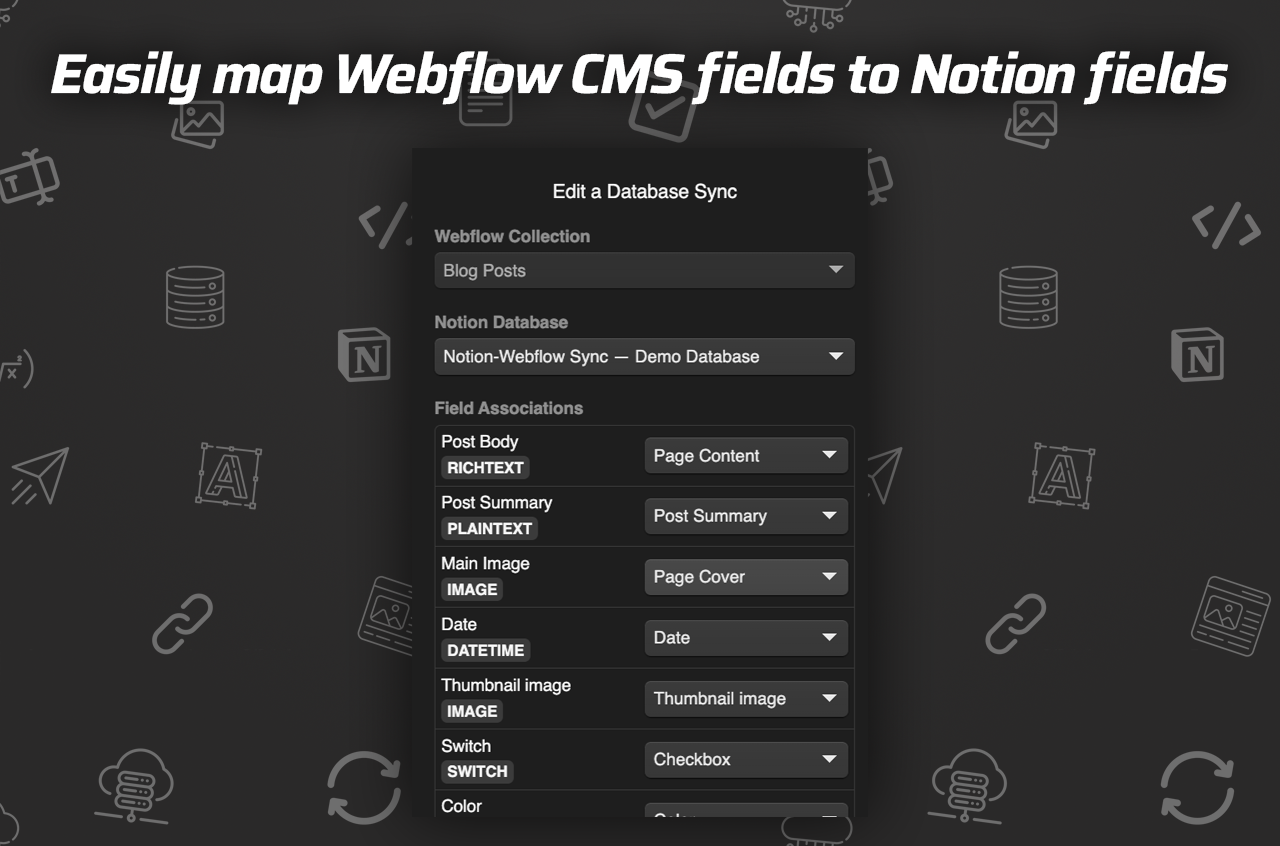
If your posts use authors, categories, hero images, or slugs, map those intentionally. The same is true for links between Notion pages: SyncFlow can turn those into links between Webflow posts, which is useful when one article points to another.
If you want the broader setup context, compare this stage with How to Connect Notion and Webflow for Automatic CMS Sync, How I Decide What Should Sync From Notion Into Webflow, My Checklist for Syncing Notion Articles Into Webflow CMS, and How I Build a Clean Notion-to-Webflow Publishing Pipeline With SyncFlow. The structure matters more than the sync button.
Expected result: each Notion field has one obvious place in Webflow, and you do not need manual cleanup after import.
3. Choose auto-sync or manual sync
After the mapping is in place, choose how changes should move. Auto-sync is a good fit for evergreen content that changes often. Manual sync is safer when an editor wants a final review before the page updates.
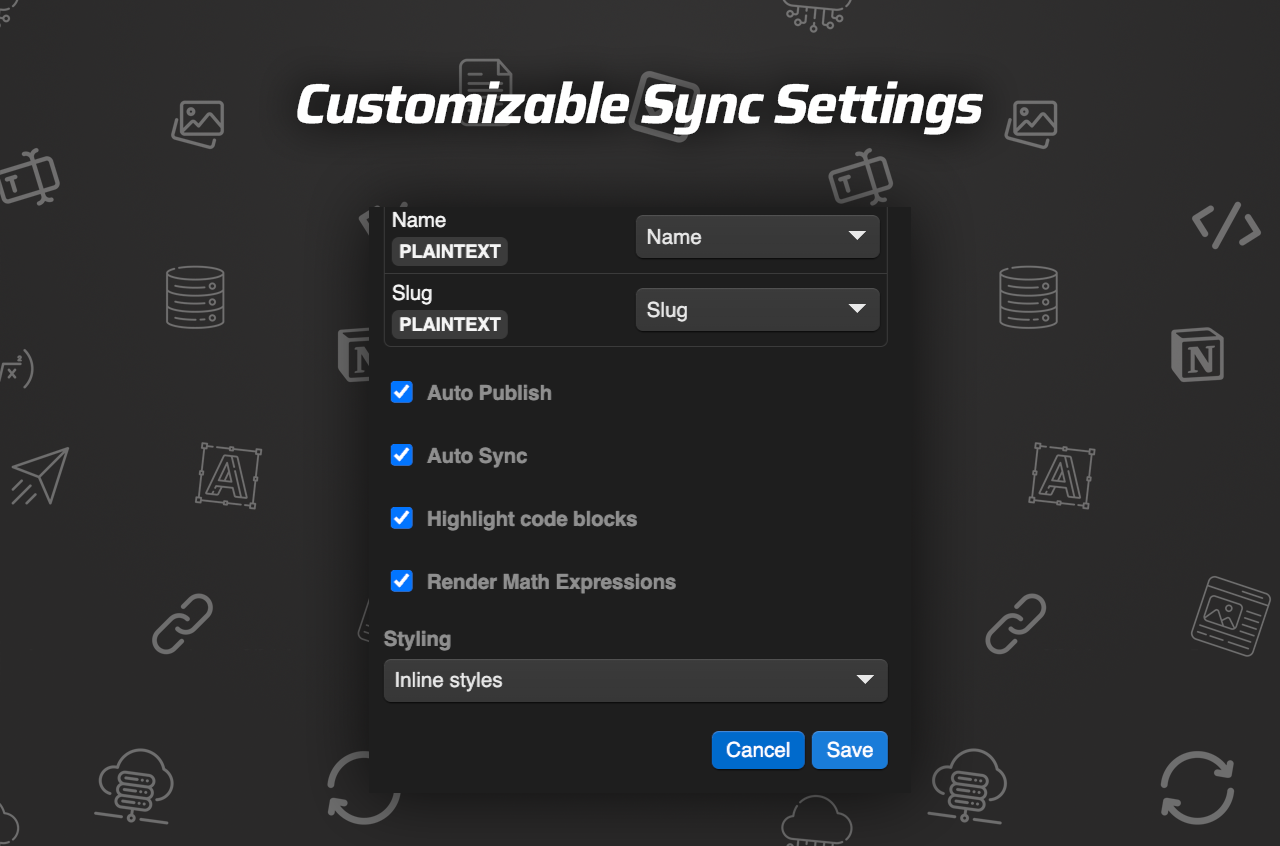
This is also where SyncFlow’s extra content handling matters. The product brief says it supports page linking, code highlighting, and TeX rendering. Keep those features on when your Notion content actually uses them, and keep them off when you do not need them.
Expected result: changes in Notion update Webflow the way you expect, without surprise edits or extra cleanup.
4. Test one real article before you scale
Create or edit one actual post, then sync it through and inspect the Webflow CMS item. Do not batch a whole editorial calendar until one page works end to end.
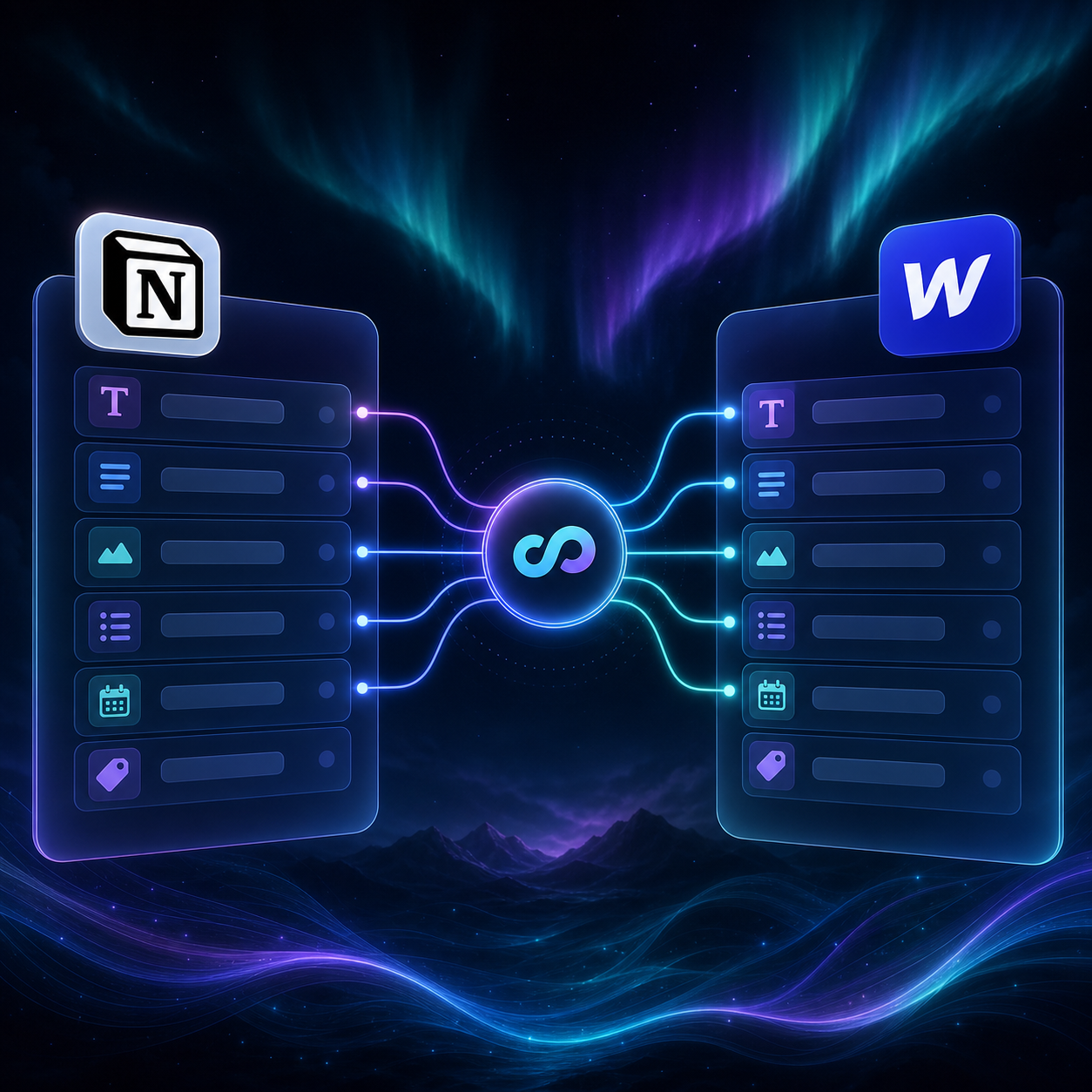
Look for four things: title and slug, images, links, and the final page on the live site. If the first article looks off, fix the mapping before you sync the rest. That is usually faster than repairing a dozen bad items later.
Expected result: the imported page reads like the original Notion draft, not a stripped-down import.
5. Troubleshoot the common misses
Most issues come from mismatched field types, incomplete mapping, or content that really needs a more specific Webflow field.
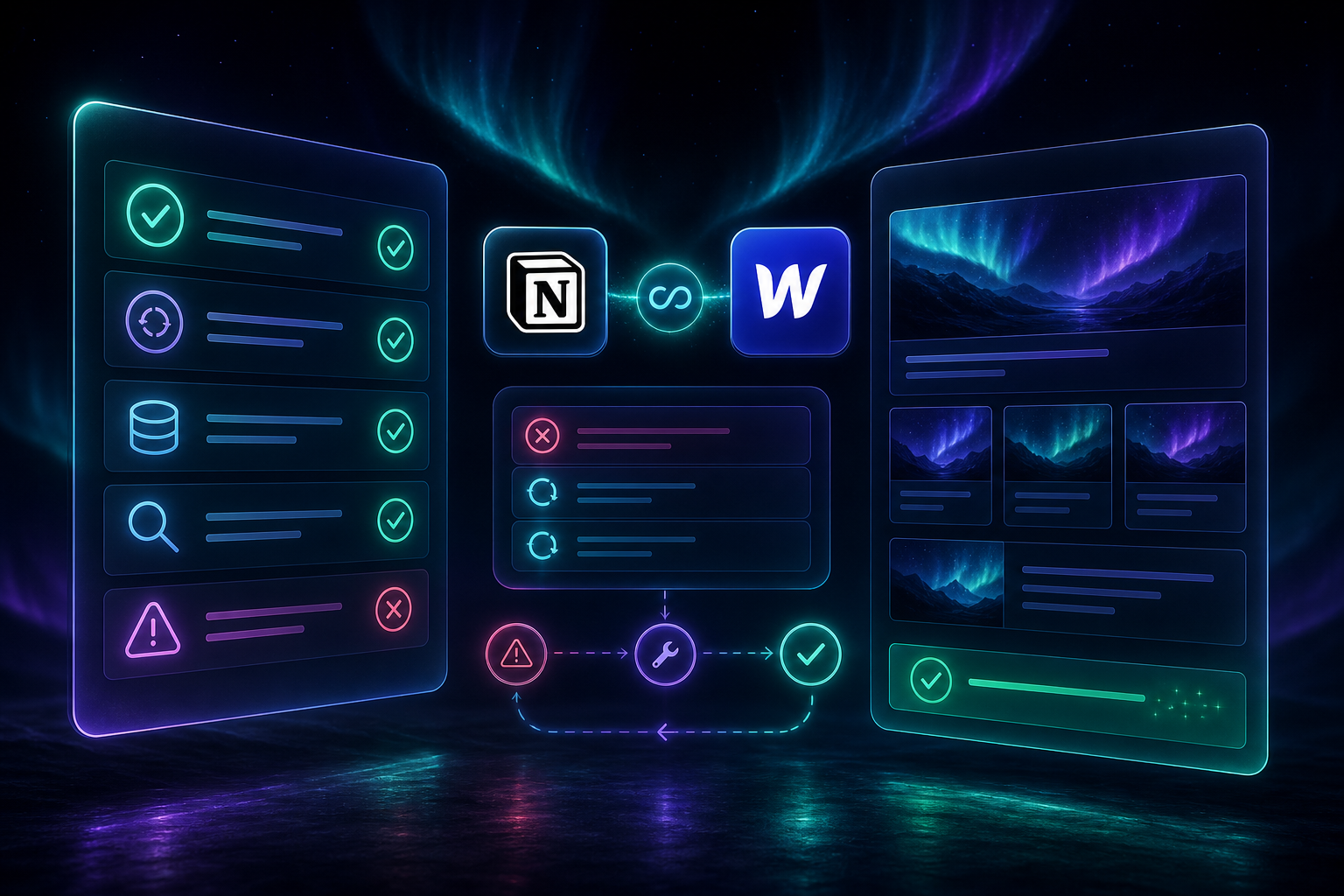
Use this quick checklist:
- Missing image: confirm the Notion image field is mapped to a Webflow image field.
- Broken link: check that the target page is inside the sync scope.
- Weird formatting: decide whether inline styles or classes fit your Webflow setup better.
- Legacy collection: use a full resync if the whole database needs to match Notion again.
Expected result: you fix the root cause instead of guessing at symptoms.
Where To Go Next
If you want to see the product directly, start at SyncFlow. The Standard plan is $8/month and includes 1 Webflow site install, unlimited syncs, unlimited databases, and unlimited connected fields.
For a walkthrough, the product page also links to the full tutorial video and the SyncFlow trailer.
The smallest safe next step is simple: map one Notion database to one Webflow collection, run one test sync, and verify the result before you scale it out.