
October 24, 2026
How to Build a Garment Measurement Guide for Shopify Size Charts
Build a clear Shopify garment measurement guide, connect it to reusable size charts, and help shoppers choose with more confidence.

A size chart only works when a shopper can match its numbers to something real. If your table says chest, length, or inseam but never explains where those measurements start and stop, shoppers will use different reference points, hesitate, or contact support.
This guide shows how to build a garment measurement guide for a Shopify size chart, then keep it consistent across the product pages it belongs to. You need one representative garment from each fit family, a tape measure, your approved chart values, and access to your Shopify theme editor.
1. Decide whether the chart uses garment or body measurements
Start with the promise you are making. A garment chart describes the finished item laid flat. A body chart describes the person wearing it. Mixing both in one grid is the fastest way to create an avoidable question.
For a standard T-shirt, sweatshirt, or jacket, a garment chart is usually the simpler choice: shoppers can compare it with a similar item they already own. Say so plainly above the table: Measurements are of the garment laid flat. For body measurements, name the body point just as clearly and avoid implying the garment will measure the same.
Expected result: every column has one measurement system, and the instruction beside the chart tells shoppers which one it is.
2. Pick the few measurements that actually decide fit
Do not turn the guide into a technical spec sheet. Choose the dimensions a shopper needs to distinguish one size from the next. For a tee, that may be chest width, body length, and sleeve length. For trousers, it may be waist, rise, inseam, and leg opening. A jacket may need chest width, body length, sleeve length, and shoulder width.
Keep the names consistent between the illustration and the table. If the drawing says “chest width,” do not call the column “bust” unless that is genuinely the same point in your product language. The same principle applies to product details: a concise tab structure makes it easier for shoppers to find fit information without digging through a description; this guide to organizing reusable Shopify product details is a useful companion when you are deciding where that information lives.
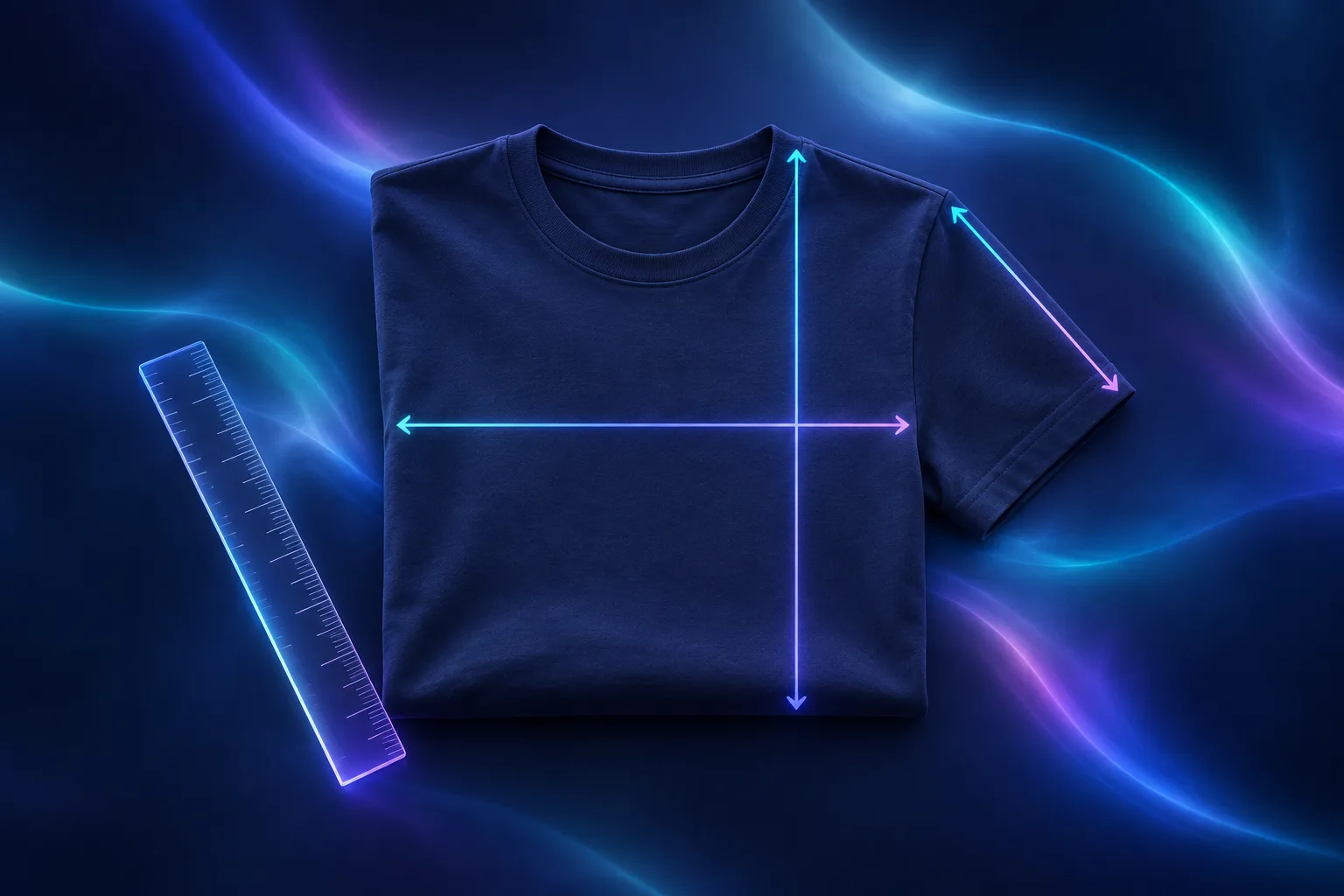
Expected result: each chart has three to five columns that align directly with labelled lines in the guide.
3. Measure one sample the same way every time
Lay the garment flat on a smooth surface. Close buttons or zips, gently smooth rather than stretch the fabric, and take the tape straight across the indicated points. Record the method before someone measures the next sample.
For example, chest width is often measured from underarm seam to underarm seam and shown as a flat width. If you intend shoppers to compare a circumference, say whether they should double that value. That small clarification removes a surprisingly common source of conflicting expectations.
If a fabric is intentionally oversized, cropped, elastic, or heavily washed, add a short fit note. The note is not an apology; it is the context the table cannot provide by itself.
Expected result: the values in the chart and the guide reflect the same repeatable method, even if another teammate measures later.
4. Build a measurement guide alongside the chart
In Supra Size Chart, create the chart in the spreadsheet-style editor, set the unit for each column, and add any measurement note your shopper needs. Then pair it with a labelled measurement guide. The app provides garment silhouettes and reusable measurement lines, so the guide can show the exact points represented by the table rather than leaving the shopper to infer them.
Use a separate guide when the measuring logic changes. A tee and a dress can share a visual system, but a pair of trousers with an inseam should not inherit a sleeve measurement just because the chart layout was convenient. This is also why reusable product information needs intentional targeting: planning tabs around shopper decisions offers a helpful way to separate shared questions from product-specific ones.
Expected result: hovering or reading a measurement name gives the shopper a visible, unambiguous point on the garment silhouette.
5. Attach the chart by the catalog rule that will survive new products
Avoid pasting a chart into every product description. Instead, assign the finished chart to a product, collection, product type, vendor, or tag. A collection rule is useful for a uniform basics line; a product-type or tag rule works when the same fit logic appears across collections. Use a product-specific rule for an exception. Supra Size Chart resolves the most specific applicable rule first, with a store-wide default available underneath.
This structure also keeps measurement guides from drifting after a catalog update. The same habit matters for other catalog choices: when a collection has colour variants, auditing swatch rules before editing the product template can help you make the display rule explicit.

Expected result: a newly added product that matches the intended collection, type, vendor, or tag already has the right size guide.
6. Choose a display mode, then test it on a phone
Add the theme app block to the product template and choose the presentation that suits the page: an inline table for a product with few details, an accordion when the page is already dense, or a modal trigger when you need to keep the purchase area compact. The block uses your theme’s text colours, so test both your light and dark storefront contexts if your theme supports them.
Open the product on a real phone or responsive preview. Confirm that the table can be read without horizontal confusion, the guide opens, and the metric/imperial toggle is available if your customers need it. A shopper who measures in centimetres should not have to calculate inches before deciding. For a shopper-focused explanation of what to measure before choosing, see this measurement primer.
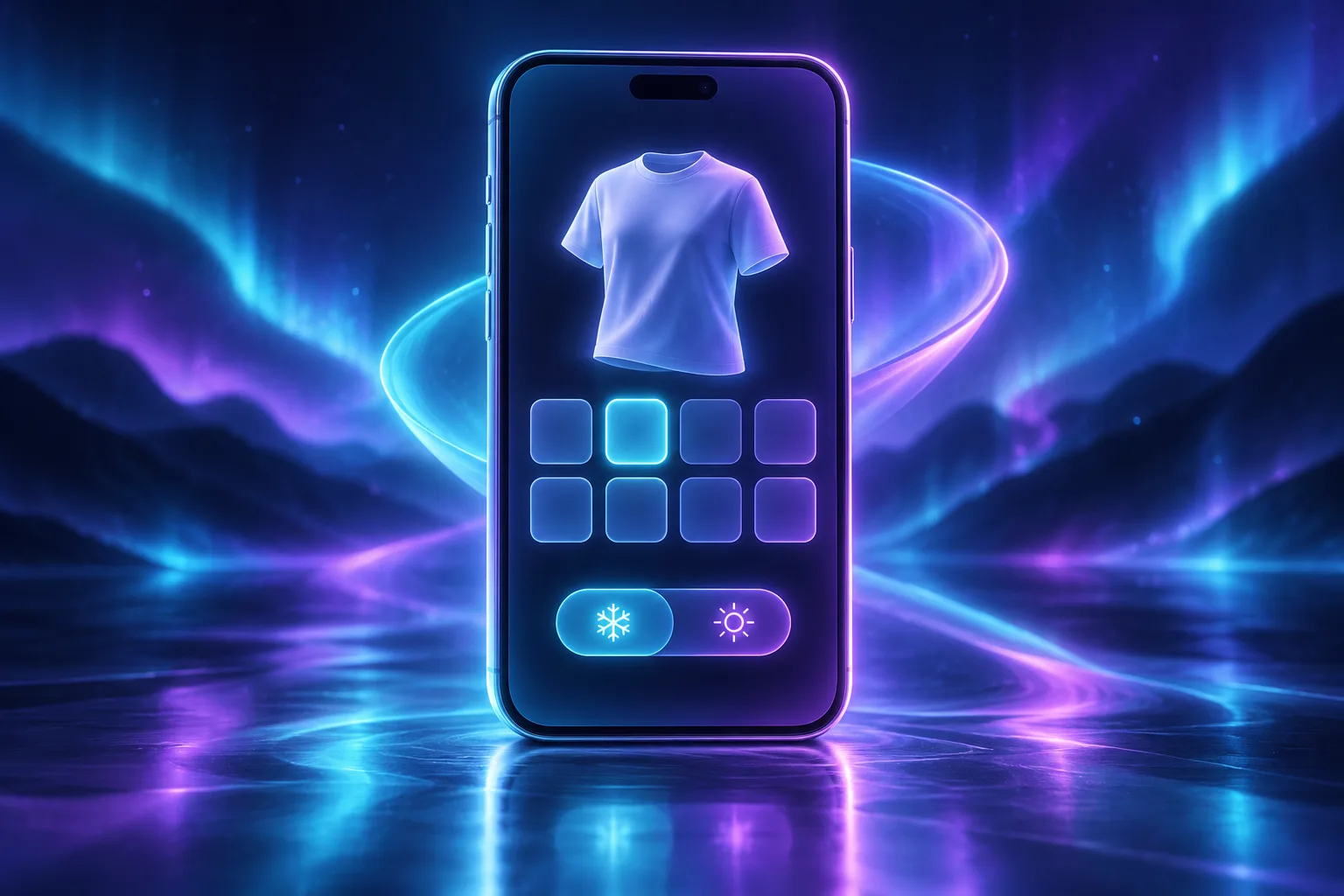
Expected result: the size guide is readable at the decision point, not hidden behind a support ticket.
7. Run a small release check before rolling out the rule
Choose one ordinary product and one awkward case: a sale item, a different fabric, a new collection arrival, or a product with a product-specific exception. Check that the right chart appears, the measurement guide matches the garment, and the display mode feels natural next to the add-to-cart area. Export the chart as CSV or JSON if you need a portable copy of the values.
If you are still managing size tables inside product HTML, move one fit family first. Supra Size Chart on the Shopify App Store is free and gives you unlimited charts, guides, rules, display modes, and CSV/JSON export. Build the first guide, attach one rule, and let that pilot show you which labels need refinement before you cover the catalog.
A useful size chart is not a larger table. It is a simple agreement: these are the values, this is where they are measured, and this is the product family they describe. Make that agreement visible on the product page, then reuse it wherever the same fit applies.