
June 1, 2026
How to Replace Webflow Hosting With GitHub Pages Using ExFlow
Export a Webflow site with ExFlow, verify the static files, and publish the result to GitHub Pages without rebuilding the design.

How to Replace Webflow Hosting With GitHub Pages Using ExFlow
If your Webflow site is already finished and you only need a clean way to serve it, GitHub Pages is a practical destination. ExFlow lets you export the site as static files, keep the CMS output intact, and move the build into a repo you can host cheaply.
This guide follows the simplest path:
- export the right Webflow assets
- verify the generated files
- move the result to a GitHub Pages repo
- check the pages and media before you call it done
1) Export the right parts of the site
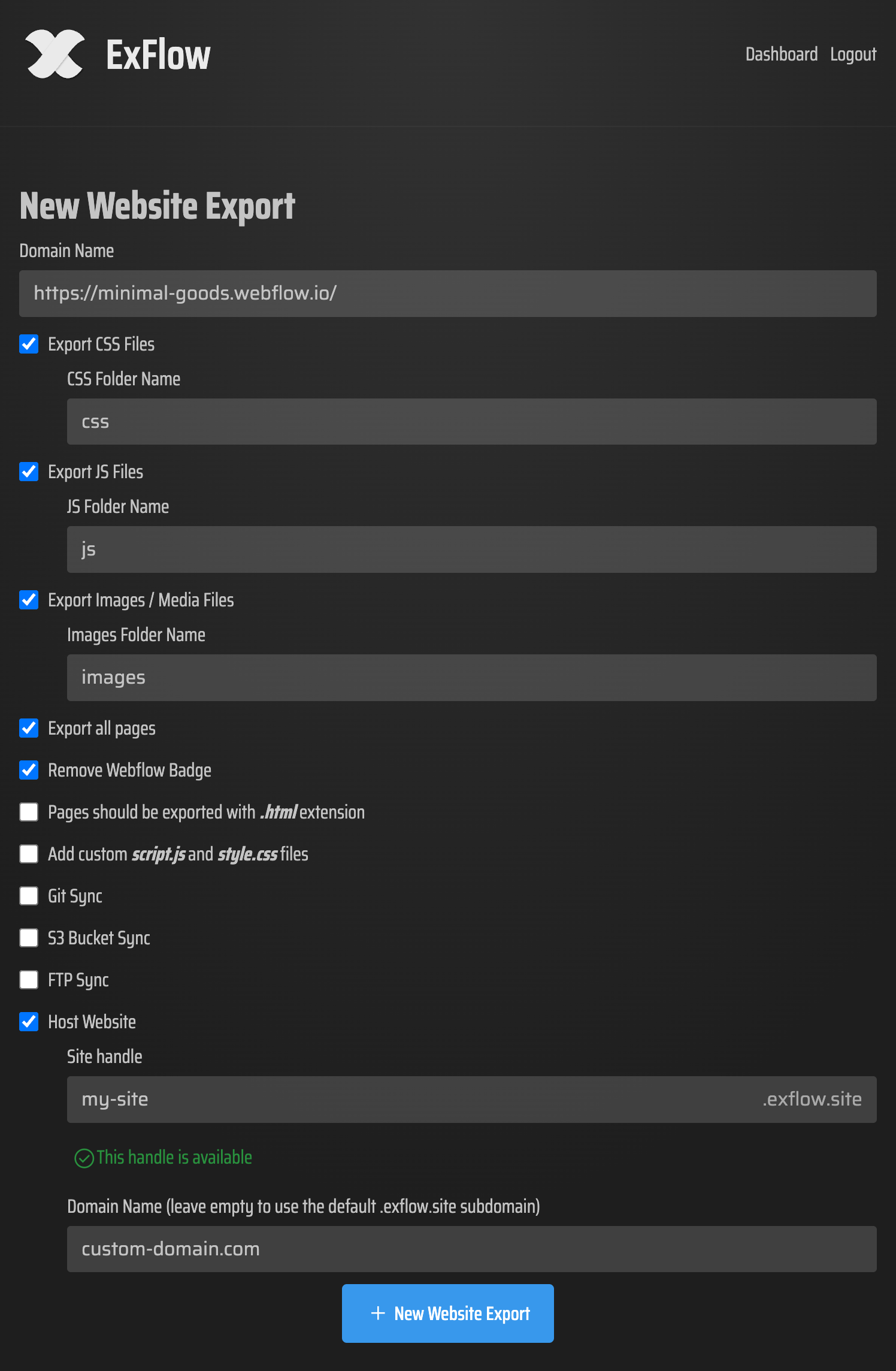
Start by entering the Webflow site URL in ExFlow. The settings I care about are the ones that preserve the public site, not just the pretty parts:
- URL
- Export CSS Files
- Export JS Files
- Export Images / Media Files
- Export All Pages
- Remove “Made with Webflow” Badge
- .html page output
- script.js and style.css if you need custom additions
If you want the repo to update automatically, ExFlow can also sync to Git. That matters if you prefer a repeatable export instead of downloading files manually every time the design changes.

The screenshot above is worth checking before you export. If you forget images or page output, GitHub Pages will faithfully serve a broken site.
2) Verify the exported bundle before you publish
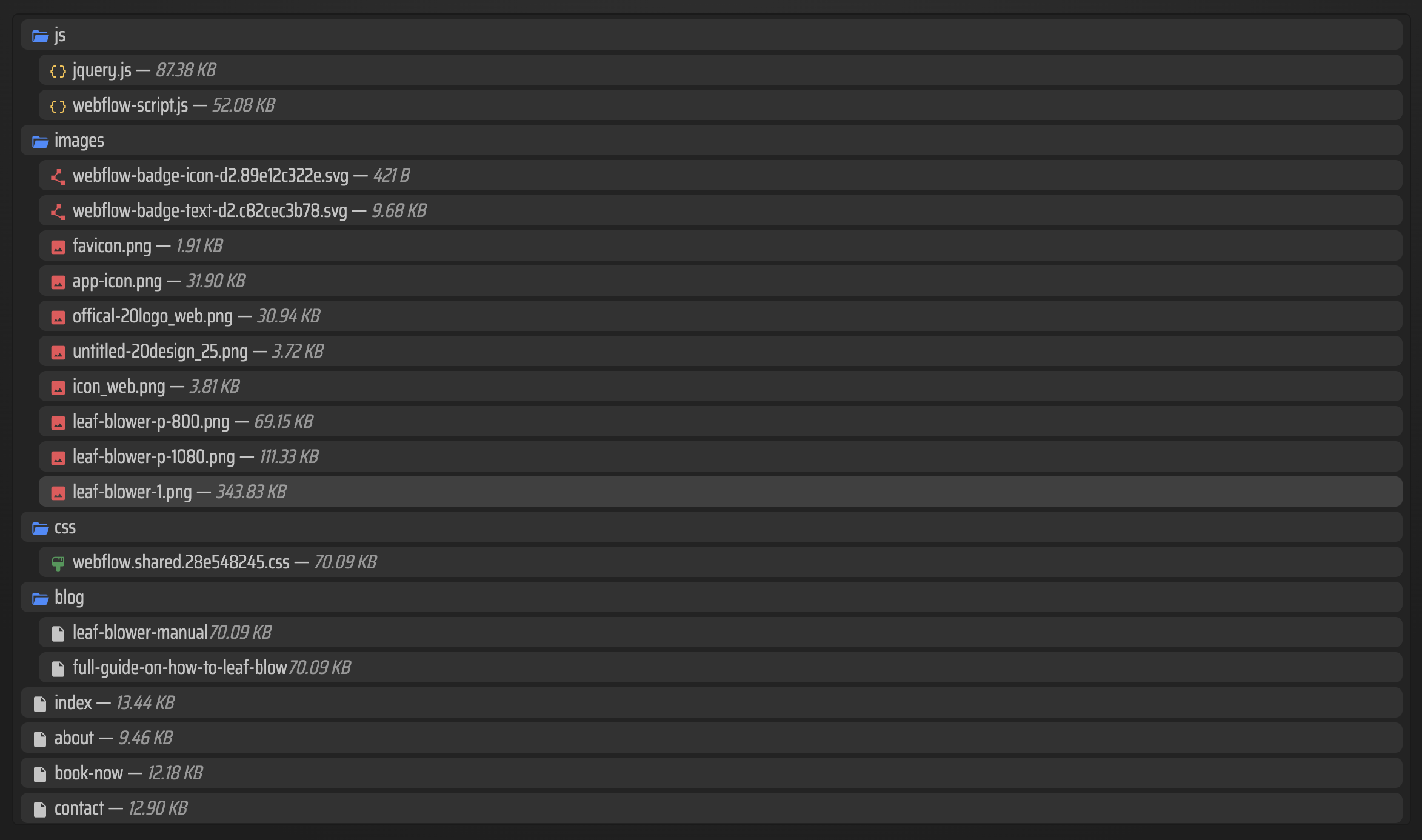
A Webflow export should feel boring when you open it. You want a predictable folder of HTML, CSS, JavaScript, and media files.

Check for three things:
- Every public page exists as an .html file.
- CSS and JS files are present and referenced relatively, not with local machine paths.
- Images and media assets actually made it into the bundle.
If you see missing assets here, fix the export settings before you ever touch GitHub Pages. That saves you from debugging a deployment problem that is really just an export problem.
For a deeper comparison of the failure modes, I also covered how to export a Webflow CMS site without losing dynamic content.
3) Move the files into the GitHub Pages repo
Once the export looks right, put the files into the repository that GitHub Pages serves.
You can do that in two ways:
- download the export and commit the generated files yourself
- use ExFlow’s Git sync so the export lands in the repo automatically
If you are doing this manually, keep the exported file tree intact. Do not rename the generated HTML files unless you are deliberately changing the public URLs.

This is also where ExFlow helps if you want to keep the workflow repeatable. A rerun should produce the same public structure, which makes it much easier to compare changes after a Webflow edit.
If you want the same migration framed as a hosting move, I covered moving a Webflow site to GitHub Pages with ExFlow and hosting a Webflow CMS site on GitHub Pages with ExFlow as separate guides.
4) Turn on GitHub Pages and validate the live site
After the files are in the repo, enable GitHub Pages for the branch or folder that contains the exported site.
Then verify the live result in this order:
- open the homepage
- click through a few internal pages
- check that images load from the deployed site, not from a local path
- confirm the badge, custom CSS, and custom JS appear exactly as expected
The exported site should behave like a static mirror of the public Webflow experience. If a page 404s, check the generated file name first. If an asset is missing, check whether Export Images / Media Files was enabled.
The file list view below is the fastest way to spot whether the export included the pieces you need.
5) Know when GitHub Pages is the right target
GitHub Pages works best when the site is mostly static after export and you want a simple hosting target.
Choose another ExFlow destination if you need something else:
- S3 if your deployment already lives in AWS
- FTP if your server still expects classic uploads
- hosted delivery on ExFlow if you want the export managed on their side
The key point is that Webflow does not have to remain your host just because it is where the design was built.
If you are comparing nearby static-export workflows, the same mindset shows up in Framer exports to HTML and Squarespace exports to HTML.
Wrap-Up
If you want to get off Webflow hosting without rebuilding the site, the practical path is simple: export the full site with ExFlow, confirm the static files look right, and publish them to GitHub Pages.
Start with one export, inspect the generated file tree, and only then push it live. That sequence catches most problems before they become a public deployment.