
July 24, 2026
How to Export a Framer Site Without Breaking Links or Assets
Export a Framer site to static HTML, CSS, JS, and assets with ExFlow, then host it on GitHub Pages, S3, or FTP.
How to Export a Framer Site Without Breaking Links or Assets
If you need to move a Framer site out of hosted Framer delivery and into your own stack, the real risk is not the export button. The usual failures are missing pages, broken asset paths, and custom code that stops working once the site becomes static files.
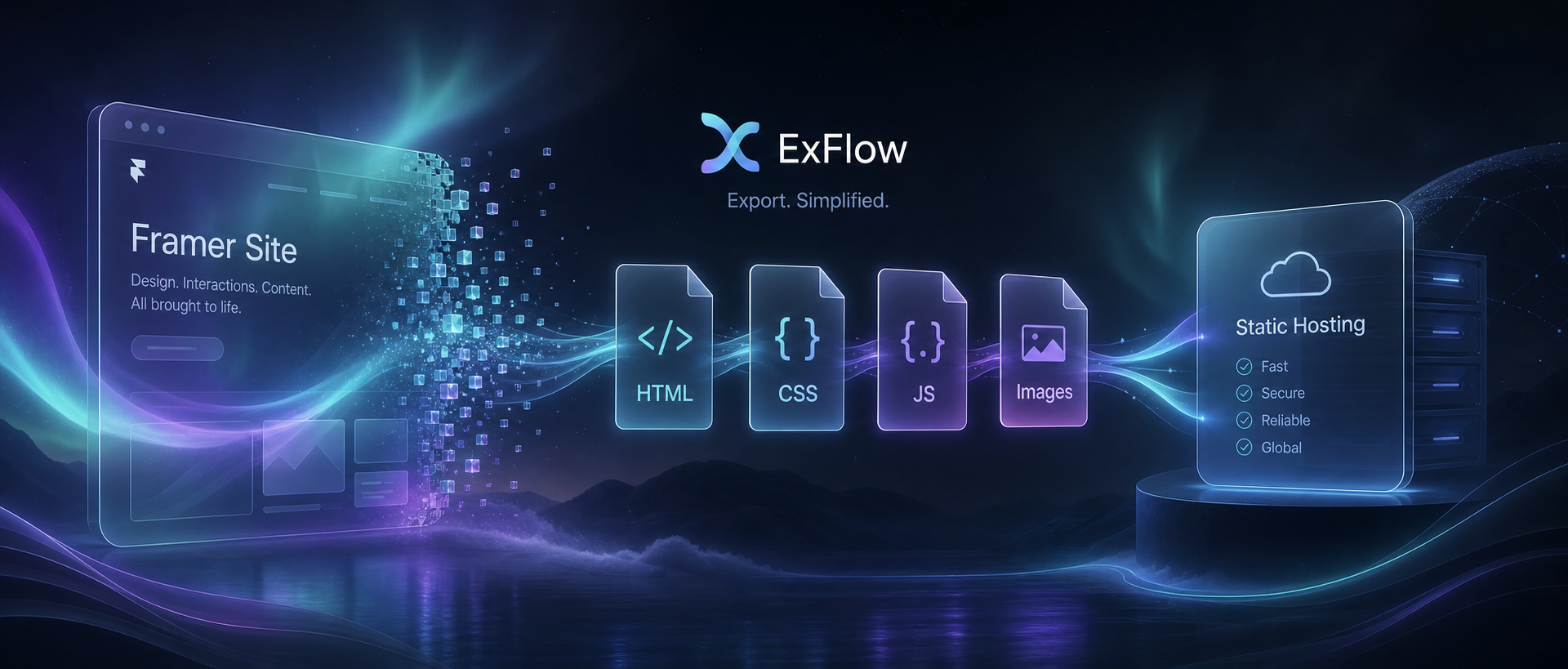
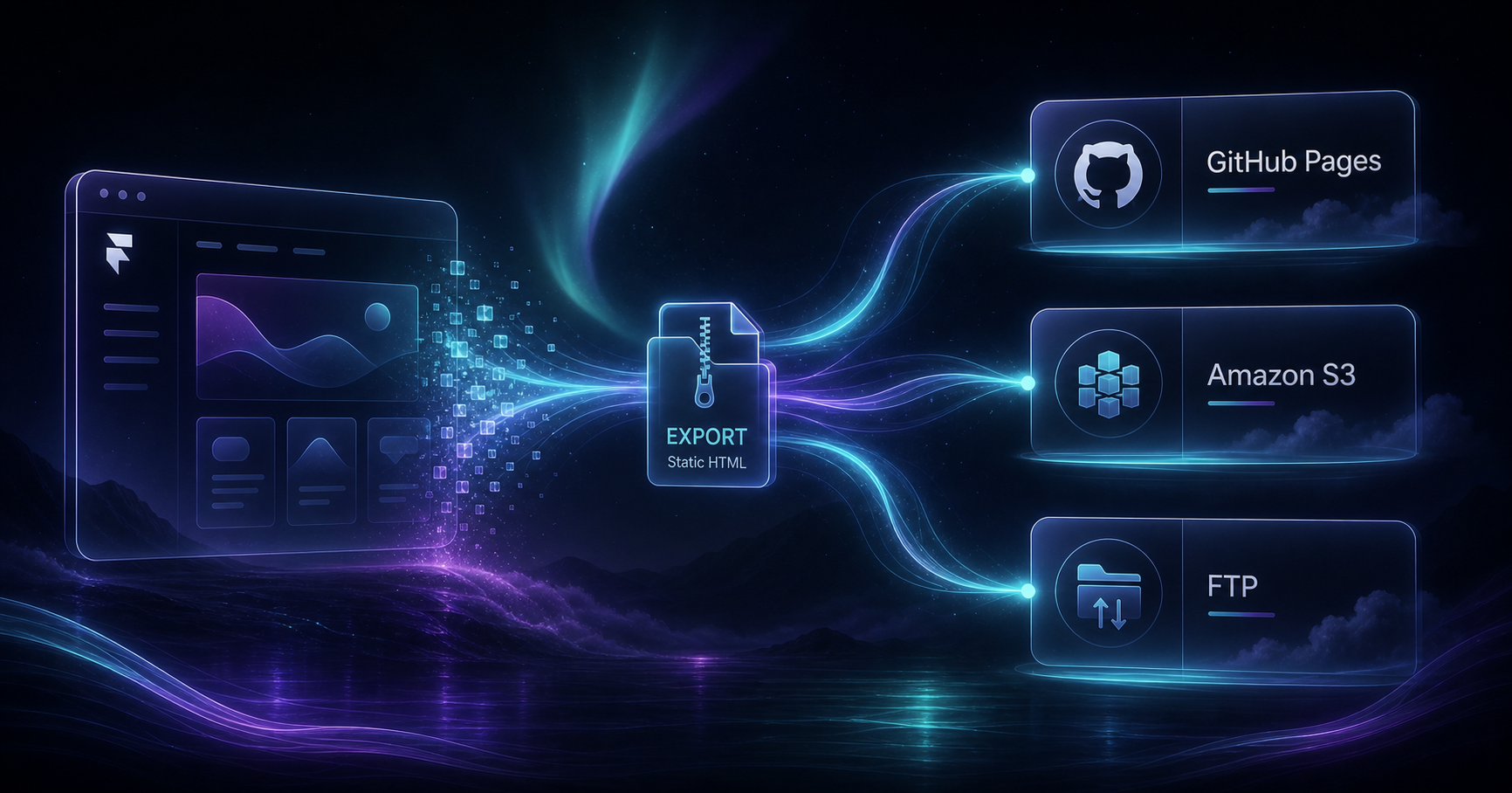
ExFlow.site is built for that handoff. It exports a Framer URL as static HTML, CSS, JS, and media assets, and it can also sync the result to Git, S3, or FTP if you want the export to land directly in a hosting pipeline.
This guide walks through a practical workflow: prepare the site, export it, inspect the output, host it, and verify the live pages before you switch traffic.
1. Decide what should leave Framer
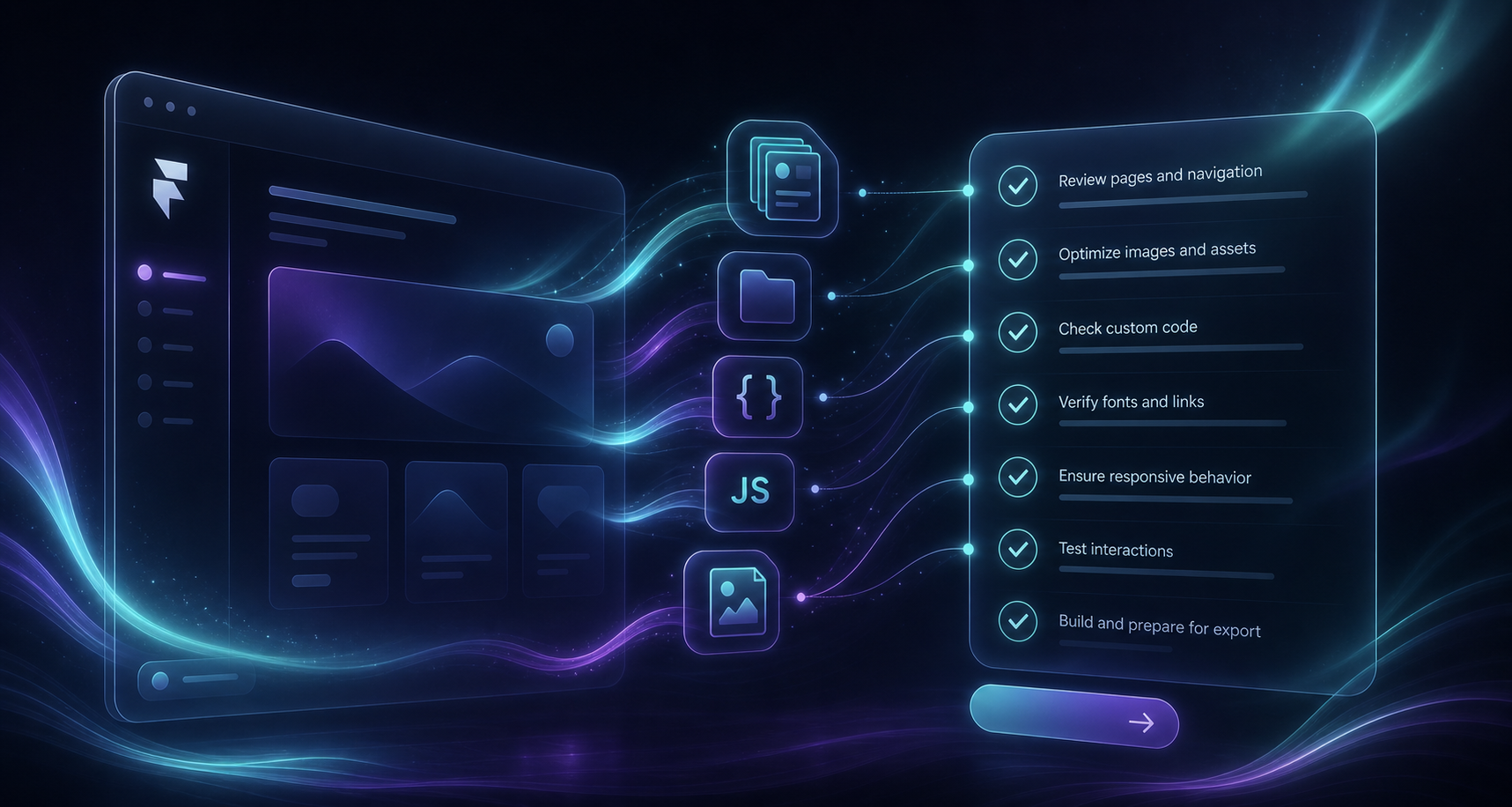
Before you export, decide which pages and components must survive the move. Good candidates are landing pages, pricing pages, blog indexes, and any page that gets traffic from ads or search. If the site has experimental drafts or hidden pages, decide whether they belong in this export or should stay behind.
The reason to do this first is simple. Static export only helps if the exported bundle matches the pages you actually need. If you are already trimming the site for a cleaner handoff, this is also the right time to confirm which custom scripts, styles, and media files are still required.
Expected result
You know exactly which pages and assets should appear in the export bundle, and you are not guessing after the download is finished.
2. Configure ExFlow with the settings you actually need
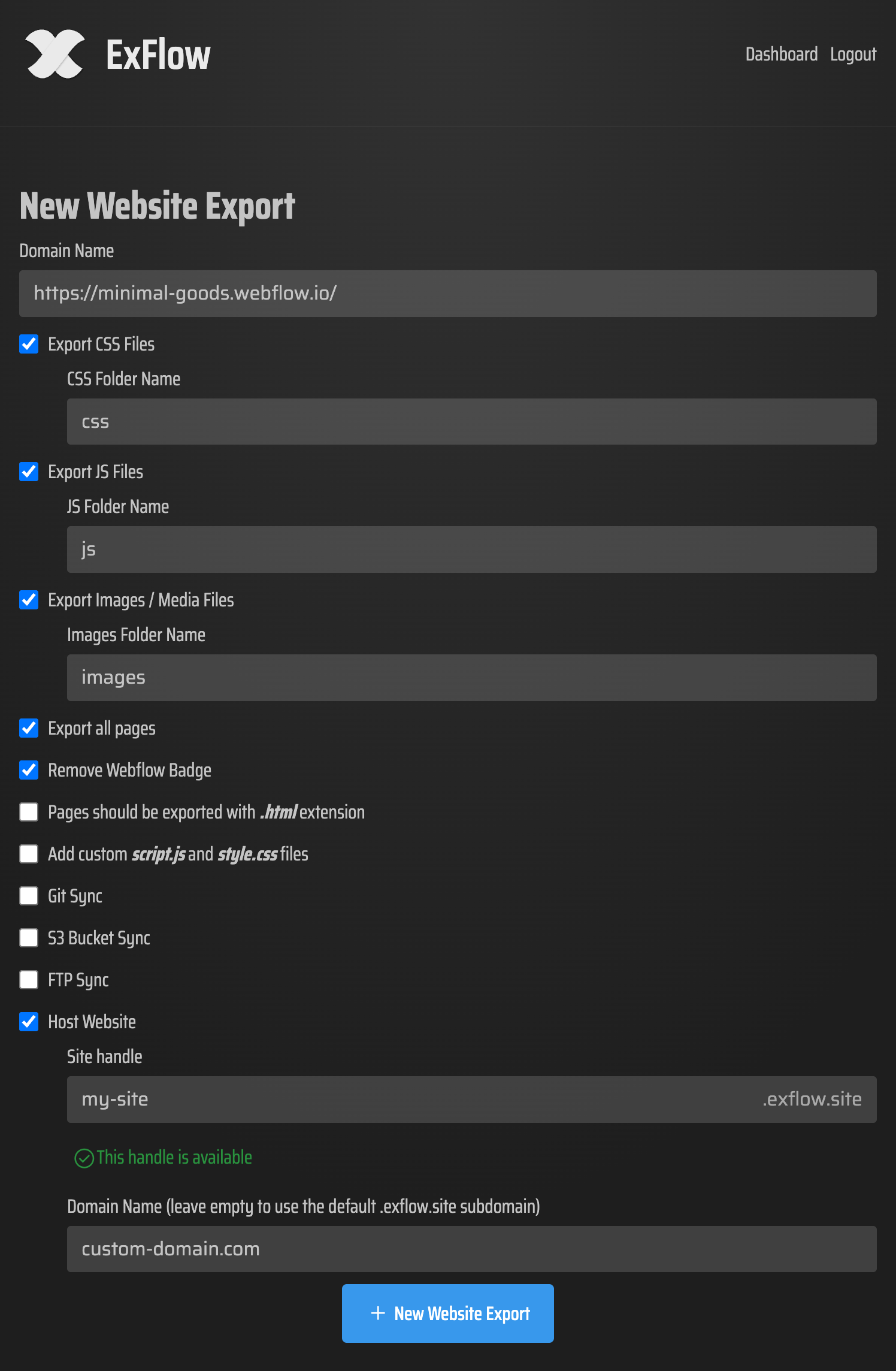
Open ExFlow.site and enter the Framer site URL. Then choose the export settings that match the destination:
- Export CSS files
- Export JS files
- Export images and media files
- Export all pages
- Remove the Made with Framer badge if you do not want it on the static copy
- Add a custom script.js or style.css only if the site depends on extra code after export
If you plan to sync the output instead of downloading it manually, set the Git, S3, or FTP connection now. Only do that on a trusted machine, because those credentials are sensitive.
The key detail is to think about the export as a site handoff, not a file dump. If you forget images or media files, the HTML can look correct in the file tree but broken in the browser. If you forget page coverage, the homepage may work while deeper pages 404.
Expected result
ExFlow is configured to export the same pages and assets the live Framer site depends on.
3. Export, then inspect the bundle before you host it
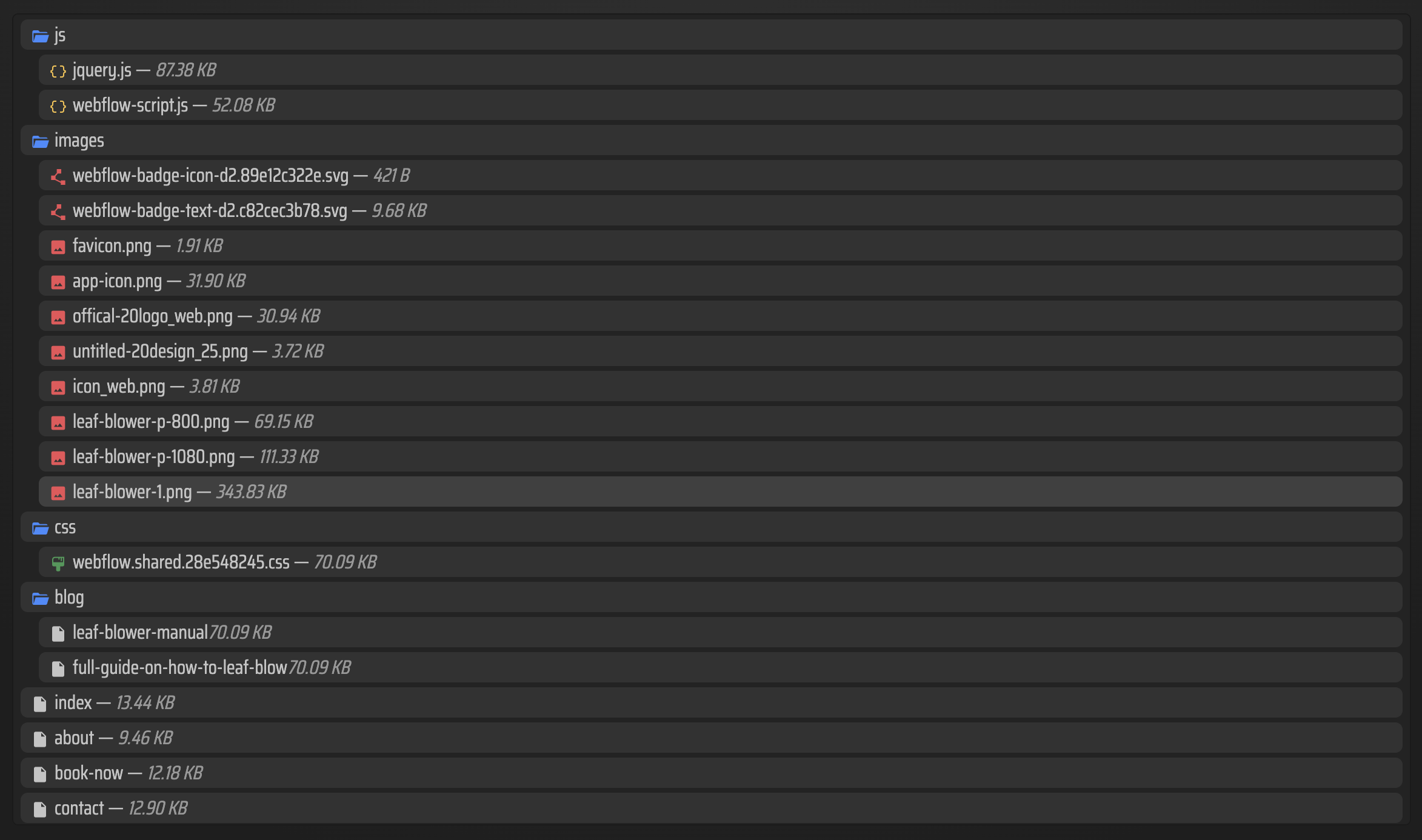
Once the export finishes, open the downloaded bundle or the synced repository and check three things immediately:
- Every page has an .html file where you expect it.
- CSS, JS, images, and media assets are present.
- Links inside the exported pages still point to the right files and routes.
This is the best place to catch path problems before they become public issues. A Framer site often depends on nested assets, shared styles, and page routes that do not fail loudly until the static host serves them.
If you have exported other builders before, the review pattern is the same as the one I use in How to Export a Webflow Site to Static HTML with ExFlow, How to Download a Webflow Site and Host It Yourself with ExFlow, and the Framer-specific checklist in How to Export a Framer Site to Static HTML Without Rebuilding It: verify the file tree first, then open the pages in a browser, then fix missing assets.
Expected result
You can point to the exact exported files that will be deployed, and nothing important is still hidden behind the original Framer runtime.
4. Pick the hosting target before you move traffic
ExFlow can hand the exported site off in a few different ways. For a simple static deployment, GitHub Pages is usually the easiest if you already keep the site in Git. S3 is a good fit if you want object storage with predictable static hosting. FTP is the old-school option when you are pushing to an existing server.
If you want ExFlow to host the exported site for you, that is available too. That can be useful when you want to keep the export and hosting workflow in one place before moving the site to a longer-term setup.
The important thing is to choose one destination and verify it end to end. Do not export to one place, edit another copy somewhere else, and then wonder which version is live.
Expected result
You have one deployment target and one clear path from export to public URL.
5. Verify the live site like a user would
Open the public URL and test the same things your visitors will touch:
- The homepage loads without broken layout shifts.
- Deeper pages return the right HTML file.
- Images, icons, and media files resolve correctly.
- Any custom script.js or style.css changes still apply.
- The Framer badge is removed if that was part of your export settings.
If anything looks off, fix the export settings first instead of patching around the output by hand. That keeps the static copy aligned with the source Framer site and makes future re-exports easier.
This is also where the comparison with other platforms becomes useful. The same export-and-verify habit applies to How to Export a Squarespace Site to HTML and Host It Yourself, How to Export a Squarespace Site to Git, S3, or FTP Without Rebuilding It, and the Webflow migration guides that use ExFlow for static handoff.
Expected result
The static site behaves like the Framer site you intended to publish, without broken routes or missing assets.
6. Keep the first export small and repeatable
A clean first export is better than a perfect one you cannot reproduce. Start with one site, one host, and one pass through the workflow. Once you know the bundle matches the live Framer pages, you can automate the sync path or expand the process to more projects.
That is where ExFlow is most useful as a Framer downloader and Framer exporter: it gives you a repeatable way to get static files out of a design tool and into a hosting target you control.
Troubleshooting
- If a page is missing, confirm Export All Pages was enabled.
- If images are missing, make sure Export Images / Media Files was enabled.
- If CSS is missing, re-run with Export CSS Files.
- If custom behavior disappeared, add the needed script.js or style.css files.
- If a sync target fails, recheck the Git, S3, or FTP credentials on a secure machine.
Conclusion
If your Framer site is ready to move, ExFlow.site gives you a straightforward path to static HTML, asset files, and optional hosting sync. Start with one export, verify the public copy, and only then cut over traffic.
Possible next step: export your highest-traffic Framer page first, host it on GitHub Pages or S3, and compare the live result side by side with the original before you migrate the rest.