
June 18, 2026
How to Set Up a Guardrailed Shopify AI Assistant for Daily Reports and Alerts
A step-by-step guide to building a scoped Shopify AI assistant for daily reports, alerts, cleanup, and support with Clawly.

How to Set Up a Guardrailed Shopify AI Assistant for Daily Reports and Alerts
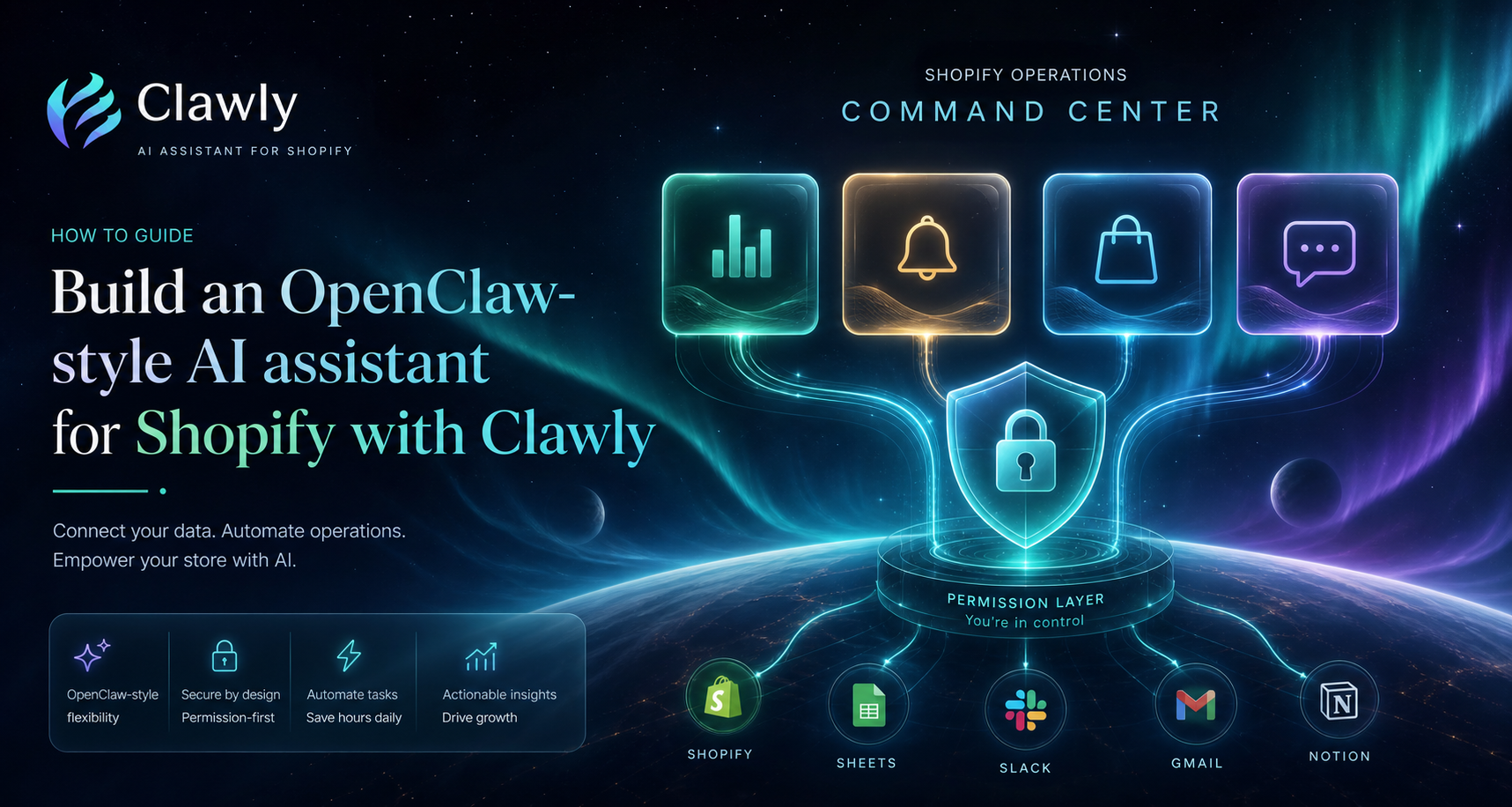
If you want an AI assistant that helps with store operations without wandering through the whole admin, Clawly is the right starting point. It is positioned as an OpenClaw for Shopify: describe the assistant, connect only the tools it needs, and control what it can read or change. The Clawly landing page and Shopify App Store listing show the product from two angles, but the real value comes from a narrow workflow.
This guide walks through one practical setup: a daily report assistant that can later support low-inventory alerts, product cleanup, and support drafts once the first pass is stable. The point is not full autonomy. The point is a scoped assistant that saves time and still leaves a human in charge.
1. Pick One Workflow That Already Has a Clear Owner
Choose a repetitive task that already exists in your store.
A good first task is a daily sales report, a low-inventory alert, or a support draft that a person can review before it is sent. You can also start with product cleanup if your catalog already has stale titles, tags, or descriptions.
If you want a companion example, How to Build a Shopify AI Agent for Daily Store Operations uses the same one-job-first rule.
When this step is done, you should be able to say exactly when the assistant succeeded.
2. Write the Instruction Like a Work Order
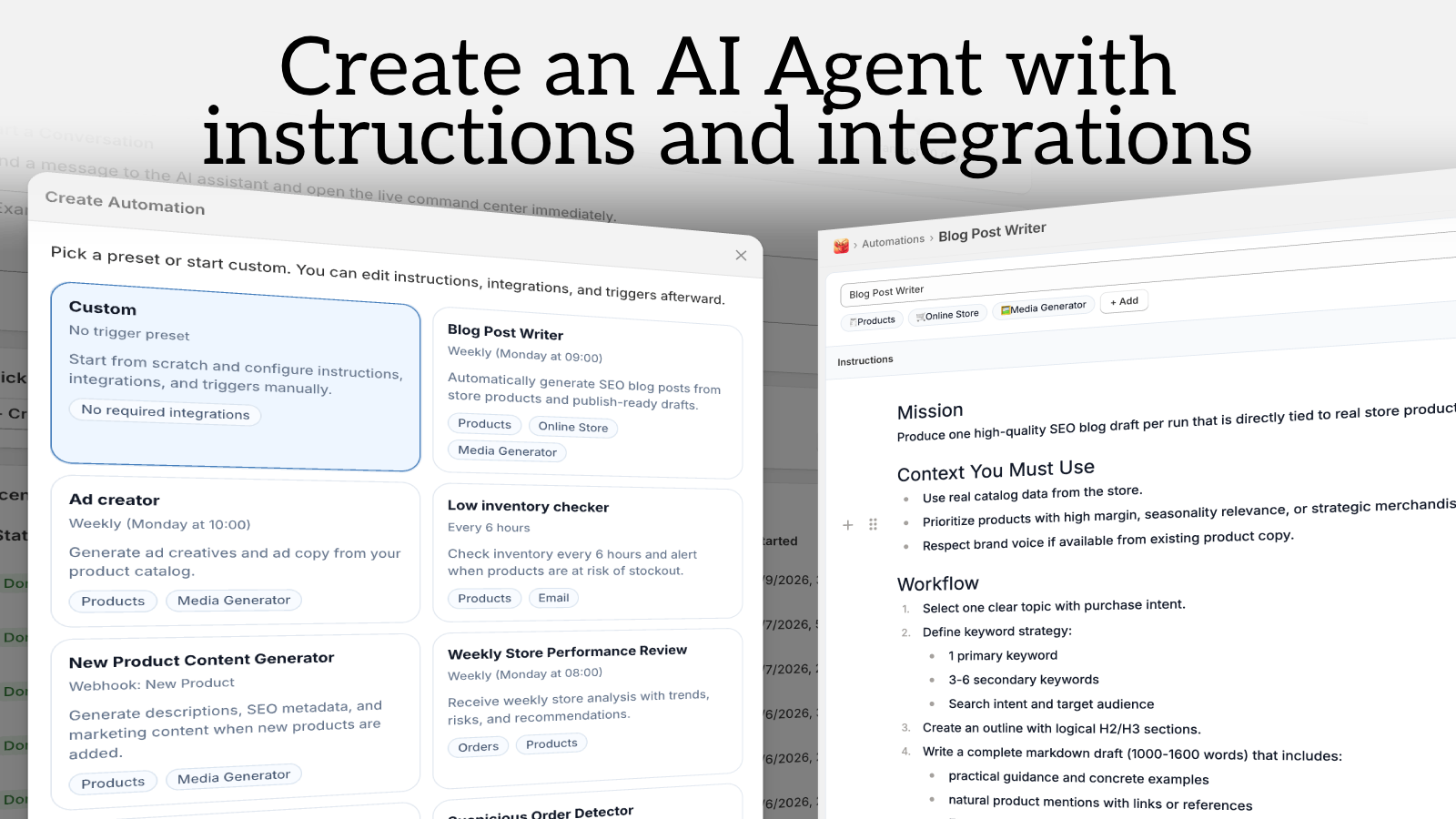
Clawly lets you create an AI Agent for Shopify by describing what the assistant should do. Keep that instruction short and concrete.
Read the store data I ask for.
Summarize the changes that matter.
Only modify records when I explicitly allow it.
If the task needs a decision, notify me instead of guessing.
That wording gives the agent a job boundary. It also makes later review easier because the assistant is not improvising.
When this step is done, the assistant can explain its scope in plain language.
3. Connect Only the Integrations You Need
The product can connect to Shopify plus tools like Products, Orders, Google Sheets, Gmail, Slack, Notion, Instagram, Meta Ads, and Klaviyo. Do not turn on everything at once.
For a daily report, start with Shopify and one place to deliver the result. For support drafts, add order context and your inbox tool. For product cleanup, add the data source you already trust and a review channel.
If you are automating content tasks too, How to Automate Shopify Blog Posts Without Generic AI Content is a good reminder to keep the product context intact.
When this step is done, the assistant has enough data to be useful without extra access it does not need.
4. Set Permissions Before You Trust the Agent
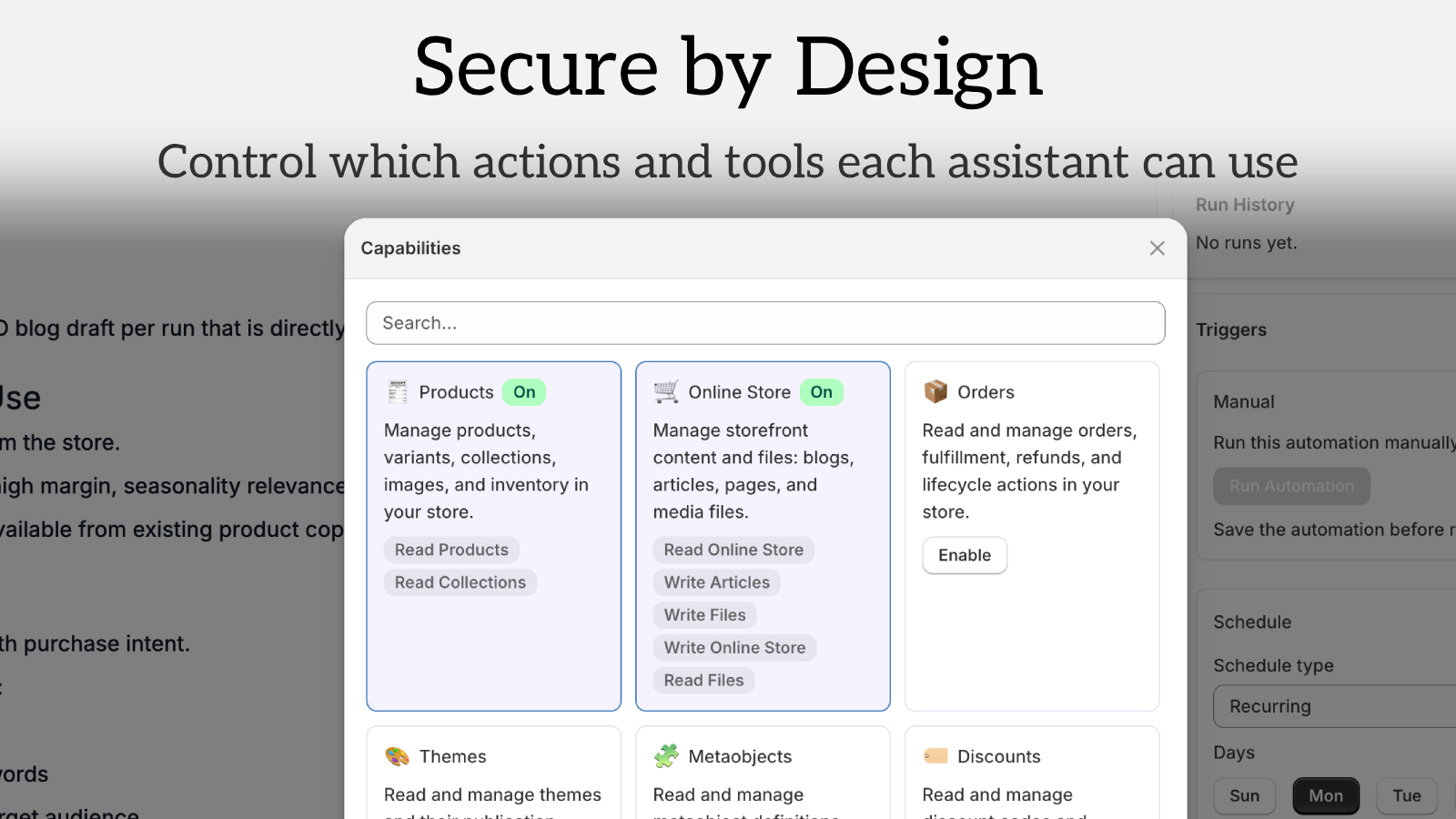
This is where Clawly feels different from a generic chatbot. The guardrail is not a policy note after the fact. It is part of the setup.
Use the most restrictive set of permissions that still lets the workflow run. Read access is fine for reporting. Write access should stay narrow until you have verified the assistant against real store data.
The Secure by Design screenshot is the right mental model: allowed actions on one side, blocked actions on the other. If you need a companion workflow, How to Bulk Edit Shopify Products Safely With Search, Scheduling, and Field-Level Changes shows why field-level control matters when changes hit real products.
When this step is done, you know exactly what the assistant can and cannot touch.
5. Turn the First Run Into a Daily Report
The best first automation is usually boring. A daily report or low-inventory alert tells you what changed without making risky edits.
Have the assistant answer five things:
- what changed since yesterday;
- which products need attention;
- whether inventory is getting tight;
- whether anything looks unusual;
- whether a person should review the output.
That checklist gives you a predictable review habit. It also makes it easy to compare the first run against the next one.
If you are building adjacent marketing workflows later, How to Build a Repeatable Shopify Image Workflow From One Product Shot follows the same pattern: define the output first, then automate the repeatable parts.
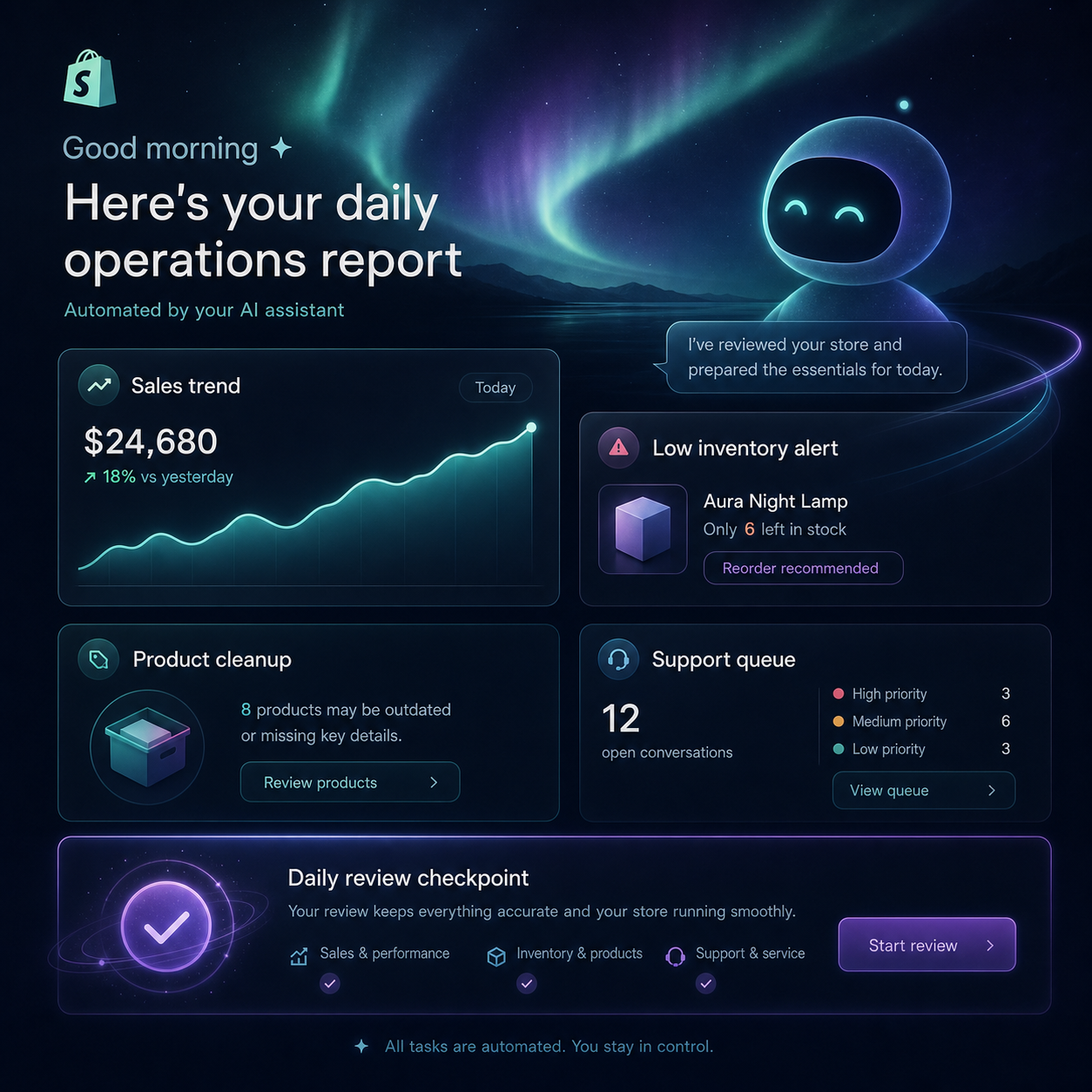
When this step is done, you should be able to scan the output in a minute and immediately know whether to act.
6. Expand One Lane at a Time
Only after the report feels stable should you add another job. The safest order is usually:
- daily report;
- low-inventory alerts;
- product cleanup;
- support drafts;
- marketing handoff.
That sequence keeps the assistant useful while the blast radius stays small. It also makes failures easier to debug because you changed one thing at a time.
For another example of staged rollout, How to Schedule Shopify Blog Posts Without Losing Product Context shows the same principle in a content workflow.
Bottom Line
Clawly works best when you treat it as a scoped Shopify AI assistant, not a free-form chatbot. Start with one boring workflow, connect the smallest useful set of tools, set permissions tightly, and review the first output before you expand.
If you want to try it, open the Clawly landing page or the Shopify App Store listing, then build one assistant for a daily report or low-inventory alert. That is the fastest way to see whether an OpenClaw for Shopify fits your store.